

What is the LLM Tab?
The LLM Tab is where you select and configure the intelligence behind your voice AI agent. Choose your language model provider, adjust response parameters, and connect knowledge bases for enhanced conversations.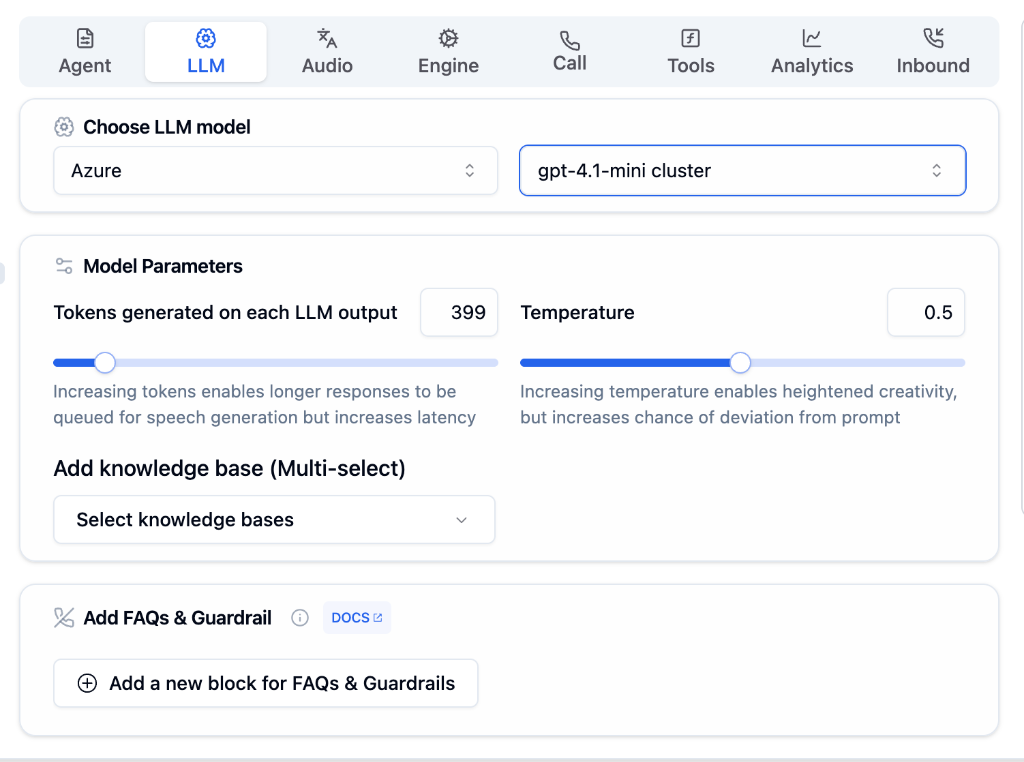
Configuration Options
Choose LLM Model
Select your AI provider and model for conversation intelligence.
Provider Selection
Choose from Azure, OpenAI, Anthropic, Groq, and more
Model Selection
Pick the specific model (e.g.,
gpt-4.1-mini cluster)Model Parameters
Fine-tune how your agent generates responses.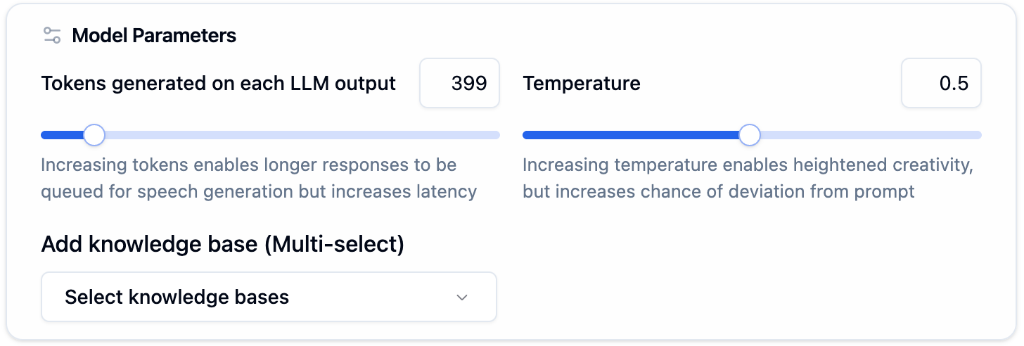
| Parameter | Description | Recommended |
|---|---|---|
| Tokens Generated | Max tokens per LLM output | 300-500 for concise responses |
| Temperature | Controls creativity/randomness | 0.3-0.5 for balanced responses |
Add Knowledge Base
Connect your knowledge bases to give your agent accurate, contextual information.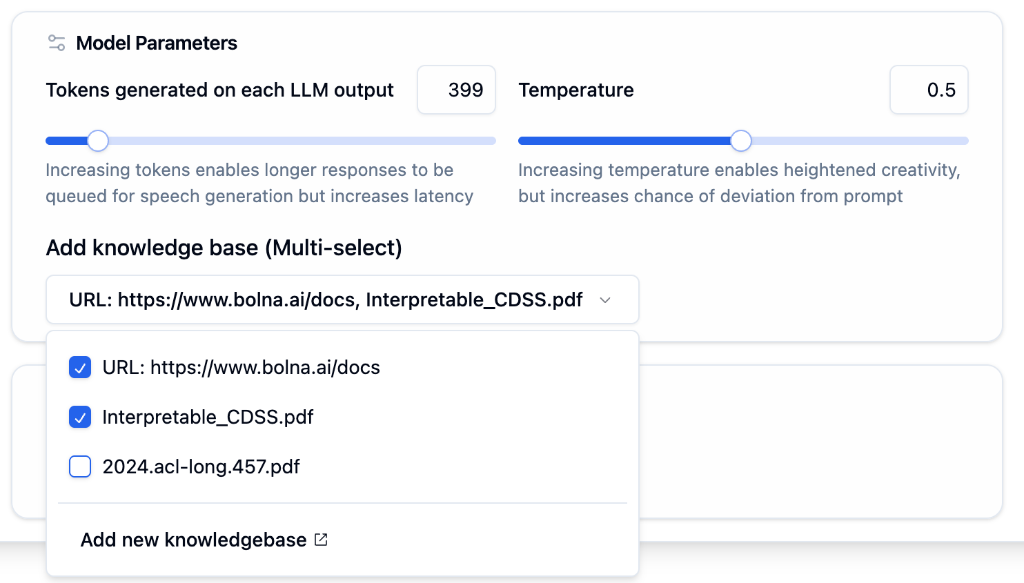
Knowledge bases enable your agent to answer questions with accurate, up-to-date information from your documents and URLs. Connect multiple knowledge bases for comprehensive coverage.
Add FAQs & Guardrails
Create structured responses and safety controls for your agent.
FAQs
Pre-defined answers to common questions that bypass LLM generation for faster, consistent responses
Guardrails
Safety rules that control inappropriate content and maintain professional boundaries
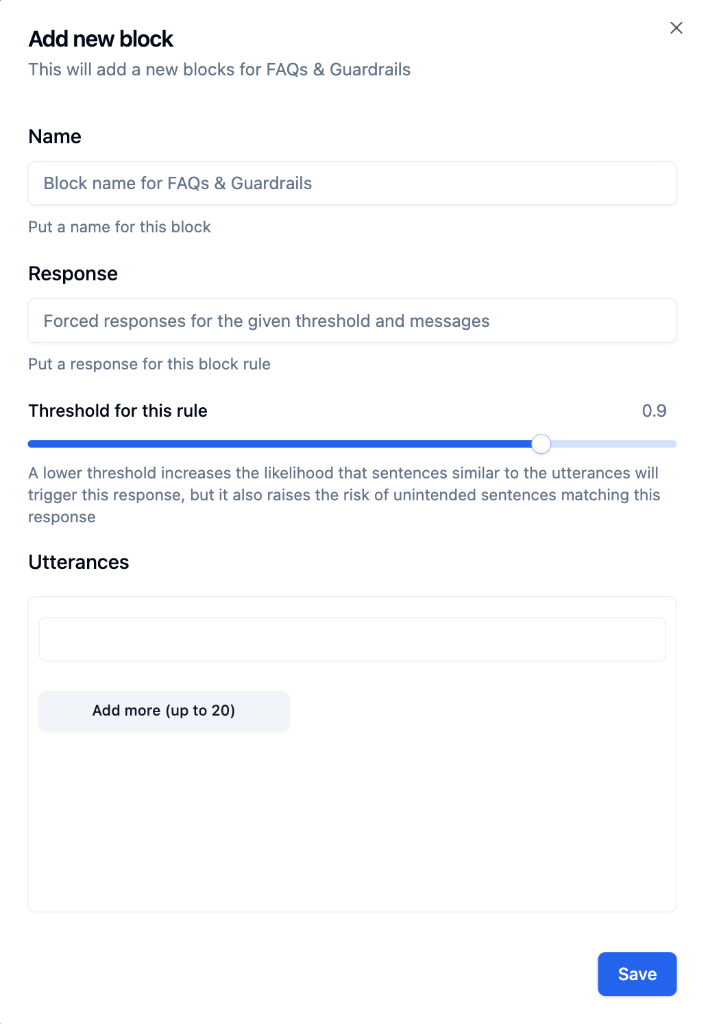
Configure Threshold
Set matching sensitivity (0.9 = strict, lower = more matches but may trigger unintentionally).
Learn more about Guardrails → to understand how to maintain professionalism, ensure compliance, and protect your brand during AI conversations.