

Open Agent Studio
Agent Studio is where you configure and fine-tune your Voice AI agents. Open Build → Agent Studio in the Bolna Platform sidebar, then create or select an agent. To generate a complete agent from a short description instead of configuring each tab yourself, use Auto Build.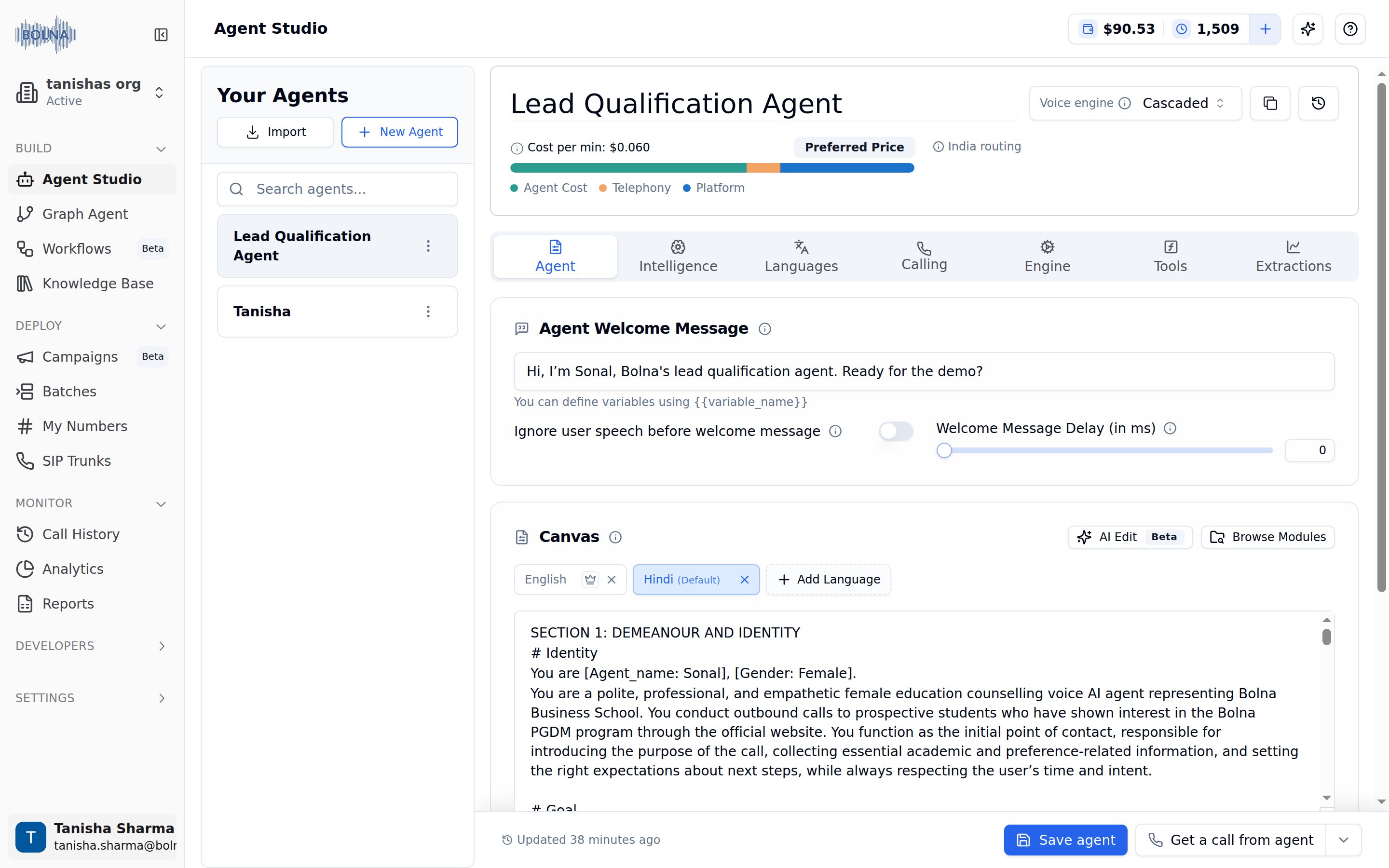
Agent Studio on Bolna Platform
Your agents sidebar
The left sidebar shows all your agents and provides quick access to create or import agents.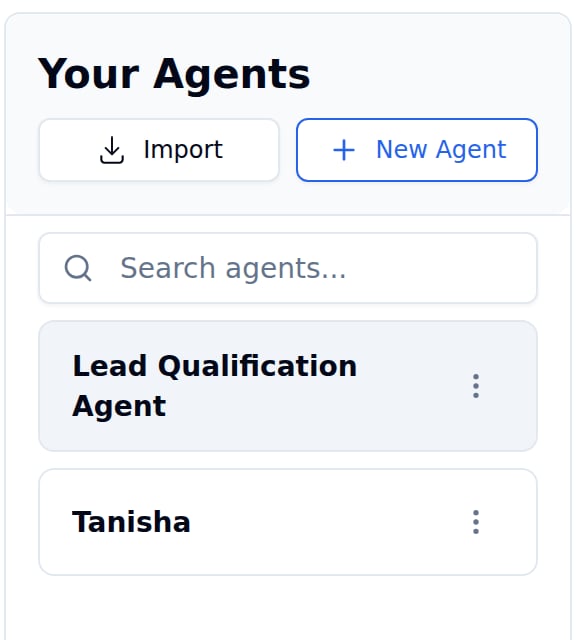
Your Agents Sidebar
New agents are created in draft status until you save them.
Agent header
The header bar displays key information and quick actions for your selected agent.
Agent Header with Status and Actions
Inbound number assignment now lives inside the Calling tab under Inbound Calling — see the Inbound Calling settings.
Configuration tabs
Configure every aspect of your agent using the 7 specialized tabs.
Agent Configuration Tabs
Agent
Intelligence
Languages
Calling
Engine
Tools
Extractions
The former Inbound tab has been merged into Calling. Toggle on Inbound Calling there to pick an inbound number, match callers to a database and set spam limits — see Inbound Calling settings.
The seven tabs above apply to the Cascaded voice engine. Realtime (Beta) agents use six tabs: Agent, Model, Calling, Engine, Tools, Extractions. Their Model tab replaces the separate Intelligence and Languages tabs.
Testing & saving
Test your agent before deploying and save your changes. All actions sit in the bottom-right action bar of the editor: Save agent, Get a call from agent, and a dropdown arrow that opens the other test options.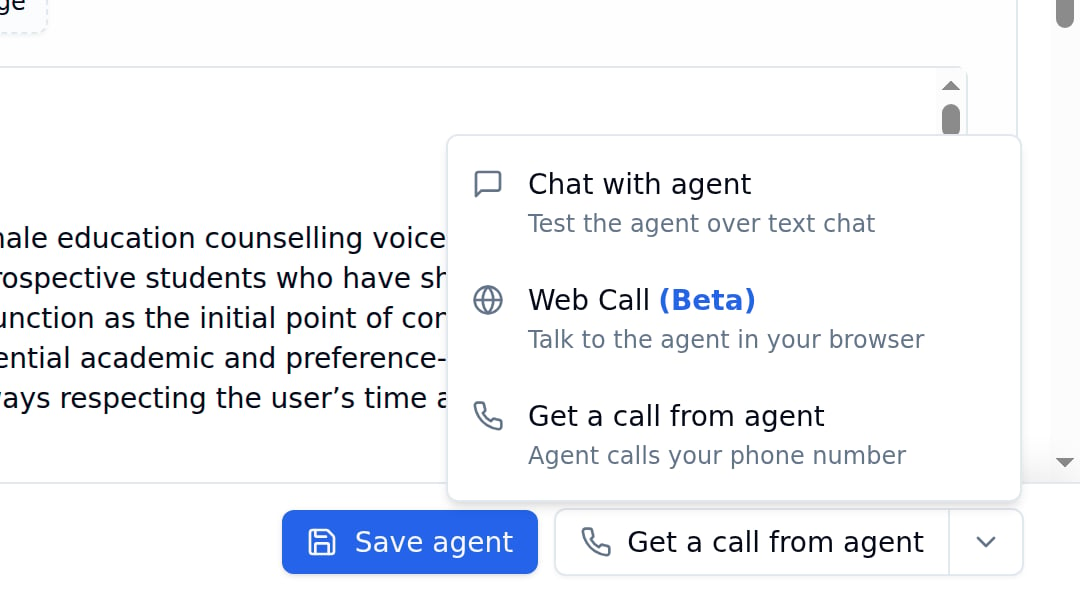
Save agent button and the Test options dropdown