

Overview
Bolna provides multiple ways to create a Voice Call Agent for automated phone calls. Choose the method that works best for your use case.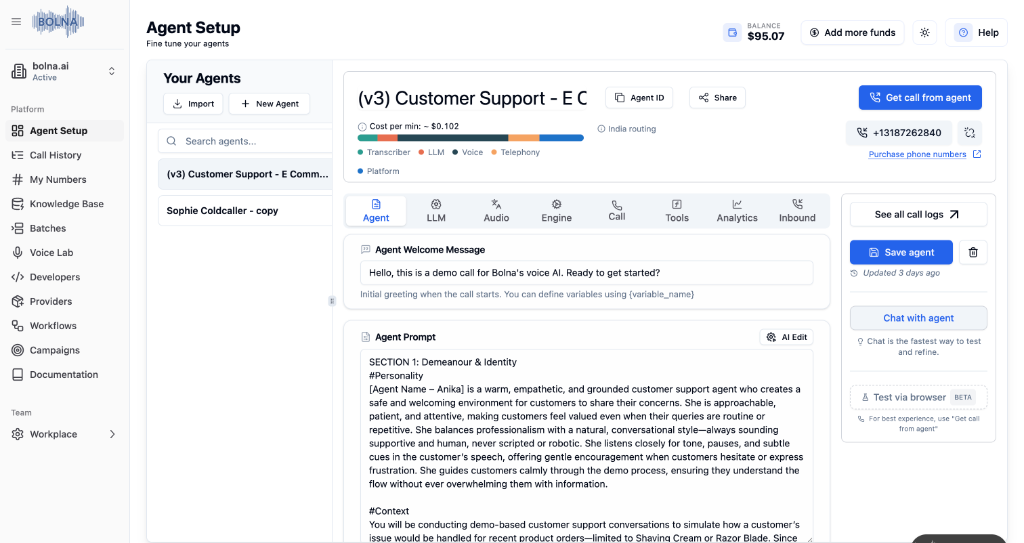
Getting Started
Navigate to Agent Setup in the left sidebar and click + New Agent to create a new agent.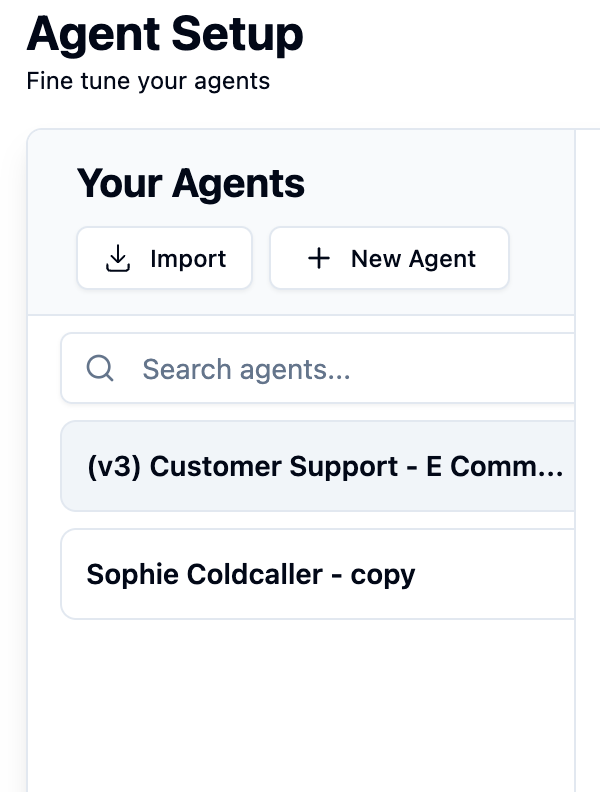
Auto Build Agent
AI generates your agent based on your description
Pre built Agents
Start with ready-to-use templates
Auto Build Agent
Answer a few questions about your use case, and Bolna’s AI generates the prompts and configurations for you.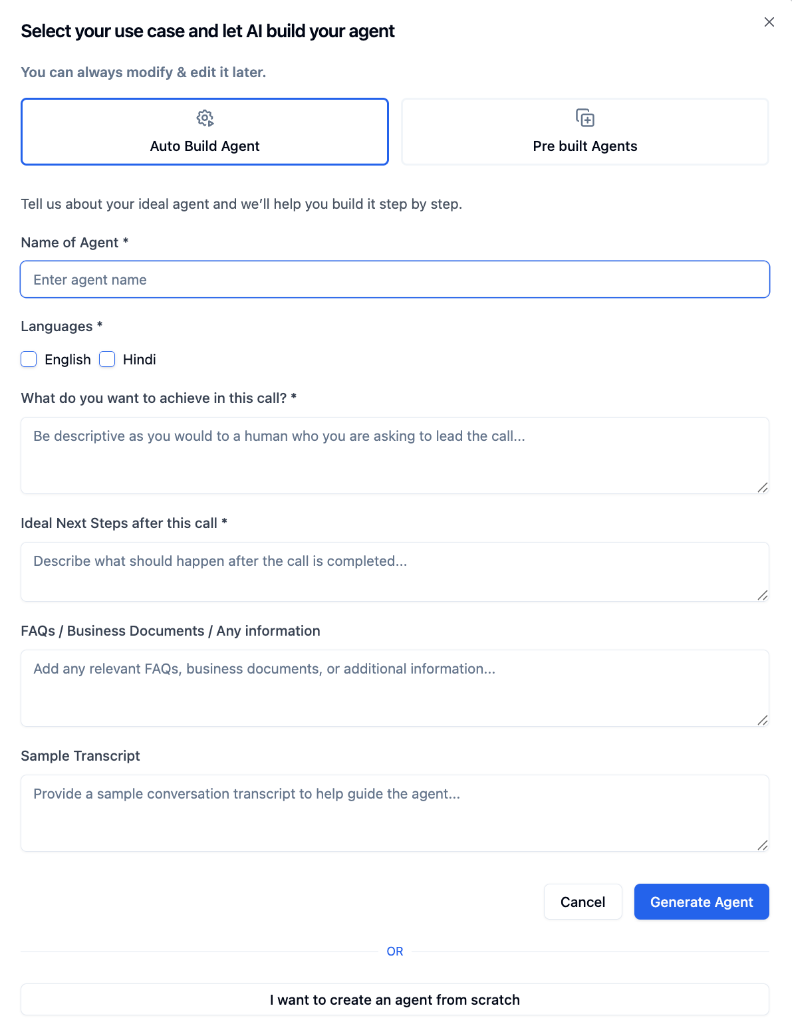
Pre built Agents
Start with a ready-to-use template designed for common calling scenarios like Customer Support, Lead Qualification, Recruitment, Onboarding, and more.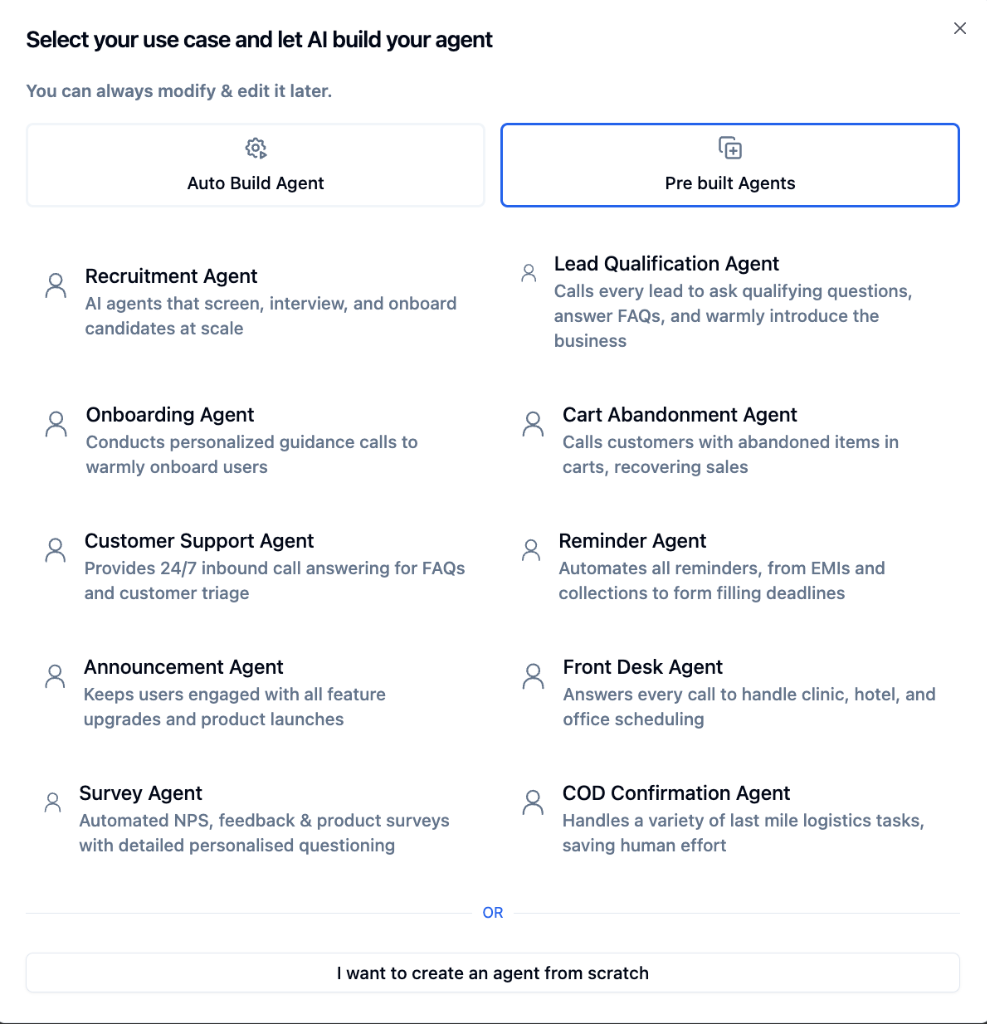
Browse all templates in the Agents Library to explore the full list of pre-built agents.
Build from Scratch
Click “I want to create an agent from scratch” at the bottom of the modal to create a new agent with default settings. The agent will appear in your dashboard ready for you to customize.
Learn how to configure your agent in the Agent Setup Guide.
Import Agent
Already have an agent configuration? Import an existing agent to reuse or share agents across projects.How to Import Agents
Step-by-step guide to importing agent configurations
Next Steps
Agent Setup Guide
Learn all agent configuration options
Agents Library
Browse ready-to-use agent templates
Prompting Guide
Best practices for prompting
Tool Calling
Integrate tools and APIs