

Variable Types
System Variables
Predefined by Bolna. Automatically available in every call without any setup.
User Variables
Defined by you in the prompt with
{variable_name}. Values are passed via the API or from CSV rows during batch calling.System Variables
These are injected automatically into every conversation. No setup required.Inbound calls:
from_number = caller, to_number = your agent
Outbound calls: from_number = your agent, to_number = recipientCurrent date and time are automatically appended to the system prompt. You can also reference them as variables directly in your prompt for more control over placement.
User Variables
Define your own variables by wrapping a name in{} in your prompt. Type { in the Agent Tab prompt editor to open the variable dropdown, which shows both existing user variables and system variables.
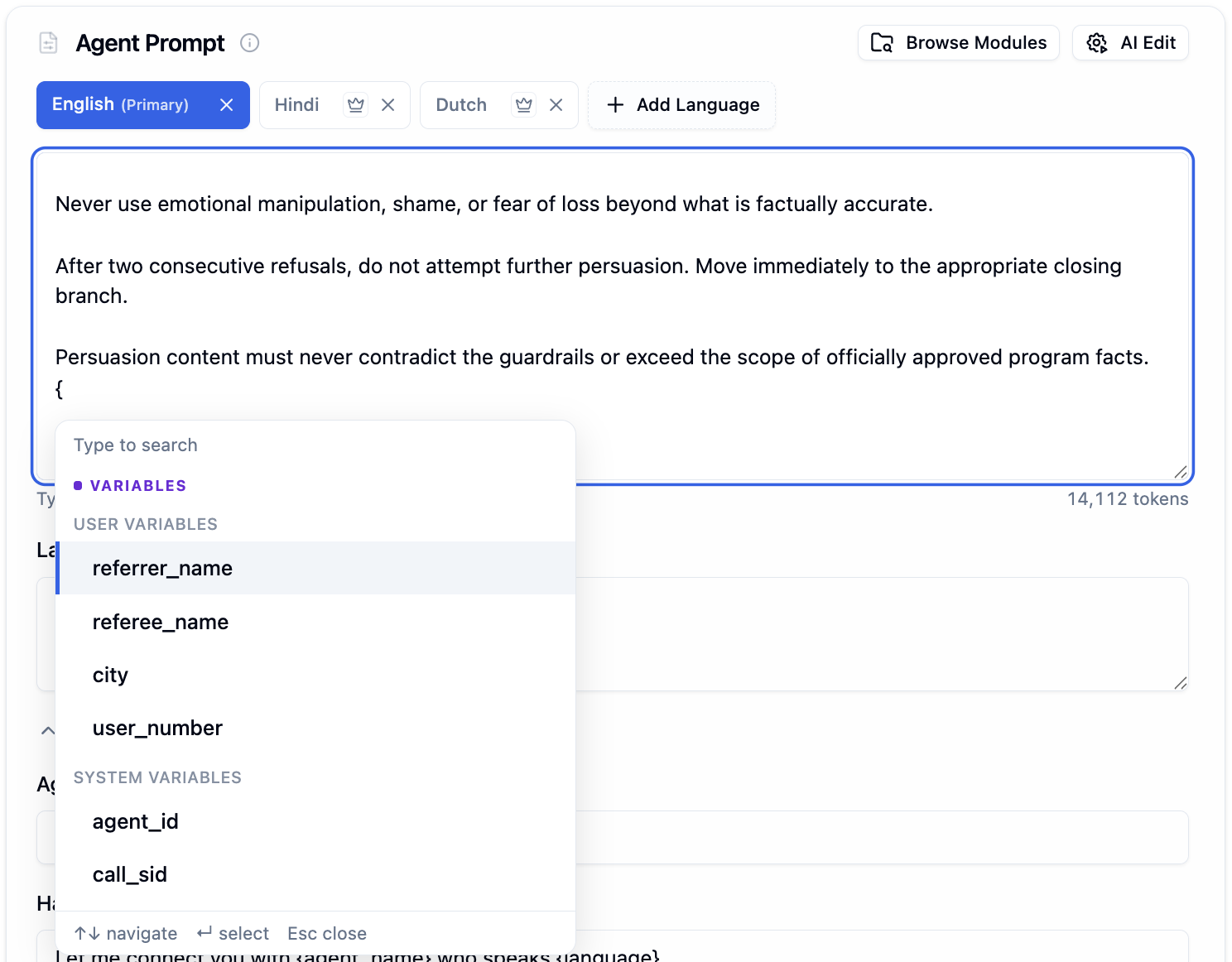
Variable dropdown showing User Variables (referrer_name, city, user_number) and System Variables (agent_id, call_sid)
{, you can:
- Select an existing user or system variable
- Define a new variable by typing a name that does not exist yet (e.g.,
{appointment_date})
@ in the prompt editor to insert existing variables, prompt modules, or custom functions. Unlike {, @ cannot create new variables.
Any variable you define automatically appears as a test input field in the prompt variables for testing section.

Prompt variables auto-detected from the prompt, shown as editable fields with a timezone selector
Passing Variables via API
When making a single call, pass variable values in theuser_data object. Every key in user_data maps to a {variable_name} in your prompt.
1
Define Variables in Your Prompt
2
Pass Values in the API Call
3
Result After Substitution
call_sid is a system variable and gets filled automatically.Setting the Timezone
Passtimezone in user_data to ensure accurate date and time values:
Passing Variables via CSV (Batch Calling)
When using batch calling, upload a CSV file where each row is a call. Thecontact_number column is required. All other columns are treated as user variables and passed to the agent automatically.
{variable_name} in your prompt. For the first row, {customer_name} becomes “Bruce Wayne”, {product_name} becomes “Batsuit”, and so on.
Next Steps
Agent Tab
Configure prompts and test variables in the editor
Prompting Guide
Variable syntax, prompt modules, and best practices
Batch Calling
Upload CSVs to make calls at scale with variables
API Reference
Full API docs for the Make Call endpoint