

What is check calendar slots?
The Check Calendar Slots function lets your Voice AI agent query available appointment slots from Cal.com in real-time. When callers ask about availability, your agent instantly fetches open slots and presents options.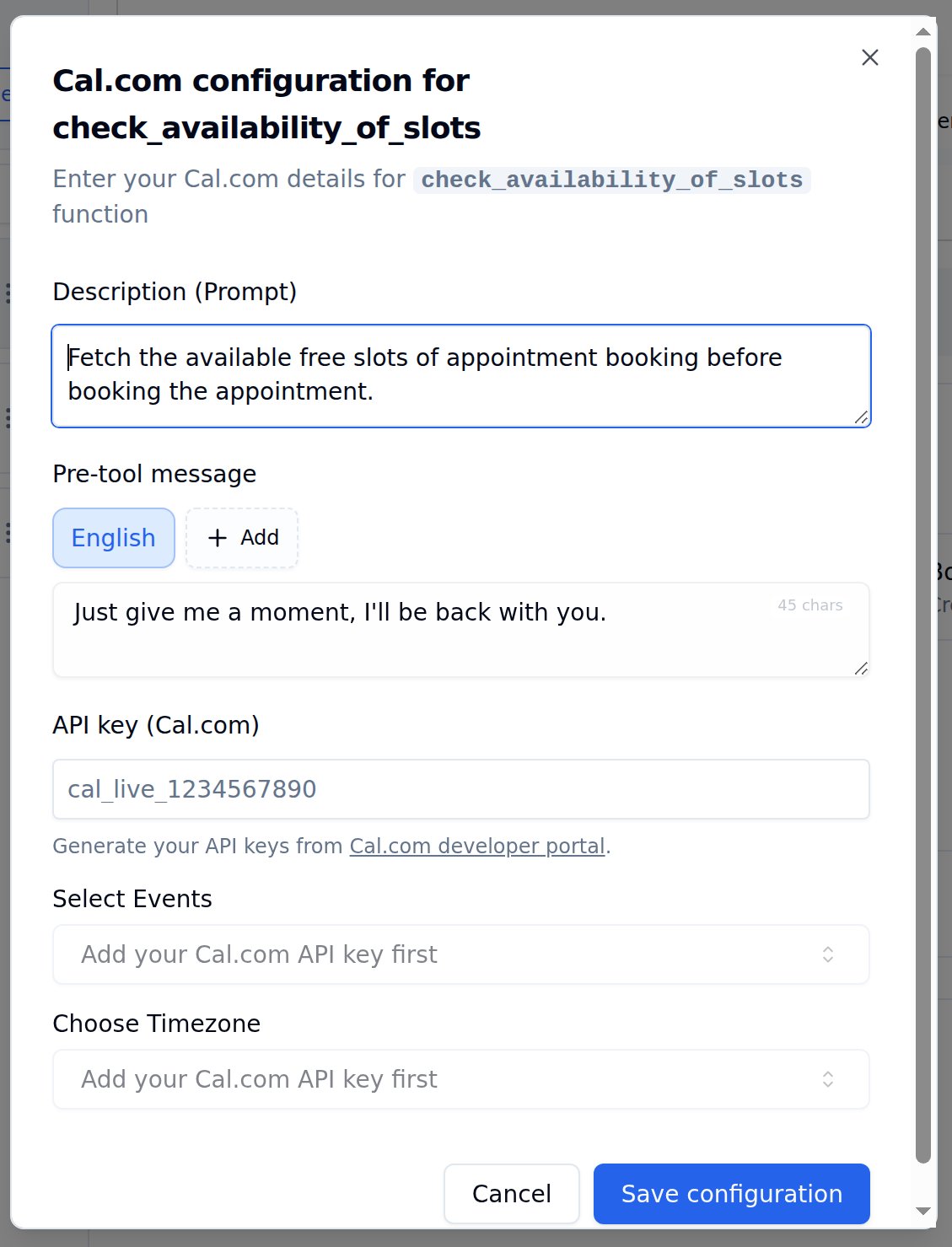
Cal.com configuration for check_availability_of_slots
Configuration options
Select Events and Choose Timezone dropdowns appear only after entering a valid Cal.com API key.
How to set up
1
Open Tools Tab
Navigate to Tools Tab in your agent configuration.
2
Add Calendar Availability
Find Calendar Availability in the tool catalog and click Add.
3
Enter API Key
Paste your Cal.com API key. Event types will load automatically once validated.
4
Select Event Type
Choose which event to check - 15 min meeting, 30 min meeting, or your custom events.
5
Set Timezone
Match your Cal.com event timezone for accurate time communication.
6
Write Description
Add a clear trigger description - e.g., “Check available slots when caller wants to schedule a meeting.”
7
Save configuration
Click Save configuration, then Save agent to persist the tool on the agent.
Example conversation
Caller asks about availability
Caller asks about availability
Caller: “Hi, I’d like to schedule a meeting with your team.”Agent: “Of course! Let me check our available slots for you.”Agent triggers check_availability_of_slots functionAgent: “I have openings tomorrow at 10 AM, 2 PM, and 4 PM. We also have slots on Friday at 11 AM and 3 PM. Which works best for you?”