

What is the Engine tab?
The Engine Tab controls the core performance settings of your voice AI agent. Fine-tune transcription accuracy, interruption behavior, response timing, and user presence detection for optimal conversation quality.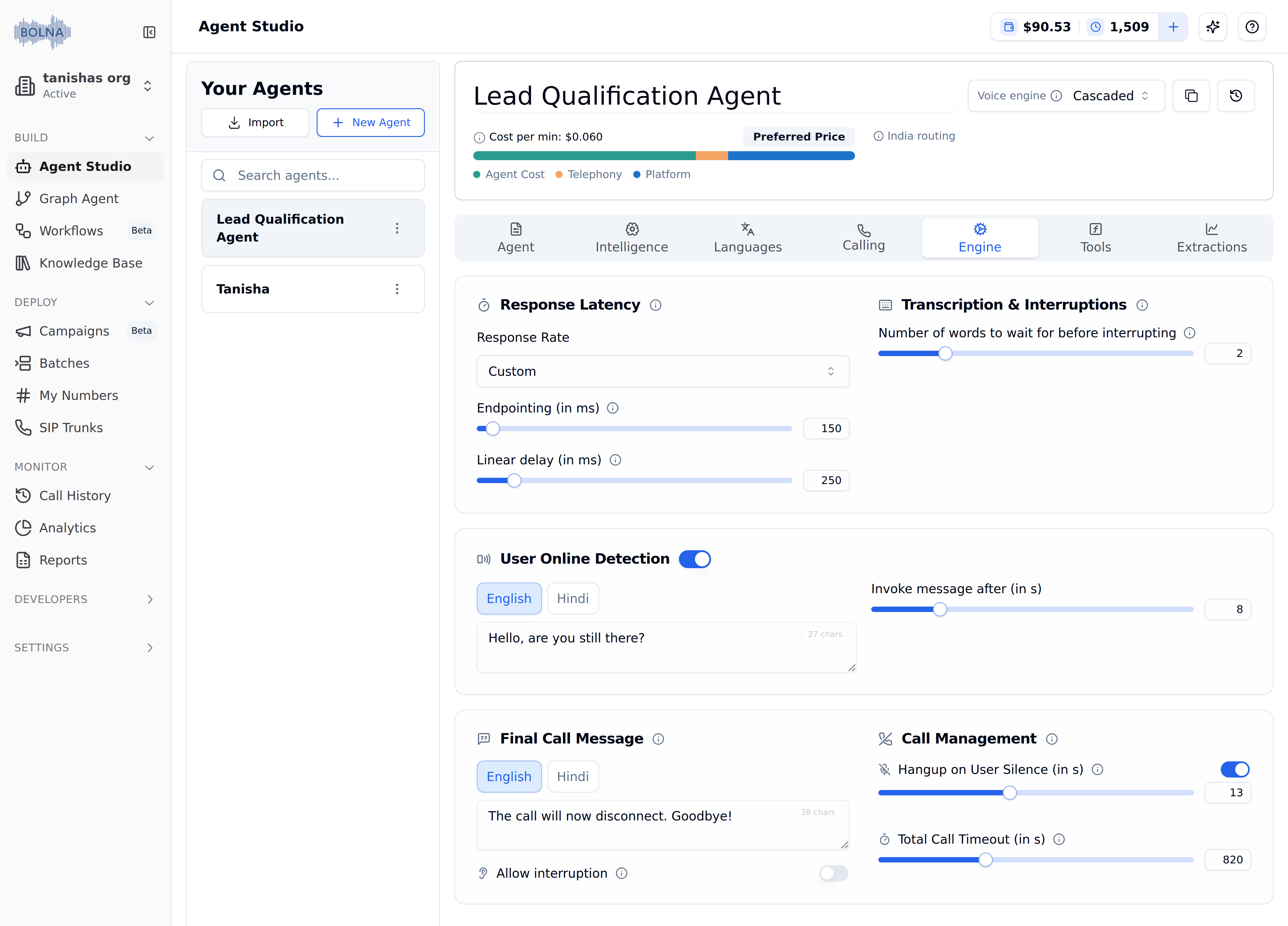
Engine Tab with the Response Latency, Transcription & Interruptions, User Online Detection, Final Call Message and Call Management cards
Configuration options
Transcription & interruptions
Control how speech is captured and processed during conversations.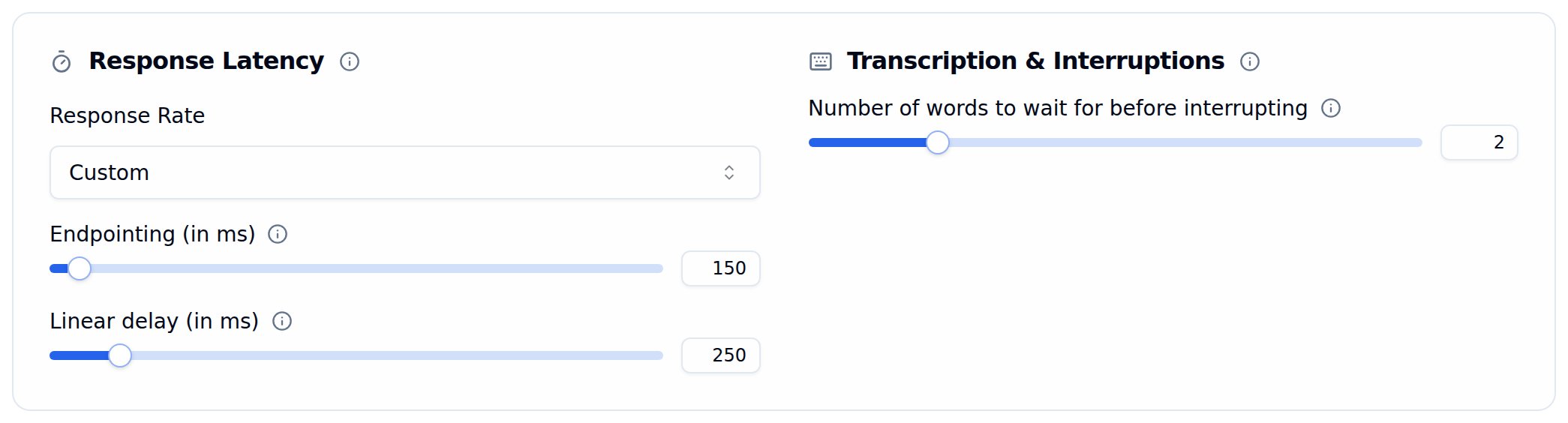
Transcription & Interruptions card
Interruption threshold
Stopwords like “Stop”, “Wait”, “Hold On” will always pause the agent immediately, regardless of the interruption threshold.
Response latency
Configure how quickly your agent responds to user input.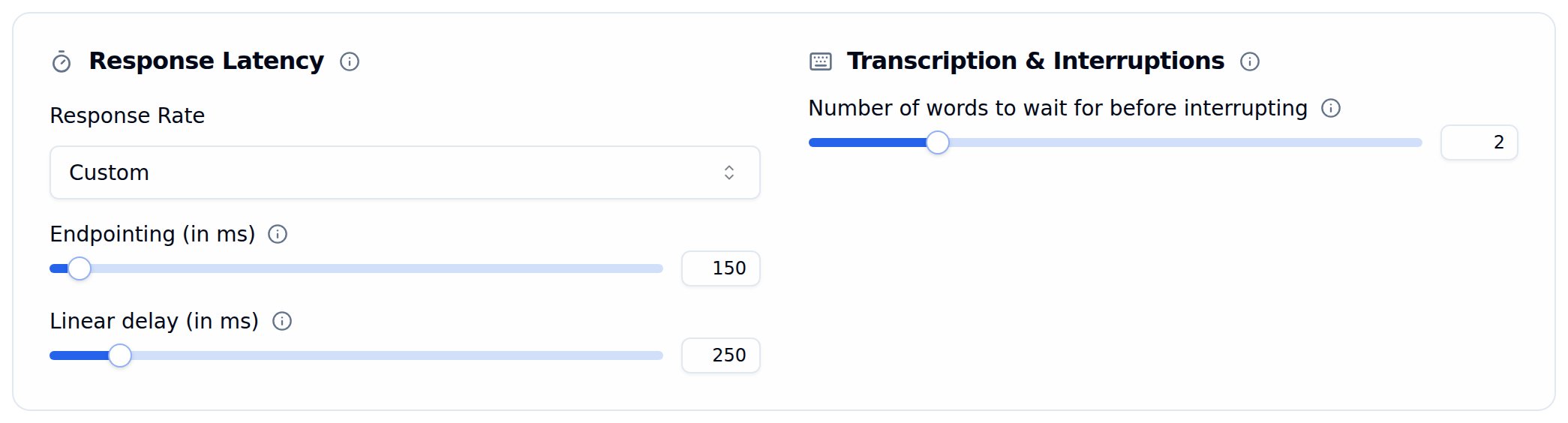
Response Latency card with the Custom response rate sliders
The Endpointing slider only appears for transcribers that use it: Deepgram (except Flux models), ElevenLabs, Gladia, OpenAI and Gemini. Other transcribers, including Deepgram Flux, detect the end of a turn on their own, so the slider is hidden and a note under Response Latency explains why. Linear Delay still applies to every transcriber.
User online detection
Detect when users go silent and automatically re-engage them.
User Online Detection card with the re-engagement message and timer
1
Enable Detection
Toggle User Online Detection to check if the user is still on the call.
2
Set the Message
Customize the prompt (e.g., “Hello, are you still there?”) per language using the language tabs.
3
Configure Timing
Set Invoke message after (seconds) to control when the check triggers.
Final call message & call management
Configure the last message your agent says before disconnecting, and how and when calls should end.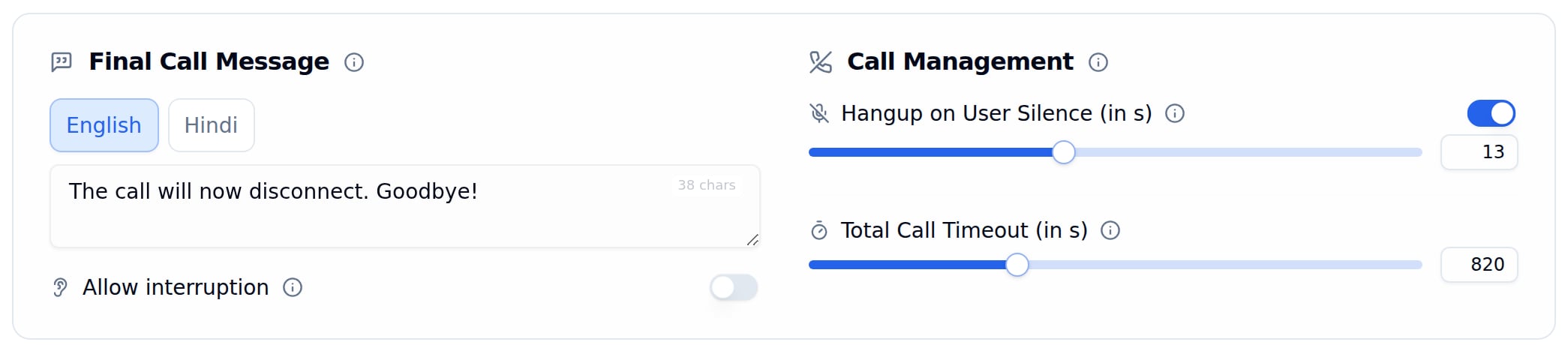
Final Call Message and Call Management cards
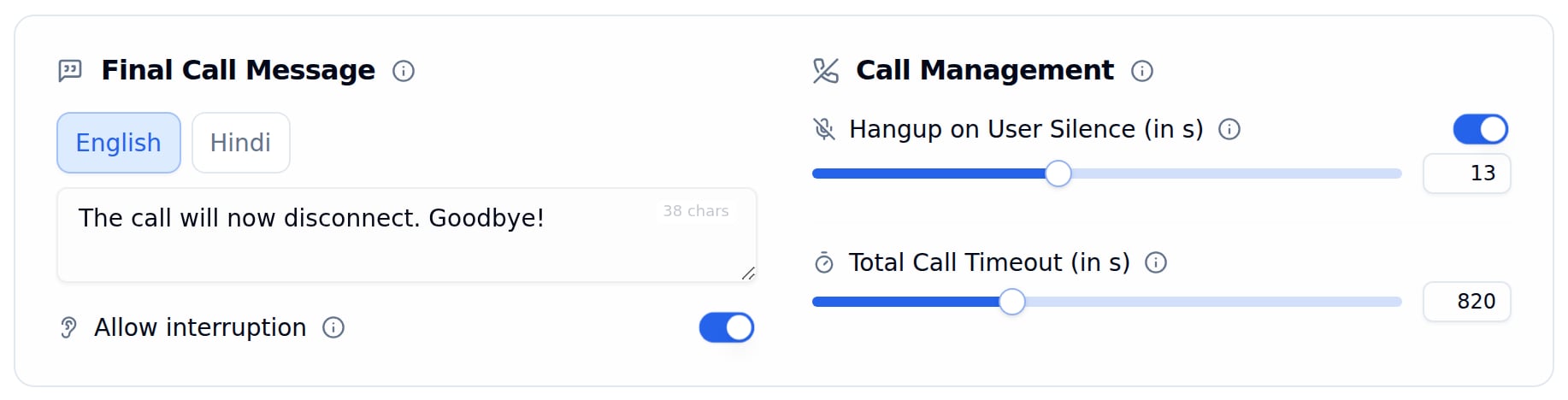
Allow interruption switched on under Final Call Message
Allow interruption applies when the agent ends the call through Hangup using a prompt. Hangup on user silence, total call timeout, call transfers and voicemail hangups are never interruptible. A caller can reopen the conversation at most twice per call; after that the goodbye plays through.