What is Knowledge Base?

Knowledge Base allows you to upload documents and add URLs that your AI agent can reference during conversations. Using RAG (Retrieval-Augmented Generation), your agent retrieves relevant information and provides accurate, context-aware responses.
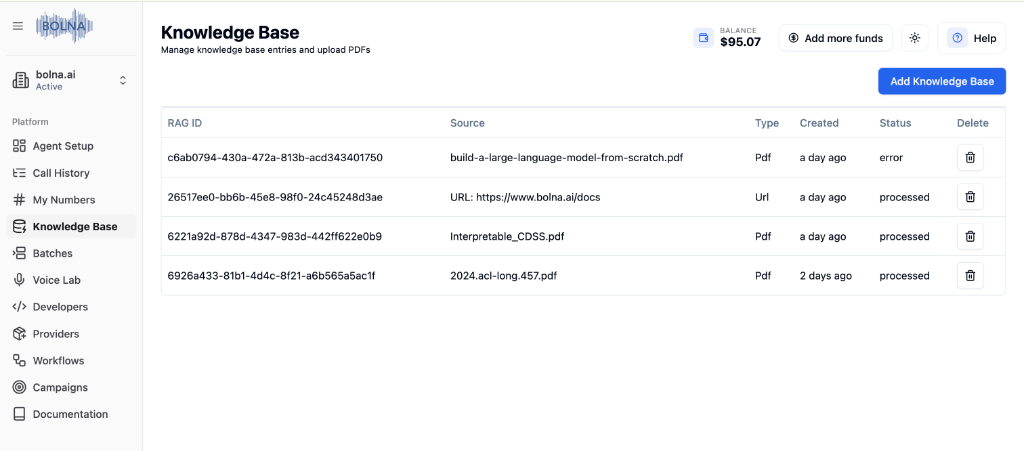
Knowledge Base page showing sidebar navigation, uploaded PDFs and URLs with RAG IDs, status, and Add Knowledge Base button

How to Access Knowledge Base

1

Go to Bolna Platform

Navigate to platform.bolna.ai
2

Open Knowledge Base

Click Knowledge Base in the left sidebar.
3

Add New Content

Click the blue Add Knowledge Base button to get started.

Adding a Knowledge Base

Upload PDF documents for your agent to reference.
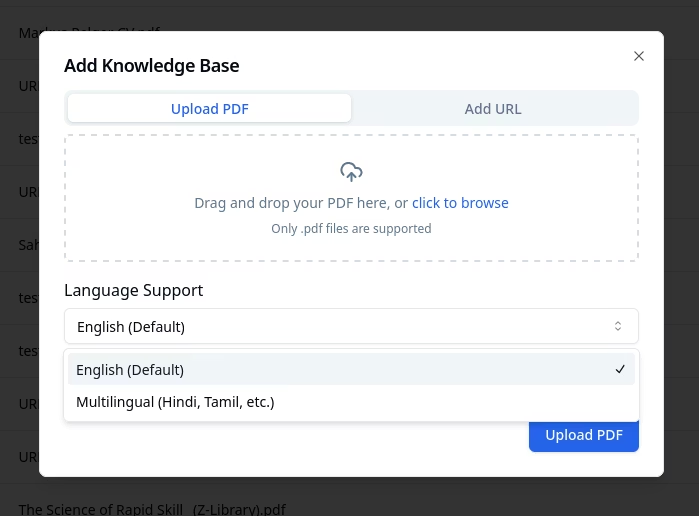
Add Knowledge Base modal with Upload PDF tab showing drag and drop area
1

Click Add Knowledge Base

Open the modal from the main Knowledge Base page.
2

Select Upload PDF Tab

The Upload PDF tab is selected by default.
3

Upload Your File

Drag and drop your PDF file, or click “click to browse” to select.
4

Process Document

Click Upload PDF to start processing.
Only .pdf files are supported for document upload.

Managing Your Knowledge Bases

Your uploaded knowledge bases are displayed in a table with full management capabilities.
ColumnDescription
RAG IDUnique identifier for the knowledge base
SourceOriginal file name or URL
TypeContent type (Pdf, Url)
CreatedWhen the knowledge base was added
StatusProcessing status (processed, processing, error)
DeleteRemove the knowledge base
Wait for the status to show “processed” before connecting to your agent. If status shows “error”, try re-uploading the file.

Connecting to Your Agent

Don’t forget this step! Knowledge bases must be connected to your agent in the LLM Tab to take effect.
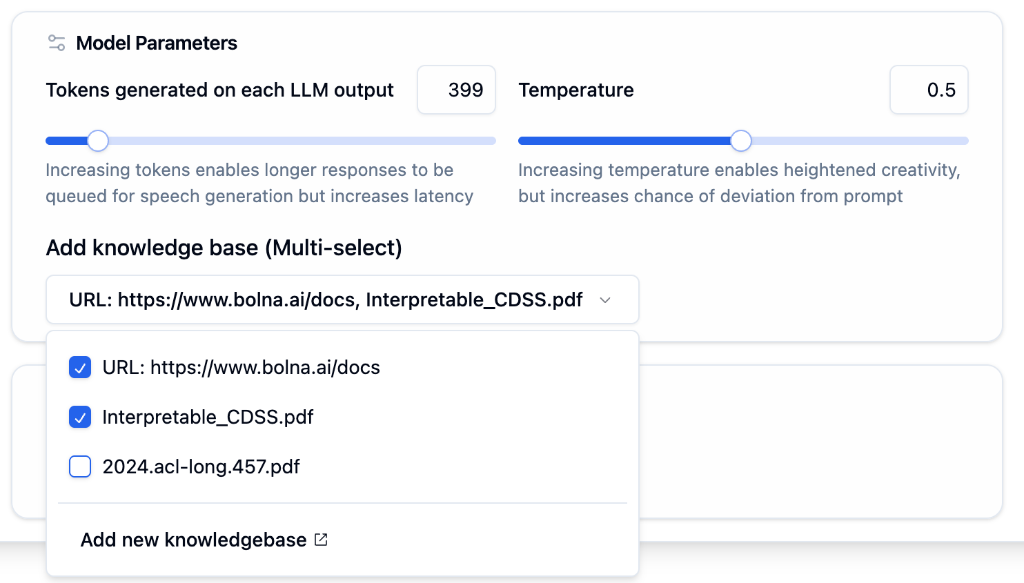
LLM Tab showing Add knowledge base multi-select dropdown with URLs and PDFs
1

Open LLM Tab

Go to your agent’s LLM Tab.
2

Find Knowledge Base Section

Locate Add knowledge base (Multi-select).
3

Select Knowledge Bases

Check one or more knowledge bases from the dropdown.
4

Save Changes

Click Save agent to apply changes.
You can connect multiple knowledge bases to a single agent for comprehensive responses across different topics.

Use Cases

Product Documentation

Answer questions about your products and services

FAQ Responses

Provide accurate answers from your FAQ pages

Policy Information

Reference company policies during calls

Training Materials

Help agents access training and onboarding content

Next Steps