Configure your SIP provider and register your SIP trunk on Bolna, from the dashboard or the API, to run Voice AI calls on your own telephony.
Legacy SIP trunks (deprecated). This page covers legacy SIP trunks: the sip-trunk telephony provider and the /sip-trunks API. Existing legacy trunks keep working. For new setups, use SIP trunks. To move an existing trunk, see Migrate to SIP trunks.
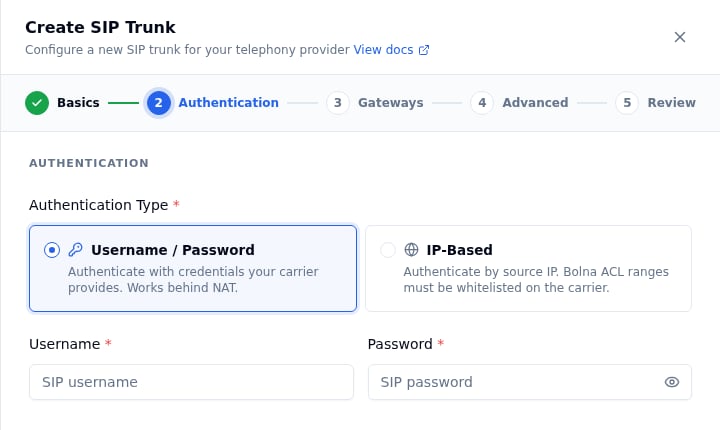
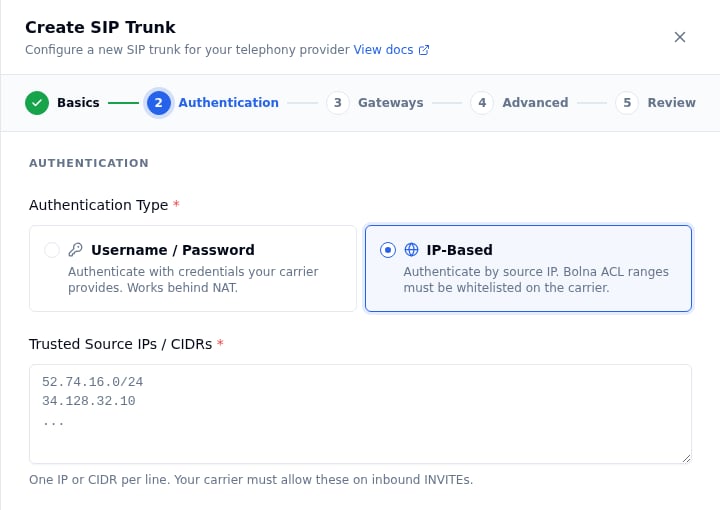
You must whitelist this IP on your SIP trunk so that Bolna’s outbound SIP INVITE and RTP packets are accepted. In most provider portals this is called an IP whitelist, allowed IP, trusted IP, or ACL.If you are using ip-based authentication, this is the IP you will add as your identifier — Bolna will be recognized solely by its source IP.
If you want calls to your DID numbers to ring through to Bolna, point your SIP trunk’s origination URI to one of the following, depending on the transport you’ve chosen for the trunk:
Trunk transport
Origination URI
UDP or TCP
sip:sip.bolna.ai:5060
TLS (encrypted signaling)
sip:sip.bolna.ai:5061;transport=tls
In your provider portal this is usually labeled as:
Origination URI or Origination URL
Inbound SIP URI
SIP Termination Point
Route to / Forward to
Set this for every DID number (or for the trunk as a whole, depending on your provider) that you intend to route to Bolna.
If your provider only accepts an IP, use sip:13.200.45.61:5060 for UDP/TCP. TLS inbound requires a hostname so the carrier can validate Bolna’s TLS certificate.
Bolna’s SIP layer uses G.711 u-law (ulaw) audio by default. Ensure your trunk allows ulaw, or at minimum alaw, in its codec preferences. G.729 and other compressed codecs are not recommended.
Plain RTP (default) — works on every transport. No setup needed on your side.
SDES (encrypted RTP) — supported on the TLS transport only, since the encryption keys travel inside the SIP signaling channel. To use SDES, your carrier must also have SDES/SRTP enabled on its end.
If you’re not sure, leave this on plain RTP — most production trunks run unencrypted at the media layer, and you can switch later by editing the trunk.
Each step below shows the same action in the Dashboard (under SIP Trunks → Create SIP Trunk, a 5-step wizard) and via the API (a single Create SIP Trunk request whose fields map 1:1 to the wizard).
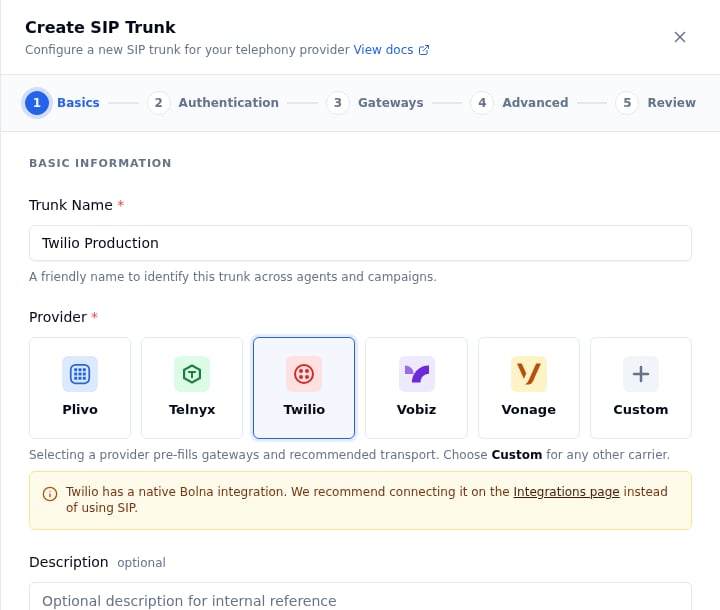
Twilio, Plivo and Vobiz have native Bolna integrations. We recommend connecting these providers through Settings → Integrations rather than configuring them as SIP trunks. See Using Twilio, Using Plivo or Using Vobiz.BYOT still works for these carriers; use it when you want to keep your own trunk, numbers and negotiated rates.
1
Open the trunk form
Dashboard
API
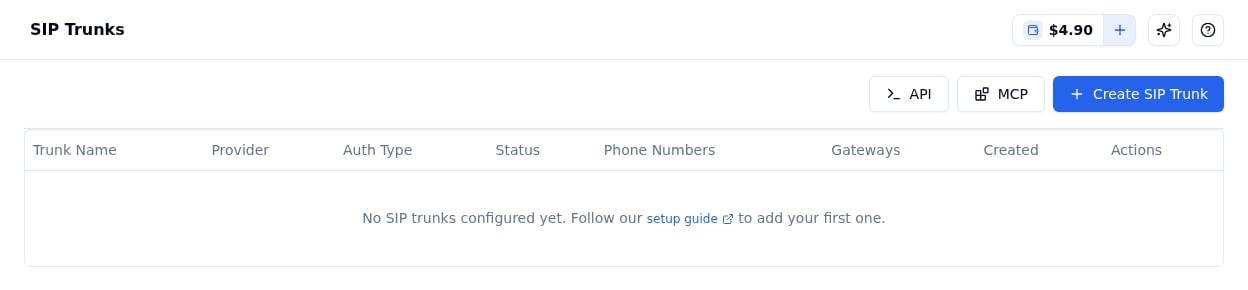
Go to SIP Trunks in the sidebar (under Deploy) and click Create SIP Trunk. A wizard opens on the right with five steps: Basics, Authentication, Gateways, Advanced and Review.
The SIP Trunks page with the Create SIP Trunk button
All of the settings below go into one POST /sip-trunks/trunks request. Generate an API key from Developers → API Keys (see Authentication) and send it as a Bearer token:
The remaining steps build up the JSON body; the complete examples are in Full API examples.
2
Basics: name and provider
Dashboard
API
Trunk Name — a label only you see, e.g. Twilio Production.
Provider — pick your carrier tile (Plivo, Telnyx, Twilio, Vobiz, Vonage) or Custom for any other carrier. Selecting a provider pre-fills its gateway address and the recommended transport in the later steps.
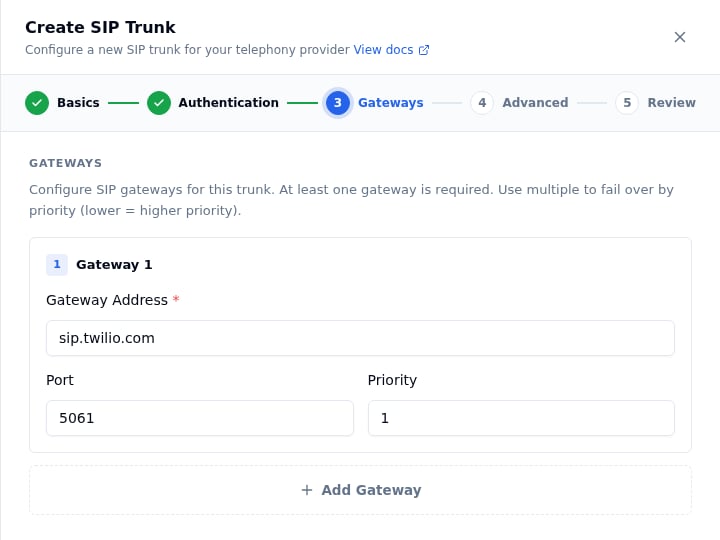
Add at least one gateway — the SIP host Bolna sends INVITEs to. Each row has a Gateway Address, a Port (5060 for UDP/TCP, 5061 for TLS) and a Priority (lower = tried first). If you picked a known provider in Basics, the first gateway is pre-filled. Click Add Gateway for failover targets, then Continue.
port defaults to 5060 and priority to 1. Add more objects for failover.
5
Advanced: codecs, transport and encryption
Dashboard
API
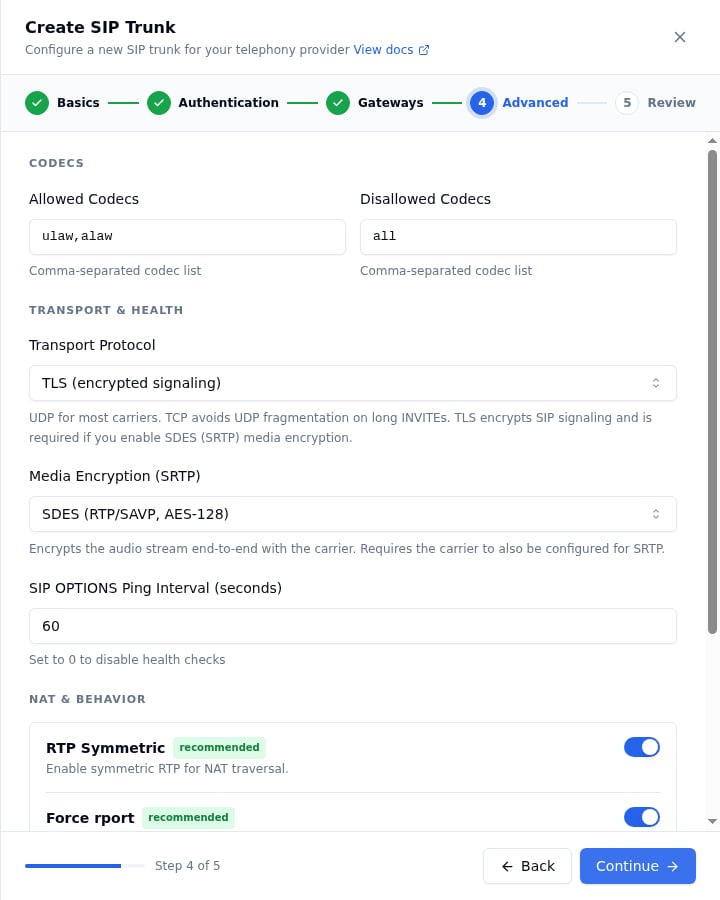
The defaults are correct for most trunks; the fields you’re most likely to change are Transport Protocol and Media Encryption.Codecs
Allowed / Disallowed Codecs — defaults ulaw,alaw and all. Always keep ulaw.
Transport & Health
Transport Protocol —
UDP — the default, used by most carriers.
TCP — avoids UDP fragmentation when SIP INVITEs carry long headers (multiple Diversion / P-Asserted-Identity / Route entries). Pick this if outbound calls intermittently fail to negotiate media.
TLS (encrypted signaling) — encrypts the SIP signaling channel. Required for SDES (SRTP) media encryption. Use port 5061 on your gateways.
Media Encryption (SRTP) — Disabled keeps plain RTP. SDES (RTP/SAVP, AES-128) encrypts the audio stream end-to-end with your carrier and requires TLS transport.
SIP OPTIONS Ping Interval — how often Bolna pings the carrier for trunk health. Default 60 seconds; 0 disables it.
Step 4: Advanced, with TLS transport and SDES media encryption
SDES requires the carrier to also be configured for SRTP. Check this in your provider’s portal before enabling it.
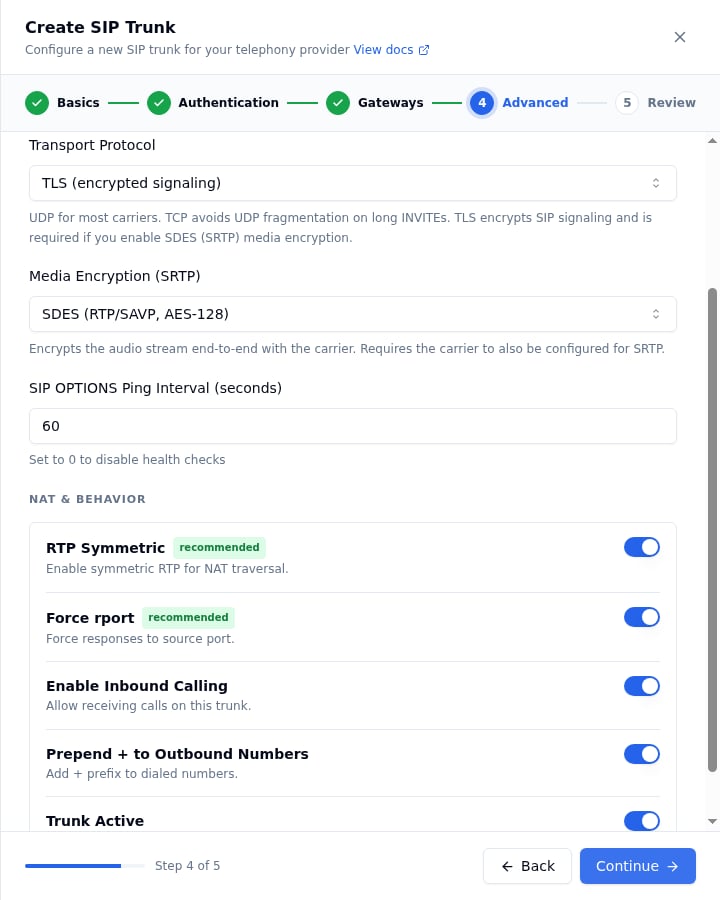
NAT & Behavior
RTP Symmetric / Force rport — keep enabled for NAT traversal.
Enable Inbound Calling — turn on if you want Bolna to receive calls on this trunk.
Prepend + to Outbound Numbers — typically on (E.164 dialing).
Trunk Active — the master switch; turn off to pause the trunk.
Step 4: NAT & Behavior toggles
Click Continue.
Every advanced field is optional; the values below are the defaults except transport / media_encryption, shown here for an encrypted trunk:
transport is one of transport-udp (default), transport-tcp, transport-tls. media_encryption is no (default) or sdes; sdes is rejected with a 422 unless transport is transport-tls. See the field reference for every option.
6
Review and create
Dashboard
API
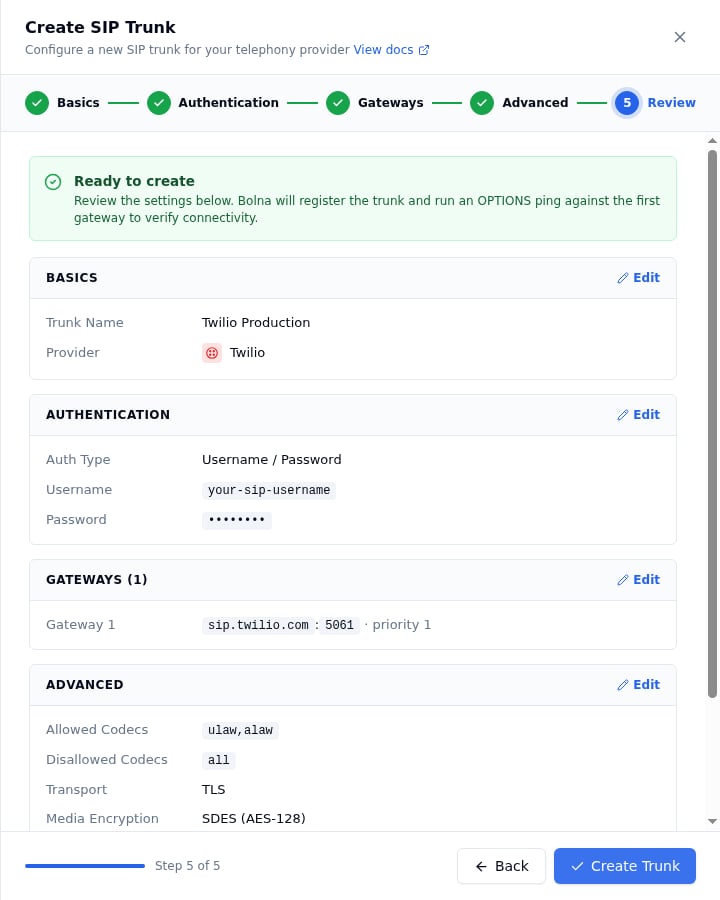
The Review step summarizes every section with an Edit link back to it. Click Create Trunk. Bolna registers the trunk and runs an OPTIONS ping against the first gateway to verify connectivity, then the trunk appears in the SIP Trunks list with its status.
Step 5: Review, before clicking Create Trunk
Send the assembled body. The response echoes the trunk with a generated id:
Save the trunk ID (the id field in the API response, or shown in the SIP Trunks list) — you’ll use it when adding phone numbers and when wiring inbound or outbound calling to your AI agents.
Complete Create SIP Trunk requests for Twilio and Plivo (including a TLS + SDES encrypted trunk), and every field the request accepts, are on SIP trunk API examples.
Save the id field — this is the phone number ID used when setting up inbound call routing or making outbound calls.
Phone number format: Bolna stores the number exactly as provided. When matching inbound calls, the platform performs a flexible lookup that checks both the number with and without a + prefix. Use a consistent format across your trunk and inbound DID configuration.
Inbound calls connect but the caller hears silence (one-way audio)
The most common cause is an SRTP mismatch between Bolna and your carrier. If the trunk has media_encryption="sdes" but the carrier has SRTP disabled (or vice versa), the SIP call sets up but the media path never establishes.
Confirm SRTP is enabled on your provider’s side.
If you need a quick test, set media_encryption_optimistic=true — Bolna will fall back to clear RTP if the carrier does not offer crypto in its SDP.
If you don’t need encrypted media, set media_encryption="no" and use UDP or TCP transport.
Outbound INVITE fails or rings forever on a particular carrier
If your carrier sends large SIP headers (long Diversion, P-Asserted-Identity, multiple Route headers), the INVITE may exceed the UDP MTU and get fragmented or dropped silently.
Switch transport to "transport-tcp" — this avoids UDP fragmentation. You don’t need TLS for this; TCP alone is enough.
{"docsConfig":{"theme":"maple","$schema":"https://mintlify.com/docs.json","name":"Bolna Docs","description":"Quickly build and deploy conversational Voice AI agents","colors":{"primary":"#2563EB","light":"#BAE6FD","dark":"#2563EB"},"logo":{"light":"https://mintcdn.com/bolna-54a2d4fe/n6ISBDZpjo2_6G0U/logo/bolna-logo.png?fit=max\u0026auto=format\u0026n=n6ISBDZpjo2_6G0U\u0026q=85\u0026s=1df42427a7bac4c04ba42e35c42aaff5","dark":"https://mintcdn.com/bolna-54a2d4fe/PGaphb2L1IE-6aKF/logo/Bolna-white.png?fit=max\u0026auto=format\u0026n=PGaphb2L1IE-6aKF\u0026q=85\u0026s=8a0baa4c200add0fe463dfde6bcb10d6","href":"https://www.bolna.ai/docs"},"favicon":"https://mintcdn.com/bolna-54a2d4fe/mJ1zPF3eB4Dyupzj/favicon1.ico?fit=max\u0026auto=format\u0026n=mJ1zPF3eB4Dyupzj\u0026q=85\u0026s=2c2d3c96d1d4add97ebe430ade591aa3","api":{"openapi":"api-reference/openapi.yml"},"background":{"decoration":"grid"},"navbar":{"links":[{"icon":"globe","href":"https://status.bolna.ai","label":"Status"},{"icon":"slack","href":"https://www.bolna.ai/join-slack","label":"Ask us on Slack"},{"icon":"gauge","href":"https://platform.bolna.ai/sign-up","label":"Platform"}]},"footer":{"socials":{"website":"https://platform.bolna.ai","github":"https://github.com/bolna-ai/bolna","slack":"https://www.bolna.ai/join-slack"}},"seo":{"metatags":{"og:type":"website","og:site_name":"Bolna AI Documentation","canonical":"https://www.bolna.ai/docs"},"organization":{"id":"https://www.bolna.ai/#organization","name":"Bolna AI","legalName":"Whismurwave Inc.","url":"https://www.bolna.ai","logo":"https://www.bolna.ai/logos/logo-black.png","sameAs":["https://www.linkedin.com/company/bolna-ai/","https://www.ycombinator.com/companies/bolna-ai","https://github.com/bolna-ai","https://x.com/bolna_dev","https://www.youtube.com/@BolnaVoiceAI"]}},"styling":{"codeblocks":"system","latex":false},"integrations":{"ga4":{"measurementId":"G-BJ5QXHE52P"},"gtm":{"tagId":"GTM-53BBWG2J"}},"contextual":{"options":["copy","view","chatgpt","claude","add-mcp","cursor","vscode"],"display":"header"},"navigation":{"pages":[]}},"deployment":{"deploymentMetadataValue":{"subdomain":"bolna-54a2d4fe","hasAudioNarration":false,"actualSubdomain":"bolna-54a2d4fe","customDomains":["www.bolna.ai"],"gitSource":{"type":"github","owner":"bolna-ai","repo":"docs","deployBranch":"master","contentDirectory":"","isPrivate":true,"mountPath":"","label":""},"chroma":{"liveDeploymentHistoryId":"6ae87e166bec035f345973ee","collectionId":"652890d6-14d0-4e3f-ae06-9fa803d13d57","schemaVersion":"v3","latestBuiltDeploymentHistoryId":"6ae87e166bec035f345973ee"},"feedback":{"thumbs":true},"entitlements":{"AI_CHAT":{"status":"ENABLED"},"WEB_MCP":{"status":"ENABLED"},"NARRATION":{"status":"ENABLED"}},"buildId":"6ae87e166bec035f345973ee","clientVersion":"0.0.4045","searchFilterCounts":[{"language":"default","tag":"Voice Agents","count":155},{"language":"default","tag":"API Reference","count":137},{"language":"default","tag":"Build","count":76},{"language":"default","tag":"Deploy","count":58},{"language":"default","tag":"Integrations","count":58},{"language":"default","tag":"Workflows","count":57},{"language":"default","tag":"Voice agents","count":42},{"language":"default","tag":"Developers","count":41},{"language":"default","tag":"AI models","count":40},{"language":"default","tag":"Telephony","count":36}]},"assistantConfig":{"deflection":{"enabled":true,"email":"support@bolna.ai"}},"basePath":"/docs","hasChatPermissions":false,"hasWebMcpPermissions":true,"toggles":[{"name":"kill-isr","enabled":true,"variant":{"name":"disabled","enabled":false,"feature_enabled":true},"impressionData":false},{"name":"agent-mintlify-slack","enabled":true,"variant":{"name":"disabled","enabled":false,"feature_enabled":true},"impressionData":false},{"name":"agent-integrations-settings","enabled":true,"variant":{"name":"disabled","enabled":false,"feature_enabled":true},"impressionData":false},{"name":"automations-pr-grouping","enabled":true,"variant":{"name":"disabled","enabled":false,"feature_enabled":true},"impressionData":false},{"name":"custom-prefix","enabled":true,"variant":{"name":"disabled","enabled":false,"feature_enabled":true},"impressionData":false},{"name":"analytics-v7","enabled":true,"variant":{"name":"disabled","enabled":false,"feature_enabled":true},"impressionData":false},{"name":"user-flows-analytics","enabled":true,"variant":{"name":"disabled","enabled":false,"feature_enabled":true},"impressionData":false},{"name":"no-publish-flow","enabled":true,"variant":{"name":"disabled","enabled":false,"feature_enabled":true},"impressionData":false},{"name":"workos-onboarding","enabled":true,"variant":{"name":"disabled","enabled":false,"feature_enabled":true},"impressionData":false},{"name":"llms-txt-v2","enabled":true,"variant":{"name":"disabled","enabled":false,"feature_enabled":true},"impressionData":false},{"name":"snapshot-serving-live","enabled":true,"variant":{"name":"disabled","enabled":false,"feature_enabled":true},"impressionData":false},{"name":"stripTemperatureMiddleware","enabled":true,"variant":{"name":"disabled","enabled":false,"feature_enabled":true},"impressionData":false},{"name":"support-platform-pylon-zendesk","enabled":true,"variant":{"name":"disabled","enabled":false,"feature_enabled":true},"impressionData":false},{"name":"snapshot-serving","enabled":true,"variant":{"name":"disabled","enabled":false,"feature_enabled":true},"impressionData":false},{"name":"instant-rollback","enabled":true,"variant":{"name":"disabled","enabled":false,"feature_enabled":true},"impressionData":false},{"name":"granular-notifications-server","enabled":true,"variant":{"name":"disabled","enabled":false,"feature_enabled":true},"impressionData":false},{"name":"granular-notifications","enabled":true,"variant":{"name":"disabled","enabled":false,"feature_enabled":true},"impressionData":false},{"name":"automations-fable","enabled":true,"variant":{"name":"disabled","enabled":false,"feature_enabled":true},"impressionData":false},{"name":"fixed-ai-action-pricing","enabled":true,"variant":{"name":"disabled","enabled":false,"feature_enabled":true},"impressionData":false},{"name":"automation-resolve-merge-conflict","enabled":true,"variant":{"name":"disabled","enabled":false,"feature_enabled":true},"impressionData":false},{"name":"scoped-publishing","enabled":true,"variant":{"name":"disabled","enabled":false,"feature_enabled":true},"impressionData":false},{"name":"mintql","enabled":true,"variant":{"name":"disabled","enabled":false,"feature_enabled":true},"impressionData":false},{"name":"page-level-analytics","enabled":true,"variant":{"name":"disabled","enabled":false,"feature_enabled":true},"impressionData":false},{"name":"editor-version-history-v2","enabled":true,"variant":{"name":"disabled","enabled":false,"feature_enabled":true},"impressionData":false},{"name":"billing-page-v2","enabled":true,"variant":{"name":"disabled","enabled":false,"feature_enabled":true},"impressionData":false},{"name":"full-page-search","enabled":true,"variant":{"name":"disabled","enabled":false,"feature_enabled":true},"impressionData":false},{"name":"workspace-projects","enabled":true,"variant":{"name":"disabled","enabled":false,"feature_enabled":true},"impressionData":false},{"name":"assistant-v5","enabled":true,"variant":{"name":"disabled","enabled":false,"feature_enabled":true},"impressionData":false},{"name":"byok-sep-25","enabled":true,"variant":{"name":"disabled","enabled":false,"feature_enabled":true},"impressionData":false},{"name":"fork-pr-previews","enabled":true,"variant":{"name":"disabled","enabled":false,"feature_enabled":true},"impressionData":false},{"name":"revalidation-jwt","enabled":true,"variant":{"name":"disabled","enabled":false,"feature_enabled":true},"impressionData":false},{"name":"vite-origin","enabled":true,"variant":{"name":"disabled","enabled":false,"feature_enabled":true},"impressionData":false},{"name":"billing-updated-9-15","enabled":true,"variant":{"name":"disabled","enabled":false,"feature_enabled":true},"impressionData":false},{"name":"workos-sso-scim","enabled":true,"variant":{"name":"disabled","enabled":false,"feature_enabled":true},"impressionData":false},{"name":"hobby-abuse-scan","enabled":true,"variant":{"name":"disabled","enabled":false,"feature_enabled":true},"impressionData":false},{"name":"dashboard-inbox","enabled":true,"variant":{"name":"disabled","enabled":false,"feature_enabled":true},"impressionData":false},{"name":"workos-signup","enabled":true,"variant":{"name":"disabled","enabled":false,"feature_enabled":true},"impressionData":false},{"name":"turbopuffer-dual-write","enabled":true,"variant":{"name":"disabled","enabled":false,"feature_enabled":true},"impressionData":false},{"name":"workos-enabled","enabled":true,"variant":{"name":"disabled","enabled":false,"feature_enabled":true},"impressionData":false},{"name":"approve-review-flow","enabled":true,"variant":{"name":"disabled","enabled":false,"feature_enabled":true},"impressionData":false},{"name":"sso-setup-deadline-banner","enabled":true,"variant":{"name":"disabled","enabled":false,"feature_enabled":true},"impressionData":false}],"googleFontsInlined":false},"customCss":[{"filePath":"custom.css","content":"#banner{background-color:#60a5fa!important}img[src*=Bolna-white],img[src*=bolna-logo]{height:52px!important;width:auto!important;max-height:unset!important;max-width:unset!important}.update-container{flex-direction:column!important;align-items:stretch!important}.update-container>div:first-child{position:static!important;width:auto!important;margin-bottom:.5rem}#content-container,#content-container :is(p, li, td, th, dd, dt, span, div){hyphens:none!important;-webkit-hyphens:none!important}#content-container code:not(pre code){word-break:normal!important;overflow-wrap:break-word!important}"}],"page":{"pagePath":"sip-trunking/byot-setup","slug":"/sip-trunking/byot-setup","pageMetadata":{"title":"Set up your SIP trunk on Bolna","sidebarTitle":"Set up your trunk","description":"Configure your SIP provider and register your SIP trunk on Bolna, from the dashboard or the API, to run Voice AI calls on your own telephony.","icon":"screwdriver-wrench","iconType":"solid","last_reviewed":"2026-10-16","href":"/sip-trunking/byot-setup"},"description":{"compiledSource":"\"use strict\";\nconst {jsx: _jsx} = arguments[0];\nconst {useMDXComponents: _provideComponents} = arguments[0];\nfunction _createMdxContent(props) {\n const _components = {\n p: \"p\",\n ..._provideComponents(),\n ...props.components\n };\n return _jsx(_components.p, {\n children: \"Configure your SIP provider and register your SIP trunk on Bolna, from the dashboard or the API, to run Voice AI calls on your own telephony.\"\n });\n}\nfunction MDXContent(props = {}) {\n const {wrapper: MDXLayout} = {\n ..._provideComponents(),\n ...props.components\n };\n return MDXLayout ? _jsx(MDXLayout, {\n ...props,\n children: _jsx(_createMdxContent, {\n ...props\n })\n }) : _createMdxContent(props);\n}\nreturn {\n default: MDXContent\n};\n","frontmatter":{},"scope":{}},"pageType":"default","mdx":{"mdxSource":{"compiledSource":"\"use strict\";const{Fragment:_Fragment,jsx:_jsx,jsxs:_jsxs}=arguments[0];const{useMDXComponents:_provideComponents}=arguments[0];function _createMdxContent(props){const _components={a:`a`,code:`code`,hr:`hr`,li:`li`,p:`p`,pre:`pre`,span:`span`,strong:`strong`,tbody:`tbody`,td:`td`,th:`th`,thead:`thead`,tr:`tr`,ul:`ul`,..._provideComponents(),...props.components},{CodeBlock,CodeGroup,Frame,Heading,Note,OptimizedImage,Step,Steps,Tab,Table,Tabs,Tip,Warning}=_components;if(!CodeBlock)_missingMdxReference(`CodeBlock`,true);if(!CodeGroup)_missingMdxReference(`CodeGroup`,true);if(!Frame)_missingMdxReference(`Frame`,true);if(!Heading)_missingMdxReference(`Heading`,true);if(!Note)_missingMdxReference(`Note`,true);if(!OptimizedImage)_missingMdxReference(`OptimizedImage`,true);if(!Step)_missingMdxReference(`Step`,true);if(!Steps)_missingMdxReference(`Steps`,true);if(!Tab)_missingMdxReference(`Tab`,true);if(!Table)_missingMdxReference(`Table`,true);if(!Tabs)_missingMdxReference(`Tabs`,true);if(!Tip)_missingMdxReference(`Tip`,true);if(!Warning)_missingMdxReference(`Warning`,true);return _jsxs(_Fragment,{children:[_jsx(Warning,{children:_jsxs(_components.p,{children:[_jsx(_components.strong,{children:`Legacy SIP trunks (deprecated).`}),` This page covers legacy SIP trunks: the `,_jsx(_components.code,{children:`sip-trunk`}),` telephony provider and the `,_jsx(_components.code,{children:`/sip-trunks`}),` API. Existing legacy trunks keep working. For new setups, use `,_jsx(_components.a,{href:`/sip-trunking/overview`,children:`SIP trunks`}),`. To move an existing trunk, see `,_jsx(_components.a,{href:`/migrating-to-sip-trunks/overview`,children:`Migrate to SIP trunks`}),`.`]})}),`\n`,_jsx(Heading,{level:`2`,id:`prerequisites`,children:`Prerequisites`}),`\n`,_jsx(_components.p,{children:`Before creating a trunk in Bolna, configure the following on your SIP trunk provider’s portal.`}),`\n`,_jsx(Heading,{level:`3`,id:`1-whitelist-bolna’s-ip-address`,children:`1. Whitelist Bolna’s IP address`}),`\n`,_jsx(_components.p,{children:`Bolna’s SIP media server IP is:`}),`\n`,_jsx(CodeBlock,{numberOfLines:`2`,language:`text`,children:_jsx(_components.pre,{className:`shiki shiki-themes github-light-default dark-plus`,style:{backgroundColor:`#ffffff`,\"--shiki-dark-bg\":`#0B0C0E`,color:`#1f2328`,\"--shiki-dark\":`#D4D4D4`},language:`text`,children:_jsxs(_components.code,{language:`text`,numberOfLines:`2`,children:[_jsx(_components.span,{className:`line`,children:_jsx(_components.span,{children:`13.200.45.61`})}),`\n`,_jsx(_components.span,{className:`line`,children:_jsx(_components.span,{})})]})})}),`\n`,_jsxs(_components.p,{children:[`You `,_jsx(_components.strong,{children:`must`}),` whitelist this IP on your SIP trunk so that Bolna’s outbound SIP INVITE and RTP packets are accepted. In most provider portals this is called an `,_jsx(_components.strong,{children:`IP whitelist`}),`, `,_jsx(_components.strong,{children:`allowed IP`}),`, `,_jsx(_components.strong,{children:`trusted IP`}),`, or `,_jsx(_components.strong,{children:`ACL`}),`.`]}),`\n`,_jsxs(_components.p,{children:[`If you are using `,_jsx(_components.code,{children:`ip-based`}),` authentication, this is the IP you will add as your identifier — Bolna will be recognized solely by its source IP.`]}),`\n`,_jsx(Heading,{level:`3`,id:`2-set-the-origination-url-for-inbound-calls`,children:`2. Set the origination URL (for inbound calls)`}),`\n`,_jsxs(_components.p,{children:[`If you want calls to your DID numbers to ring through to Bolna, point your SIP trunk’s `,_jsx(_components.strong,{children:`origination URI`}),` to one of the following, depending on the transport you’ve chosen for the trunk:`]}),`\n`,_jsxs(Table,{children:[_jsx(_components.thead,{children:_jsxs(_components.tr,{children:[_jsx(_components.th,{children:`Trunk transport`}),_jsx(_components.th,{children:`Origination URI`})]})}),_jsxs(_components.tbody,{children:[_jsxs(_components.tr,{children:[_jsx(_components.td,{children:`UDP or TCP`}),_jsx(_components.td,{children:_jsx(_components.code,{children:`sip:sip.bolna.ai:5060`})})]}),_jsxs(_components.tr,{children:[_jsx(_components.td,{children:`TLS (encrypted signaling)`}),_jsx(_components.td,{children:_jsx(_components.code,{children:`sip:sip.bolna.ai:5061;transport=tls`})})]})]})]}),`\n`,_jsx(_components.p,{children:`In your provider portal this is usually labeled as:`}),`\n`,_jsxs(_components.ul,{children:[`\n`,_jsxs(_components.li,{children:[_jsx(_components.strong,{children:`Origination URI`}),` or `,_jsx(_components.strong,{children:`Origination URL`})]}),`\n`,_jsx(_components.li,{children:_jsx(_components.strong,{children:`Inbound SIP URI`})}),`\n`,_jsx(_components.li,{children:_jsx(_components.strong,{children:`SIP Termination Point`})}),`\n`,_jsxs(_components.li,{children:[_jsx(_components.strong,{children:`Route to`}),` / `,_jsx(_components.strong,{children:`Forward to`})]}),`\n`]}),`\n`,_jsx(_components.p,{children:`Set this for every DID number (or for the trunk as a whole, depending on your provider) that you intend to route to Bolna.`}),`\n`,_jsxs(Note,{children:[`If your provider only accepts an IP, use `,_jsx(_components.code,{children:`sip:13.200.45.61:5060`}),` for UDP/TCP. TLS inbound requires a hostname so the carrier can validate Bolna’s TLS certificate.`]}),`\n`,_jsx(Heading,{level:`3`,id:`3-codec-configuration`,children:`3. Codec configuration`}),`\n`,_jsxs(_components.p,{children:[`Bolna’s SIP layer uses `,_jsx(_components.strong,{children:`G.711 u-law (ulaw)`}),` audio by default. Ensure your trunk allows ulaw, or at minimum alaw, in its codec preferences. G.729 and other compressed codecs are not recommended.`]}),`\n`,_jsx(Heading,{level:`3`,id:`4-decide-on-media-encryption-optional`,children:`4. Decide on media encryption (optional)`}),`\n`,_jsx(_components.p,{children:`Bolna supports two media modes for BYOT trunks:`}),`\n`,_jsxs(_components.ul,{children:[`\n`,_jsxs(_components.li,{children:[_jsx(_components.strong,{children:`Plain RTP (default)`}),` — works on every transport. No setup needed on your side.`]}),`\n`,_jsxs(_components.li,{children:[_jsx(_components.strong,{children:`SDES (encrypted RTP)`}),` — supported on the `,_jsx(_components.strong,{children:`TLS`}),` transport only, since the encryption keys travel inside the SIP signaling channel. To use SDES, your carrier must also have SDES/SRTP enabled on its end.`]}),`\n`]}),`\n`,_jsx(_components.p,{children:`If you’re not sure, leave this on plain RTP — most production trunks run unencrypted at the media layer, and you can switch later by editing the trunk.`}),`\n`,_jsx(_components.hr,{}),`\n`,_jsx(Heading,{level:`2`,id:`create-your-trunk`,children:`Create your trunk`}),`\n`,_jsxs(_components.p,{children:[`Each step below shows the same action in the `,_jsx(_components.strong,{children:`Dashboard`}),` (under `,_jsx(_components.strong,{children:`SIP Trunks → Create SIP Trunk`}),`, a 5-step wizard) and via the `,_jsx(_components.strong,{children:`API`}),` (a single `,_jsx(_components.a,{href:`/api-reference/sip-trunks/create`,children:`Create SIP Trunk`}),` request whose fields map 1:1 to the wizard).`]}),`\n`,_jsxs(Note,{children:[_jsxs(_components.p,{children:[_jsx(_components.strong,{children:`Twilio, Plivo and Vobiz have native Bolna integrations.`}),` We recommend connecting these providers through `,_jsx(_components.strong,{children:`Settings → Integrations`}),` rather than configuring them as SIP trunks. See `,_jsx(_components.a,{href:`/twilio/connect-provider`,children:`Using Twilio`}),`, `,_jsx(_components.a,{href:`/plivo/connect-provider`,children:`Using Plivo`}),` or `,_jsx(_components.a,{href:`/vobiz/connect-provider`,children:`Using Vobiz`}),`.`]}),_jsx(_components.p,{children:`BYOT still works for these carriers; use it when you want to keep your own trunk, numbers and negotiated rates.`})]}),`\n`,_jsxs(Steps,{children:[_jsx(Step,{title:`Open the trunk form`,children:_jsxs(Tabs,{children:[_jsxs(Tab,{title:`Dashboard`,id:`dashboard`,children:[_jsxs(_components.p,{children:[`Go to `,_jsx(_components.strong,{children:`SIP Trunks`}),` in the sidebar (under `,_jsx(_components.strong,{children:`Deploy`}),`) and click `,_jsx(_components.strong,{children:`Create SIP Trunk`}),`. A wizard opens on the right with five steps: Basics, Authentication, Gateways, Advanced and Review.`]}),_jsx(Frame,{caption:`The SIP Trunks page with the Create SIP Trunk button`,children:_jsx(OptimizedImage,{src:`https://mintcdn.com/bolna-54a2d4fe/wYzgc4mEIpXWZEee/images/sip-trunking/sip_trunks_list_create.png?fit=max\u0026auto=format\u0026n=wYzgc4mEIpXWZEee\u0026q=85\u0026s=79c934dad1731520ca2a58130488a50b`,alt:`Bolna SIP Trunks list page with the Create SIP Trunk button in the top right`,\"data-og-width\":`1248`,width:`1248`,\"data-og-height\":`290`,height:`290`,\"data-path\":`images/sip-trunking/sip_trunks_list_create.png`,\"data-optimize\":`true`,\"data-opv\":`3`,srcset:`https://mintcdn.com/bolna-54a2d4fe/wYzgc4mEIpXWZEee/images/sip-trunking/sip_trunks_list_create.png?w=280\u0026fit=max\u0026auto=format\u0026n=wYzgc4mEIpXWZEee\u0026q=85\u0026s=5e5f4e01124d0747fa63306abf1395fc 280w, https://mintcdn.com/bolna-54a2d4fe/wYzgc4mEIpXWZEee/images/sip-trunking/sip_trunks_list_create.png?w=560\u0026fit=max\u0026auto=format\u0026n=wYzgc4mEIpXWZEee\u0026q=85\u0026s=0b629462c646a9e49184d136fe946beb 560w, https://mintcdn.com/bolna-54a2d4fe/wYzgc4mEIpXWZEee/images/sip-trunking/sip_trunks_list_create.png?w=840\u0026fit=max\u0026auto=format\u0026n=wYzgc4mEIpXWZEee\u0026q=85\u0026s=22224661757d12a9ce4f77570b940bee 840w, https://mintcdn.com/bolna-54a2d4fe/wYzgc4mEIpXWZEee/images/sip-trunking/sip_trunks_list_create.png?w=1100\u0026fit=max\u0026auto=format\u0026n=wYzgc4mEIpXWZEee\u0026q=85\u0026s=a7ddbb153e0f0e52bdf56d810f3da1f9 1100w, https://mintcdn.com/bolna-54a2d4fe/wYzgc4mEIpXWZEee/images/sip-trunking/sip_trunks_list_create.png?w=1650\u0026fit=max\u0026auto=format\u0026n=wYzgc4mEIpXWZEee\u0026q=85\u0026s=def041879d33207391b181a05b82bee7 1650w, https://mintcdn.com/bolna-54a2d4fe/wYzgc4mEIpXWZEee/images/sip-trunking/sip_trunks_list_create.png?w=2500\u0026fit=max\u0026auto=format\u0026n=wYzgc4mEIpXWZEee\u0026q=85\u0026s=9032c8824f1a68a18188fed4c3a215f7 2500w`})})]}),_jsxs(Tab,{title:`API`,id:`api`,children:[_jsxs(_components.p,{children:[`All of the settings below go into one `,_jsx(_components.code,{children:`POST /sip-trunks/trunks`}),` request. Generate an API key from `,_jsx(_components.a,{href:`https://platform.bolna.ai/developers`,children:`Developers → API Keys`}),` (see `,_jsx(_components.a,{href:`/api-reference/authentication`,children:`Authentication`}),`) and send it as a Bearer token:`]}),_jsx(CodeBlock,{filename:``,numberOfLines:`4`,language:`shellscript`,children:_jsx(_components.pre,{className:`shiki shiki-themes github-light-default dark-plus`,style:{backgroundColor:`#ffffff`,\"--shiki-dark-bg\":`#0B0C0E`,color:`#1f2328`,\"--shiki-dark\":`#D4D4D4`},language:`shellscript`,children:_jsxs(_components.code,{language:`shellscript`,numberOfLines:`4`,children:[_jsxs(_components.span,{className:`line`,children:[_jsx(_components.span,{style:{color:`#953800`,\"--shiki-dark\":`#DCDCAA`},children:`curl`}),_jsx(_components.span,{style:{color:`#0550AE`,\"--shiki-dark\":`#569CD6`},children:` -X`}),_jsx(_components.span,{style:{color:`#0A3069`,\"--shiki-dark\":`#CE9178`},children:` POST`}),_jsx(_components.span,{style:{color:`#0A3069`,\"--shiki-dark\":`#CE9178`},children:` https://api.bolna.ai/sip-trunks/trunks`}),_jsx(_components.span,{style:{color:`#CF222E`,\"--shiki-dark\":`#D7BA7D`},children:` \\\\`})]}),`\n`,_jsxs(_components.span,{className:`line`,children:[_jsx(_components.span,{style:{color:`#0550AE`,\"--shiki-dark\":`#569CD6`},children:` -H`}),_jsx(_components.span,{style:{color:`#0A3069`,\"--shiki-dark\":`#CE9178`},children:` \"Authorization: Bearer \u003capi_key>\"`}),_jsx(_components.span,{style:{color:`#CF222E`,\"--shiki-dark\":`#D7BA7D`},children:` \\\\`})]}),`\n`,_jsxs(_components.span,{className:`line`,children:[_jsx(_components.span,{style:{color:`#0550AE`,\"--shiki-dark\":`#569CD6`},children:` -H`}),_jsx(_components.span,{style:{color:`#0A3069`,\"--shiki-dark\":`#CE9178`},children:` \"Content-Type: application/json\"`}),_jsx(_components.span,{style:{color:`#CF222E`,\"--shiki-dark\":`#D7BA7D`},children:` \\\\`})]}),`\n`,_jsxs(_components.span,{className:`line`,children:[_jsx(_components.span,{style:{color:`#0550AE`,\"--shiki-dark\":`#569CD6`},children:` -d`}),_jsx(_components.span,{style:{color:`#0A3069`,\"--shiki-dark\":`#CE9178`},children:` '{ ... }'`})]}),`\n`]})})}),_jsxs(_components.p,{children:[`The remaining steps build up the JSON body; the complete examples are in `,_jsx(_components.a,{href:`/sip-trunking/api-examples#full-api-examples`,children:`Full API examples`}),`.`]})]})]})}),_jsx(Step,{title:`Basics: name and provider`,children:_jsxs(Tabs,{children:[_jsxs(Tab,{title:`Dashboard`,id:`dashboard-2`,children:[_jsxs(_components.ul,{children:[`\n`,_jsxs(_components.li,{children:[_jsx(_components.strong,{children:`Trunk Name`}),` — a label only you see, e.g. `,_jsx(_components.code,{children:`Twilio Production`}),`.`]}),`\n`,_jsxs(_components.li,{children:[_jsx(_components.strong,{children:`Provider`}),` — pick your carrier tile (`,_jsx(_components.strong,{children:`Plivo`}),`, `,_jsx(_components.strong,{children:`Telnyx`}),`, `,_jsx(_components.strong,{children:`Twilio`}),`, `,_jsx(_components.strong,{children:`Vobiz`}),`, `,_jsx(_components.strong,{children:`Vonage`}),`) or `,_jsx(_components.strong,{children:`Custom`}),` for any other carrier. Selecting a provider pre-fills its gateway address and the recommended transport in the later steps.`]}),`\n`,_jsxs(_components.li,{children:[_jsx(_components.strong,{children:`Description`}),` — optional, for internal reference.`]}),`\n`]}),_jsxs(_components.p,{children:[`Click `,_jsx(_components.strong,{children:`Continue`}),`.`]}),_jsx(Frame,{caption:`Step 1 of the wizard: Basics`,children:_jsx(OptimizedImage,{src:`https://mintcdn.com/bolna-54a2d4fe/wYzgc4mEIpXWZEee/images/sip-trunking/create_trunk_basics.png?fit=max\u0026auto=format\u0026n=wYzgc4mEIpXWZEee\u0026q=85\u0026s=ef590be5fd763ba0ec1dcb1a7d390c7d`,alt:`Create SIP Trunk wizard, Basics step, with the trunk name filled in and the Twilio provider tile selected`,\"data-og-width\":`720`,width:`720`,\"data-og-height\":`610`,height:`610`,\"data-path\":`images/sip-trunking/create_trunk_basics.png`,\"data-optimize\":`true`,\"data-opv\":`3`,srcset:`https://mintcdn.com/bolna-54a2d4fe/wYzgc4mEIpXWZEee/images/sip-trunking/create_trunk_basics.png?w=280\u0026fit=max\u0026auto=format\u0026n=wYzgc4mEIpXWZEee\u0026q=85\u0026s=df5540bd2e24ba40a78d260a55c27afb 280w, https://mintcdn.com/bolna-54a2d4fe/wYzgc4mEIpXWZEee/images/sip-trunking/create_trunk_basics.png?w=560\u0026fit=max\u0026auto=format\u0026n=wYzgc4mEIpXWZEee\u0026q=85\u0026s=e8fb138d7ba1852a2919123f9e32bf7e 560w, https://mintcdn.com/bolna-54a2d4fe/wYzgc4mEIpXWZEee/images/sip-trunking/create_trunk_basics.png?w=840\u0026fit=max\u0026auto=format\u0026n=wYzgc4mEIpXWZEee\u0026q=85\u0026s=2144b2ae84ccea6275577fbb6e5e6d75 840w, https://mintcdn.com/bolna-54a2d4fe/wYzgc4mEIpXWZEee/images/sip-trunking/create_trunk_basics.png?w=1100\u0026fit=max\u0026auto=format\u0026n=wYzgc4mEIpXWZEee\u0026q=85\u0026s=dd24cc800124762ed4ee2517cd107c22 1100w, https://mintcdn.com/bolna-54a2d4fe/wYzgc4mEIpXWZEee/images/sip-trunking/create_trunk_basics.png?w=1650\u0026fit=max\u0026auto=format\u0026n=wYzgc4mEIpXWZEee\u0026q=85\u0026s=00e73c609a0c180510e3a326633e4a8a 1650w, https://mintcdn.com/bolna-54a2d4fe/wYzgc4mEIpXWZEee/images/sip-trunking/create_trunk_basics.png?w=2500\u0026fit=max\u0026auto=format\u0026n=wYzgc4mEIpXWZEee\u0026q=85\u0026s=8037562bb21b6ea7830bf64f91a87f9b 2500w`})})]}),_jsxs(Tab,{title:`API`,id:`api-2`,children:[_jsx(CodeBlock,{filename:``,numberOfLines:`5`,language:`json`,children:_jsx(_components.pre,{className:`shiki shiki-themes github-light-default dark-plus`,style:{backgroundColor:`#ffffff`,\"--shiki-dark-bg\":`#0B0C0E`,color:`#1f2328`,\"--shiki-dark\":`#D4D4D4`},language:`json`,children:_jsxs(_components.code,{language:`json`,numberOfLines:`5`,children:[_jsx(_components.span,{className:`line`,children:_jsx(_components.span,{style:{color:`#1F2328`,\"--shiki-dark\":`#D4D4D4`},children:`{`})}),`\n`,_jsxs(_components.span,{className:`line`,children:[_jsx(_components.span,{style:{color:`#116329`,\"--shiki-dark\":`#9CDCFE`},children:` \"name\"`}),_jsx(_components.span,{style:{color:`#1F2328`,\"--shiki-dark\":`#D4D4D4`},children:`: `}),_jsx(_components.span,{style:{color:`#0A3069`,\"--shiki-dark\":`#CE9178`},children:`\"Twilio Production\"`}),_jsx(_components.span,{style:{color:`#1F2328`,\"--shiki-dark\":`#D4D4D4`},children:`,`})]}),`\n`,_jsxs(_components.span,{className:`line`,children:[_jsx(_components.span,{style:{color:`#116329`,\"--shiki-dark\":`#9CDCFE`},children:` \"provider\"`}),_jsx(_components.span,{style:{color:`#1F2328`,\"--shiki-dark\":`#D4D4D4`},children:`: `}),_jsx(_components.span,{style:{color:`#0A3069`,\"--shiki-dark\":`#CE9178`},children:`\"twilio\"`}),_jsx(_components.span,{style:{color:`#1F2328`,\"--shiki-dark\":`#D4D4D4`},children:`,`})]}),`\n`,_jsxs(_components.span,{className:`line`,children:[_jsx(_components.span,{style:{color:`#116329`,\"--shiki-dark\":`#9CDCFE`},children:` \"description\"`}),_jsx(_components.span,{style:{color:`#1F2328`,\"--shiki-dark\":`#D4D4D4`},children:`: `}),_jsx(_components.span,{style:{color:`#0A3069`,\"--shiki-dark\":`#CE9178`},children:`\"Main Twilio Elastic SIP trunk\"`})]}),`\n`,_jsx(_components.span,{className:`line`,children:_jsx(_components.span,{style:{color:`#1F2328`,\"--shiki-dark\":`#D4D4D4`},children:`}`})}),`\n`]})})}),_jsxs(_components.p,{children:[_jsx(_components.code,{children:`provider`}),` is one of `,_jsx(_components.code,{children:`twilio`}),`, `,_jsx(_components.code,{children:`plivo`}),`, `,_jsx(_components.code,{children:`telnyx`}),`, `,_jsx(_components.code,{children:`vobiz`}),`, `,_jsx(_components.code,{children:`vonage`}),` or `,_jsx(_components.code,{children:`custom`}),`. `,_jsx(_components.code,{children:`name`}),` must be unique per account.`]})]})]})}),_jsx(Step,{title:`Authentication`,children:_jsxs(Tabs,{children:[_jsxs(Tab,{title:`Dashboard`,id:`dashboard-3`,children:[_jsx(_components.p,{children:`Pick how your carrier authenticates Bolna:`}),_jsxs(_components.ul,{children:[`\n`,_jsxs(_components.li,{children:[_jsx(_components.strong,{children:`Username / Password`}),` — enter the SIP credentials your carrier issued. Works behind NAT.`]}),`\n`,_jsxs(_components.li,{children:[_jsx(_components.strong,{children:`IP-Based`}),` — enter one trusted IP or CIDR per line in `,_jsx(_components.strong,{children:`Trusted Source IPs / CIDRs`}),`. Your carrier must also whitelist Bolna’s IP (see `,_jsx(_components.a,{href:`#prerequisites`,children:`Prerequisites`}),`).`]}),`\n`]}),_jsxs(_components.p,{children:[`Click `,_jsx(_components.strong,{children:`Continue`}),`.`]}),_jsx(Frame,{caption:`Step 2: Username / Password authentication`,children:_jsx(OptimizedImage,{src:`https://mintcdn.com/bolna-54a2d4fe/wYzgc4mEIpXWZEee/images/sip-trunking/create_trunk_auth_userpass.png?fit=max\u0026auto=format\u0026n=wYzgc4mEIpXWZEee\u0026q=85\u0026s=4088b025dbd79d5f05ddbf95e2188d99`,alt:`Create SIP Trunk wizard, Authentication step, with Username / Password selected and username and password fields`,\"data-og-width\":`720`,width:`720`,\"data-og-height\":`430`,height:`430`,\"data-path\":`images/sip-trunking/create_trunk_auth_userpass.png`,\"data-optimize\":`true`,\"data-opv\":`3`,srcset:`https://mintcdn.com/bolna-54a2d4fe/wYzgc4mEIpXWZEee/images/sip-trunking/create_trunk_auth_userpass.png?w=280\u0026fit=max\u0026auto=format\u0026n=wYzgc4mEIpXWZEee\u0026q=85\u0026s=46295d5e04ef6b356e1be51d4c4ce43e 280w, https://mintcdn.com/bolna-54a2d4fe/wYzgc4mEIpXWZEee/images/sip-trunking/create_trunk_auth_userpass.png?w=560\u0026fit=max\u0026auto=format\u0026n=wYzgc4mEIpXWZEee\u0026q=85\u0026s=06224bc03e5eaaa9f8ba4b2ccaf01576 560w, https://mintcdn.com/bolna-54a2d4fe/wYzgc4mEIpXWZEee/images/sip-trunking/create_trunk_auth_userpass.png?w=840\u0026fit=max\u0026auto=format\u0026n=wYzgc4mEIpXWZEee\u0026q=85\u0026s=fedb898dfc608020c35e32d267ade7d1 840w, https://mintcdn.com/bolna-54a2d4fe/wYzgc4mEIpXWZEee/images/sip-trunking/create_trunk_auth_userpass.png?w=1100\u0026fit=max\u0026auto=format\u0026n=wYzgc4mEIpXWZEee\u0026q=85\u0026s=8b6c6010336450bc1057bf92ef1597fe 1100w, https://mintcdn.com/bolna-54a2d4fe/wYzgc4mEIpXWZEee/images/sip-trunking/create_trunk_auth_userpass.png?w=1650\u0026fit=max\u0026auto=format\u0026n=wYzgc4mEIpXWZEee\u0026q=85\u0026s=5313b4e75956c114fad484488f3cbe8d 1650w, https://mintcdn.com/bolna-54a2d4fe/wYzgc4mEIpXWZEee/images/sip-trunking/create_trunk_auth_userpass.png?w=2500\u0026fit=max\u0026auto=format\u0026n=wYzgc4mEIpXWZEee\u0026q=85\u0026s=b000c0096f53482fd808ea4abc1d50b8 2500w`})}),_jsx(Frame,{caption:`Step 2: IP-Based authentication`,children:_jsx(OptimizedImage,{src:`https://mintcdn.com/bolna-54a2d4fe/wYzgc4mEIpXWZEee/images/sip-trunking/create_trunk_auth_ip.png?fit=max\u0026auto=format\u0026n=wYzgc4mEIpXWZEee\u0026q=85\u0026s=0a42013e23d37dc2fc8a3ee3b833327f`,alt:`Create SIP Trunk wizard, Authentication step, with IP-Based selected and a Trusted Source IPs / CIDRs text area`,\"data-og-width\":`720`,width:`720`,\"data-og-height\":`510`,height:`510`,\"data-path\":`images/sip-trunking/create_trunk_auth_ip.png`,\"data-optimize\":`true`,\"data-opv\":`3`,srcset:`https://mintcdn.com/bolna-54a2d4fe/wYzgc4mEIpXWZEee/images/sip-trunking/create_trunk_auth_ip.png?w=280\u0026fit=max\u0026auto=format\u0026n=wYzgc4mEIpXWZEee\u0026q=85\u0026s=631a2da10707f28c5eeba9773a98c1c7 280w, https://mintcdn.com/bolna-54a2d4fe/wYzgc4mEIpXWZEee/images/sip-trunking/create_trunk_auth_ip.png?w=560\u0026fit=max\u0026auto=format\u0026n=wYzgc4mEIpXWZEee\u0026q=85\u0026s=1f4805185e25b79aa802938d6a7b6eba 560w, https://mintcdn.com/bolna-54a2d4fe/wYzgc4mEIpXWZEee/images/sip-trunking/create_trunk_auth_ip.png?w=840\u0026fit=max\u0026auto=format\u0026n=wYzgc4mEIpXWZEee\u0026q=85\u0026s=053514301a9098120cec440f7fdd9a0e 840w, https://mintcdn.com/bolna-54a2d4fe/wYzgc4mEIpXWZEee/images/sip-trunking/create_trunk_auth_ip.png?w=1100\u0026fit=max\u0026auto=format\u0026n=wYzgc4mEIpXWZEee\u0026q=85\u0026s=b1791100f44616d3b587b4eec3f1a746 1100w, https://mintcdn.com/bolna-54a2d4fe/wYzgc4mEIpXWZEee/images/sip-trunking/create_trunk_auth_ip.png?w=1650\u0026fit=max\u0026auto=format\u0026n=wYzgc4mEIpXWZEee\u0026q=85\u0026s=a98deaae46ab257205a677f0901fe2a3 1650w, https://mintcdn.com/bolna-54a2d4fe/wYzgc4mEIpXWZEee/images/sip-trunking/create_trunk_auth_ip.png?w=2500\u0026fit=max\u0026auto=format\u0026n=wYzgc4mEIpXWZEee\u0026q=85\u0026s=139bbf6faefeb74068a235d18256deb3 2500w`})})]}),_jsx(Tab,{title:`API`,id:`api-3`,children:_jsxs(CodeGroup,{children:[_jsx(CodeBlock,{filename:`userpass`,numberOfLines:`5`,language:`json`,children:_jsx(_components.pre,{className:`shiki shiki-themes github-light-default dark-plus`,style:{backgroundColor:`#ffffff`,\"--shiki-dark-bg\":`#0B0C0E`,color:`#1f2328`,\"--shiki-dark\":`#D4D4D4`},language:`json`,children:_jsxs(_components.code,{language:`json`,numberOfLines:`5`,children:[_jsx(_components.span,{className:`line`,children:_jsx(_components.span,{style:{color:`#1F2328`,\"--shiki-dark\":`#D4D4D4`},children:`{`})}),`\n`,_jsxs(_components.span,{className:`line`,children:[_jsx(_components.span,{style:{color:`#116329`,\"--shiki-dark\":`#9CDCFE`},children:` \"auth_type\"`}),_jsx(_components.span,{style:{color:`#1F2328`,\"--shiki-dark\":`#D4D4D4`},children:`: `}),_jsx(_components.span,{style:{color:`#0A3069`,\"--shiki-dark\":`#CE9178`},children:`\"userpass\"`}),_jsx(_components.span,{style:{color:`#1F2328`,\"--shiki-dark\":`#D4D4D4`},children:`,`})]}),`\n`,_jsxs(_components.span,{className:`line`,children:[_jsx(_components.span,{style:{color:`#116329`,\"--shiki-dark\":`#9CDCFE`},children:` \"auth_username\"`}),_jsx(_components.span,{style:{color:`#1F2328`,\"--shiki-dark\":`#D4D4D4`},children:`: `}),_jsx(_components.span,{style:{color:`#0A3069`,\"--shiki-dark\":`#CE9178`},children:`\"\u003cyour-sip-username>\"`}),_jsx(_components.span,{style:{color:`#1F2328`,\"--shiki-dark\":`#D4D4D4`},children:`,`})]}),`\n`,_jsxs(_components.span,{className:`line`,children:[_jsx(_components.span,{style:{color:`#116329`,\"--shiki-dark\":`#9CDCFE`},children:` \"auth_password\"`}),_jsx(_components.span,{style:{color:`#1F2328`,\"--shiki-dark\":`#D4D4D4`},children:`: `}),_jsx(_components.span,{style:{color:`#0A3069`,\"--shiki-dark\":`#CE9178`},children:`\"\u003cyour-sip-password>\"`})]}),`\n`,_jsx(_components.span,{className:`line`,children:_jsx(_components.span,{style:{color:`#1F2328`,\"--shiki-dark\":`#D4D4D4`},children:`}`})}),`\n`]})})}),_jsx(CodeBlock,{filename:`ip-based`,numberOfLines:`7`,language:`json`,children:_jsx(_components.pre,{className:`shiki shiki-themes github-light-default dark-plus`,style:{backgroundColor:`#ffffff`,\"--shiki-dark-bg\":`#0B0C0E`,color:`#1f2328`,\"--shiki-dark\":`#D4D4D4`},language:`json`,children:_jsxs(_components.code,{language:`json`,numberOfLines:`7`,children:[_jsx(_components.span,{className:`line`,children:_jsx(_components.span,{style:{color:`#1F2328`,\"--shiki-dark\":`#D4D4D4`},children:`{`})}),`\n`,_jsxs(_components.span,{className:`line`,children:[_jsx(_components.span,{style:{color:`#116329`,\"--shiki-dark\":`#9CDCFE`},children:` \"auth_type\"`}),_jsx(_components.span,{style:{color:`#1F2328`,\"--shiki-dark\":`#D4D4D4`},children:`: `}),_jsx(_components.span,{style:{color:`#0A3069`,\"--shiki-dark\":`#CE9178`},children:`\"ip-based\"`}),_jsx(_components.span,{style:{color:`#1F2328`,\"--shiki-dark\":`#D4D4D4`},children:`,`})]}),`\n`,_jsxs(_components.span,{className:`line`,children:[_jsx(_components.span,{style:{color:`#116329`,\"--shiki-dark\":`#9CDCFE`},children:` \"ip_identifiers\"`}),_jsx(_components.span,{style:{color:`#1F2328`,\"--shiki-dark\":`#D4D4D4`},children:`: [`})]}),`\n`,_jsxs(_components.span,{className:`line`,children:[_jsx(_components.span,{style:{color:`#1F2328`,\"--shiki-dark\":`#D4D4D4`},children:` { `}),_jsx(_components.span,{style:{color:`#116329`,\"--shiki-dark\":`#9CDCFE`},children:`\"ip_address\"`}),_jsx(_components.span,{style:{color:`#1F2328`,\"--shiki-dark\":`#D4D4D4`},children:`: `}),_jsx(_components.span,{style:{color:`#0A3069`,\"--shiki-dark\":`#CE9178`},children:`\"15.207.90.192/31\"`}),_jsx(_components.span,{style:{color:`#1F2328`,\"--shiki-dark\":`#D4D4D4`},children:` },`})]}),`\n`,_jsxs(_components.span,{className:`line`,children:[_jsx(_components.span,{style:{color:`#1F2328`,\"--shiki-dark\":`#D4D4D4`},children:` { `}),_jsx(_components.span,{style:{color:`#116329`,\"--shiki-dark\":`#9CDCFE`},children:`\"ip_address\"`}),_jsx(_components.span,{style:{color:`#1F2328`,\"--shiki-dark\":`#D4D4D4`},children:`: `}),_jsx(_components.span,{style:{color:`#0A3069`,\"--shiki-dark\":`#CE9178`},children:`\"204.89.151.128/27\"`}),_jsx(_components.span,{style:{color:`#1F2328`,\"--shiki-dark\":`#D4D4D4`},children:` }`})]}),`\n`,_jsx(_components.span,{className:`line`,children:_jsx(_components.span,{style:{color:`#1F2328`,\"--shiki-dark\":`#D4D4D4`},children:` ]`})}),`\n`,_jsx(_components.span,{className:`line`,children:_jsx(_components.span,{style:{color:`#1F2328`,\"--shiki-dark\":`#D4D4D4`},children:`}`})}),`\n`]})})})]})})]})}),_jsx(Step,{title:`Gateways`,children:_jsxs(Tabs,{children:[_jsxs(Tab,{title:`Dashboard`,id:`dashboard-4`,children:[_jsxs(_components.p,{children:[`Add at least one gateway — the SIP host Bolna sends INVITEs to. Each row has a `,_jsx(_components.strong,{children:`Gateway Address`}),`, a `,_jsx(_components.strong,{children:`Port`}),` (`,_jsx(_components.code,{children:`5060`}),` for UDP/TCP, `,_jsx(_components.code,{children:`5061`}),` for TLS) and a `,_jsx(_components.strong,{children:`Priority`}),` (lower = tried first). If you picked a known provider in Basics, the first gateway is pre-filled. Click `,_jsx(_components.strong,{children:`Add Gateway`}),` for failover targets, then `,_jsx(_components.strong,{children:`Continue`}),`.`]}),_jsx(Frame,{caption:`Step 3: Gateways, pre-filled for Twilio`,children:_jsx(OptimizedImage,{src:`https://mintcdn.com/bolna-54a2d4fe/wYzgc4mEIpXWZEee/images/sip-trunking/create_trunk_gateways.png?fit=max\u0026auto=format\u0026n=wYzgc4mEIpXWZEee\u0026q=85\u0026s=18245975d3c16fbf490adf3d4eaa1235`,alt:`Create SIP Trunk wizard, Gateways step, showing Gateway 1 with address sip.twilio.com, port 5061 and priority 1, plus an Add Gateway button`,\"data-og-width\":`720`,width:`720`,\"data-og-height\":`540`,height:`540`,\"data-path\":`images/sip-trunking/create_trunk_gateways.png`,\"data-optimize\":`true`,\"data-opv\":`3`,srcset:`https://mintcdn.com/bolna-54a2d4fe/wYzgc4mEIpXWZEee/images/sip-trunking/create_trunk_gateways.png?w=280\u0026fit=max\u0026auto=format\u0026n=wYzgc4mEIpXWZEee\u0026q=85\u0026s=b03fd2e6e49e729ebe5066f27d819a62 280w, https://mintcdn.com/bolna-54a2d4fe/wYzgc4mEIpXWZEee/images/sip-trunking/create_trunk_gateways.png?w=560\u0026fit=max\u0026auto=format\u0026n=wYzgc4mEIpXWZEee\u0026q=85\u0026s=1493217c7b7c183a3e3bf12273054aff 560w, https://mintcdn.com/bolna-54a2d4fe/wYzgc4mEIpXWZEee/images/sip-trunking/create_trunk_gateways.png?w=840\u0026fit=max\u0026auto=format\u0026n=wYzgc4mEIpXWZEee\u0026q=85\u0026s=6dc095bbc6fcf45f7706dfb2c6dbfffd 840w, https://mintcdn.com/bolna-54a2d4fe/wYzgc4mEIpXWZEee/images/sip-trunking/create_trunk_gateways.png?w=1100\u0026fit=max\u0026auto=format\u0026n=wYzgc4mEIpXWZEee\u0026q=85\u0026s=4d5c83444532e90e54092d47c44e8d1c 1100w, https://mintcdn.com/bolna-54a2d4fe/wYzgc4mEIpXWZEee/images/sip-trunking/create_trunk_gateways.png?w=1650\u0026fit=max\u0026auto=format\u0026n=wYzgc4mEIpXWZEee\u0026q=85\u0026s=ffa7eb7d0ccaad445bcc72166890d6eb 1650w, https://mintcdn.com/bolna-54a2d4fe/wYzgc4mEIpXWZEee/images/sip-trunking/create_trunk_gateways.png?w=2500\u0026fit=max\u0026auto=format\u0026n=wYzgc4mEIpXWZEee\u0026q=85\u0026s=b5f4c04e27bb61e459bbaeb5e9ffdbc6 2500w`})})]}),_jsxs(Tab,{title:`API`,id:`api-4`,children:[_jsx(CodeBlock,{filename:``,numberOfLines:`5`,language:`json`,children:_jsx(_components.pre,{className:`shiki shiki-themes github-light-default dark-plus`,style:{backgroundColor:`#ffffff`,\"--shiki-dark-bg\":`#0B0C0E`,color:`#1f2328`,\"--shiki-dark\":`#D4D4D4`},language:`json`,children:_jsxs(_components.code,{language:`json`,numberOfLines:`5`,children:[_jsx(_components.span,{className:`line`,children:_jsx(_components.span,{style:{color:`#1F2328`,\"--shiki-dark\":`#D4D4D4`},children:`{`})}),`\n`,_jsxs(_components.span,{className:`line`,children:[_jsx(_components.span,{style:{color:`#116329`,\"--shiki-dark\":`#9CDCFE`},children:` \"gateways\"`}),_jsx(_components.span,{style:{color:`#1F2328`,\"--shiki-dark\":`#D4D4D4`},children:`: [`})]}),`\n`,_jsxs(_components.span,{className:`line`,children:[_jsx(_components.span,{style:{color:`#1F2328`,\"--shiki-dark\":`#D4D4D4`},children:` { `}),_jsx(_components.span,{style:{color:`#116329`,\"--shiki-dark\":`#9CDCFE`},children:`\"gateway_address\"`}),_jsx(_components.span,{style:{color:`#1F2328`,\"--shiki-dark\":`#D4D4D4`},children:`: `}),_jsx(_components.span,{style:{color:`#0A3069`,\"--shiki-dark\":`#CE9178`},children:`\"your-trunk.pstn.twilio.com\"`}),_jsx(_components.span,{style:{color:`#1F2328`,\"--shiki-dark\":`#D4D4D4`},children:`, `}),_jsx(_components.span,{style:{color:`#116329`,\"--shiki-dark\":`#9CDCFE`},children:`\"port\"`}),_jsx(_components.span,{style:{color:`#1F2328`,\"--shiki-dark\":`#D4D4D4`},children:`: `}),_jsx(_components.span,{style:{color:`#0550AE`,\"--shiki-dark\":`#B5CEA8`},children:`5060`}),_jsx(_components.span,{style:{color:`#1F2328`,\"--shiki-dark\":`#D4D4D4`},children:`, `}),_jsx(_components.span,{style:{color:`#116329`,\"--shiki-dark\":`#9CDCFE`},children:`\"priority\"`}),_jsx(_components.span,{style:{color:`#1F2328`,\"--shiki-dark\":`#D4D4D4`},children:`: `}),_jsx(_components.span,{style:{color:`#0550AE`,\"--shiki-dark\":`#B5CEA8`},children:`1`}),_jsx(_components.span,{style:{color:`#1F2328`,\"--shiki-dark\":`#D4D4D4`},children:` }`})]}),`\n`,_jsx(_components.span,{className:`line`,children:_jsx(_components.span,{style:{color:`#1F2328`,\"--shiki-dark\":`#D4D4D4`},children:` ]`})}),`\n`,_jsx(_components.span,{className:`line`,children:_jsx(_components.span,{style:{color:`#1F2328`,\"--shiki-dark\":`#D4D4D4`},children:`}`})}),`\n`]})})}),_jsxs(_components.p,{children:[_jsx(_components.code,{children:`port`}),` defaults to `,_jsx(_components.code,{children:`5060`}),` and `,_jsx(_components.code,{children:`priority`}),` to `,_jsx(_components.code,{children:`1`}),`. Add more objects for failover.`]})]})]})}),_jsx(Step,{title:`Advanced: codecs, transport and encryption`,children:_jsxs(Tabs,{children:[_jsxs(Tab,{title:`Dashboard`,id:`dashboard-5`,children:[_jsxs(_components.p,{children:[`The defaults are correct for most trunks; the fields you’re most likely to change are `,_jsx(_components.strong,{children:`Transport Protocol`}),` and `,_jsx(_components.strong,{children:`Media Encryption`}),`.`]}),_jsx(_components.p,{children:_jsx(_components.strong,{children:`Codecs`})}),_jsxs(_components.ul,{children:[`\n`,_jsxs(_components.li,{children:[_jsx(_components.strong,{children:`Allowed / Disallowed Codecs`}),` — defaults `,_jsx(_components.code,{children:`ulaw,alaw`}),` and `,_jsx(_components.code,{children:`all`}),`. Always keep `,_jsx(_components.code,{children:`ulaw`}),`.`]}),`\n`]}),_jsx(_components.p,{children:_jsx(_components.strong,{children:`Transport \u0026 Health`})}),_jsxs(_components.ul,{children:[`\n`,_jsxs(_components.li,{children:[_jsx(_components.strong,{children:`Transport Protocol`}),` —`,`\n`,_jsxs(_components.ul,{children:[`\n`,_jsxs(_components.li,{children:[_jsx(_components.strong,{children:`UDP`}),` — the default, used by most carriers.`]}),`\n`,_jsxs(_components.li,{children:[_jsx(_components.strong,{children:`TCP`}),` — avoids UDP fragmentation when SIP INVITEs carry long headers (multiple Diversion / P-Asserted-Identity / Route entries). Pick this if outbound calls intermittently fail to negotiate media.`]}),`\n`,_jsxs(_components.li,{children:[_jsx(_components.strong,{children:`TLS (encrypted signaling)`}),` — encrypts the SIP signaling channel. Required for `,_jsx(_components.strong,{children:`SDES (SRTP)`}),` media encryption. Use port `,_jsx(_components.code,{children:`5061`}),` on your gateways.`]}),`\n`]}),`\n`]}),`\n`,_jsxs(_components.li,{children:[_jsx(_components.strong,{children:`Media Encryption (SRTP)`}),` — `,_jsx(_components.strong,{children:`Disabled`}),` keeps plain RTP. `,_jsx(_components.strong,{children:`SDES (RTP/SAVP, AES-128)`}),` encrypts the audio stream end-to-end with your carrier and requires TLS transport.`]}),`\n`,_jsxs(_components.li,{children:[_jsx(_components.strong,{children:`SIP OPTIONS Ping Interval`}),` — how often Bolna pings the carrier for trunk health. Default `,_jsx(_components.code,{children:`60`}),` seconds; `,_jsx(_components.code,{children:`0`}),` disables it.`]}),`\n`]}),_jsx(Frame,{caption:`Step 4: Advanced, with TLS transport and SDES media encryption`,children:_jsx(OptimizedImage,{src:`https://mintcdn.com/bolna-54a2d4fe/wYzgc4mEIpXWZEee/images/sip-trunking/create_trunk_advanced_tls_sdes.png?fit=max\u0026auto=format\u0026n=wYzgc4mEIpXWZEee\u0026q=85\u0026s=d66653daaed56ad84188a0ffaec22809`,alt:`Create SIP Trunk wizard, Advanced step, showing codec fields, Transport Protocol set to TLS and Media Encryption set to SDES`,\"data-og-width\":`720`,width:`720`,\"data-og-height\":`900`,height:`900`,\"data-path\":`images/sip-trunking/create_trunk_advanced_tls_sdes.png`,\"data-optimize\":`true`,\"data-opv\":`3`,srcset:`https://mintcdn.com/bolna-54a2d4fe/wYzgc4mEIpXWZEee/images/sip-trunking/create_trunk_advanced_tls_sdes.png?w=280\u0026fit=max\u0026auto=format\u0026n=wYzgc4mEIpXWZEee\u0026q=85\u0026s=a4b4b7a526f8306338d02284fdaea130 280w, https://mintcdn.com/bolna-54a2d4fe/wYzgc4mEIpXWZEee/images/sip-trunking/create_trunk_advanced_tls_sdes.png?w=560\u0026fit=max\u0026auto=format\u0026n=wYzgc4mEIpXWZEee\u0026q=85\u0026s=9ee74b83de057909845c5c154adec0b1 560w, https://mintcdn.com/bolna-54a2d4fe/wYzgc4mEIpXWZEee/images/sip-trunking/create_trunk_advanced_tls_sdes.png?w=840\u0026fit=max\u0026auto=format\u0026n=wYzgc4mEIpXWZEee\u0026q=85\u0026s=de9784f3215129519320c65979a2e723 840w, https://mintcdn.com/bolna-54a2d4fe/wYzgc4mEIpXWZEee/images/sip-trunking/create_trunk_advanced_tls_sdes.png?w=1100\u0026fit=max\u0026auto=format\u0026n=wYzgc4mEIpXWZEee\u0026q=85\u0026s=f094b7472cf9324bb565a7ad4e01a376 1100w, https://mintcdn.com/bolna-54a2d4fe/wYzgc4mEIpXWZEee/images/sip-trunking/create_trunk_advanced_tls_sdes.png?w=1650\u0026fit=max\u0026auto=format\u0026n=wYzgc4mEIpXWZEee\u0026q=85\u0026s=29cb755044ab41776ffa0118396b9a7f 1650w, https://mintcdn.com/bolna-54a2d4fe/wYzgc4mEIpXWZEee/images/sip-trunking/create_trunk_advanced_tls_sdes.png?w=2500\u0026fit=max\u0026auto=format\u0026n=wYzgc4mEIpXWZEee\u0026q=85\u0026s=a745c6b2ececc0de0a354f965928598a 2500w`})}),_jsx(Note,{children:`SDES requires the carrier to also be configured for SRTP. Check this in your provider’s portal before enabling it.`}),_jsx(_components.p,{children:_jsx(_components.strong,{children:`NAT \u0026 Behavior`})}),_jsxs(_components.ul,{children:[`\n`,_jsxs(_components.li,{children:[_jsx(_components.strong,{children:`RTP Symmetric / Force rport`}),` — keep enabled for NAT traversal.`]}),`\n`,_jsxs(_components.li,{children:[_jsx(_components.strong,{children:`Enable Inbound Calling`}),` — turn on if you want Bolna to receive calls on this trunk.`]}),`\n`,_jsxs(_components.li,{children:[_jsx(_components.strong,{children:`Prepend + to Outbound Numbers`}),` — typically on (E.164 dialing).`]}),`\n`,_jsxs(_components.li,{children:[_jsx(_components.strong,{children:`Trunk Active`}),` — the master switch; turn off to pause the trunk.`]}),`\n`]}),_jsx(Frame,{caption:`Step 4: NAT \u0026 Behavior toggles`,children:_jsx(OptimizedImage,{src:`https://mintcdn.com/bolna-54a2d4fe/wYzgc4mEIpXWZEee/images/sip-trunking/create_trunk_advanced_behavior.png?fit=max\u0026auto=format\u0026n=wYzgc4mEIpXWZEee\u0026q=85\u0026s=a86bcad565c0e9e0d560e010c593055b`,alt:`Create SIP Trunk wizard, Advanced step scrolled down to the NAT \u0026 Behavior toggles: RTP Symmetric, Force rport, Enable Inbound Calling, Prepend + to Outbound Numbers and Trunk Active`,\"data-og-width\":`720`,width:`720`,\"data-og-height\":`900`,height:`900`,\"data-path\":`images/sip-trunking/create_trunk_advanced_behavior.png`,\"data-optimize\":`true`,\"data-opv\":`3`,srcset:`https://mintcdn.com/bolna-54a2d4fe/wYzgc4mEIpXWZEee/images/sip-trunking/create_trunk_advanced_behavior.png?w=280\u0026fit=max\u0026auto=format\u0026n=wYzgc4mEIpXWZEee\u0026q=85\u0026s=ac66fb31e9e56409ea92ac0d6d368f8e 280w, https://mintcdn.com/bolna-54a2d4fe/wYzgc4mEIpXWZEee/images/sip-trunking/create_trunk_advanced_behavior.png?w=560\u0026fit=max\u0026auto=format\u0026n=wYzgc4mEIpXWZEee\u0026q=85\u0026s=69bf42608daa5f5417b45f8a58b854d9 560w, https://mintcdn.com/bolna-54a2d4fe/wYzgc4mEIpXWZEee/images/sip-trunking/create_trunk_advanced_behavior.png?w=840\u0026fit=max\u0026auto=format\u0026n=wYzgc4mEIpXWZEee\u0026q=85\u0026s=13aa5099eb34e1aef682587d1c611336 840w, https://mintcdn.com/bolna-54a2d4fe/wYzgc4mEIpXWZEee/images/sip-trunking/create_trunk_advanced_behavior.png?w=1100\u0026fit=max\u0026auto=format\u0026n=wYzgc4mEIpXWZEee\u0026q=85\u0026s=8c860aa6b1a5981609b7bcf2e9df639a 1100w, https://mintcdn.com/bolna-54a2d4fe/wYzgc4mEIpXWZEee/images/sip-trunking/create_trunk_advanced_behavior.png?w=1650\u0026fit=max\u0026auto=format\u0026n=wYzgc4mEIpXWZEee\u0026q=85\u0026s=7e81022126b5088325d876191debc241 1650w, https://mintcdn.com/bolna-54a2d4fe/wYzgc4mEIpXWZEee/images/sip-trunking/create_trunk_advanced_behavior.png?w=2500\u0026fit=max\u0026auto=format\u0026n=wYzgc4mEIpXWZEee\u0026q=85\u0026s=4bfe2c6508523910941281f574d9cd75 2500w`})}),_jsxs(_components.p,{children:[`Click `,_jsx(_components.strong,{children:`Continue`}),`.`]})]}),_jsxs(Tab,{title:`API`,id:`api-5`,children:[_jsxs(_components.p,{children:[`Every advanced field is optional; the values below are the defaults except `,_jsx(_components.code,{children:`transport`}),` / `,_jsx(_components.code,{children:`media_encryption`}),`, shown here for an encrypted trunk:`]}),_jsx(CodeBlock,{filename:``,numberOfLines:`13`,language:`json`,children:_jsx(_components.pre,{className:`shiki shiki-themes github-light-default dark-plus`,style:{backgroundColor:`#ffffff`,\"--shiki-dark-bg\":`#0B0C0E`,color:`#1f2328`,\"--shiki-dark\":`#D4D4D4`},language:`json`,children:_jsxs(_components.code,{language:`json`,numberOfLines:`13`,children:[_jsx(_components.span,{className:`line`,children:_jsx(_components.span,{style:{color:`#1F2328`,\"--shiki-dark\":`#D4D4D4`},children:`{`})}),`\n`,_jsxs(_components.span,{className:`line`,children:[_jsx(_components.span,{style:{color:`#116329`,\"--shiki-dark\":`#9CDCFE`},children:` \"allow\"`}),_jsx(_components.span,{style:{color:`#1F2328`,\"--shiki-dark\":`#D4D4D4`},children:`: `}),_jsx(_components.span,{style:{color:`#0A3069`,\"--shiki-dark\":`#CE9178`},children:`\"ulaw,alaw\"`}),_jsx(_components.span,{style:{color:`#1F2328`,\"--shiki-dark\":`#D4D4D4`},children:`,`})]}),`\n`,_jsxs(_components.span,{className:`line`,children:[_jsx(_components.span,{style:{color:`#116329`,\"--shiki-dark\":`#9CDCFE`},children:` \"disallow\"`}),_jsx(_components.span,{style:{color:`#1F2328`,\"--shiki-dark\":`#D4D4D4`},children:`: `}),_jsx(_components.span,{style:{color:`#0A3069`,\"--shiki-dark\":`#CE9178`},children:`\"all\"`}),_jsx(_components.span,{style:{color:`#1F2328`,\"--shiki-dark\":`#D4D4D4`},children:`,`})]}),`\n`,_jsxs(_components.span,{className:`line`,children:[_jsx(_components.span,{style:{color:`#116329`,\"--shiki-dark\":`#9CDCFE`},children:` \"transport\"`}),_jsx(_components.span,{style:{color:`#1F2328`,\"--shiki-dark\":`#D4D4D4`},children:`: `}),_jsx(_components.span,{style:{color:`#0A3069`,\"--shiki-dark\":`#CE9178`},children:`\"transport-tls\"`}),_jsx(_components.span,{style:{color:`#1F2328`,\"--shiki-dark\":`#D4D4D4`},children:`,`})]}),`\n`,_jsxs(_components.span,{className:`line`,children:[_jsx(_components.span,{style:{color:`#116329`,\"--shiki-dark\":`#9CDCFE`},children:` \"media_encryption\"`}),_jsx(_components.span,{style:{color:`#1F2328`,\"--shiki-dark\":`#D4D4D4`},children:`: `}),_jsx(_components.span,{style:{color:`#0A3069`,\"--shiki-dark\":`#CE9178`},children:`\"sdes\"`}),_jsx(_components.span,{style:{color:`#1F2328`,\"--shiki-dark\":`#D4D4D4`},children:`,`})]}),`\n`,_jsxs(_components.span,{className:`line`,children:[_jsx(_components.span,{style:{color:`#116329`,\"--shiki-dark\":`#9CDCFE`},children:` \"media_encryption_optimistic\"`}),_jsx(_components.span,{style:{color:`#1F2328`,\"--shiki-dark\":`#D4D4D4`},children:`: `}),_jsx(_components.span,{style:{color:`#0550AE`,\"--shiki-dark\":`#569CD6`},children:`false`}),_jsx(_components.span,{style:{color:`#1F2328`,\"--shiki-dark\":`#D4D4D4`},children:`,`})]}),`\n`,_jsxs(_components.span,{className:`line`,children:[_jsx(_components.span,{style:{color:`#116329`,\"--shiki-dark\":`#9CDCFE`},children:` \"qualify_frequency\"`}),_jsx(_components.span,{style:{color:`#1F2328`,\"--shiki-dark\":`#D4D4D4`},children:`: `}),_jsx(_components.span,{style:{color:`#0550AE`,\"--shiki-dark\":`#B5CEA8`},children:`60`}),_jsx(_components.span,{style:{color:`#1F2328`,\"--shiki-dark\":`#D4D4D4`},children:`,`})]}),`\n`,_jsxs(_components.span,{className:`line`,children:[_jsx(_components.span,{style:{color:`#116329`,\"--shiki-dark\":`#9CDCFE`},children:` \"rtp_symmetric\"`}),_jsx(_components.span,{style:{color:`#1F2328`,\"--shiki-dark\":`#D4D4D4`},children:`: `}),_jsx(_components.span,{style:{color:`#0550AE`,\"--shiki-dark\":`#569CD6`},children:`true`}),_jsx(_components.span,{style:{color:`#1F2328`,\"--shiki-dark\":`#D4D4D4`},children:`,`})]}),`\n`,_jsxs(_components.span,{className:`line`,children:[_jsx(_components.span,{style:{color:`#116329`,\"--shiki-dark\":`#9CDCFE`},children:` \"force_rport\"`}),_jsx(_components.span,{style:{color:`#1F2328`,\"--shiki-dark\":`#D4D4D4`},children:`: `}),_jsx(_components.span,{style:{color:`#0550AE`,\"--shiki-dark\":`#569CD6`},children:`true`}),_jsx(_components.span,{style:{color:`#1F2328`,\"--shiki-dark\":`#D4D4D4`},children:`,`})]}),`\n`,_jsxs(_components.span,{className:`line`,children:[_jsx(_components.span,{style:{color:`#116329`,\"--shiki-dark\":`#9CDCFE`},children:` \"inbound_enabled\"`}),_jsx(_components.span,{style:{color:`#1F2328`,\"--shiki-dark\":`#D4D4D4`},children:`: `}),_jsx(_components.span,{style:{color:`#0550AE`,\"--shiki-dark\":`#569CD6`},children:`true`}),_jsx(_components.span,{style:{color:`#1F2328`,\"--shiki-dark\":`#D4D4D4`},children:`,`})]}),`\n`,_jsxs(_components.span,{className:`line`,children:[_jsx(_components.span,{style:{color:`#116329`,\"--shiki-dark\":`#9CDCFE`},children:` \"outbound_leading_plus_enabled\"`}),_jsx(_components.span,{style:{color:`#1F2328`,\"--shiki-dark\":`#D4D4D4`},children:`: `}),_jsx(_components.span,{style:{color:`#0550AE`,\"--shiki-dark\":`#569CD6`},children:`true`}),_jsx(_components.span,{style:{color:`#1F2328`,\"--shiki-dark\":`#D4D4D4`},children:`,`})]}),`\n`,_jsxs(_components.span,{className:`line`,children:[_jsx(_components.span,{style:{color:`#116329`,\"--shiki-dark\":`#9CDCFE`},children:` \"is_active\"`}),_jsx(_components.span,{style:{color:`#1F2328`,\"--shiki-dark\":`#D4D4D4`},children:`: `}),_jsx(_components.span,{style:{color:`#0550AE`,\"--shiki-dark\":`#569CD6`},children:`true`})]}),`\n`,_jsx(_components.span,{className:`line`,children:_jsx(_components.span,{style:{color:`#1F2328`,\"--shiki-dark\":`#D4D4D4`},children:`}`})}),`\n`]})})}),_jsxs(_components.p,{children:[_jsx(_components.code,{children:`transport`}),` is one of `,_jsx(_components.code,{children:`transport-udp`}),` (default), `,_jsx(_components.code,{children:`transport-tcp`}),`, `,_jsx(_components.code,{children:`transport-tls`}),`. `,_jsx(_components.code,{children:`media_encryption`}),` is `,_jsx(_components.code,{children:`no`}),` (default) or `,_jsx(_components.code,{children:`sdes`}),`; `,_jsx(_components.code,{children:`sdes`}),` is rejected with a `,_jsx(_components.code,{children:`422`}),` unless `,_jsx(_components.code,{children:`transport`}),` is `,_jsx(_components.code,{children:`transport-tls`}),`. See the `,_jsx(_components.a,{href:`/sip-trunking/api-examples#create-trunk-field-reference`,children:`field reference`}),` for every option.`]})]})]})}),_jsxs(Step,{title:`Review and create`,children:[_jsxs(Tabs,{children:[_jsxs(Tab,{title:`Dashboard`,id:`dashboard-6`,children:[_jsxs(_components.p,{children:[`The Review step summarizes every section with an `,_jsx(_components.strong,{children:`Edit`}),` link back to it. Click `,_jsx(_components.strong,{children:`Create Trunk`}),`. Bolna registers the trunk and runs an OPTIONS ping against the first gateway to verify connectivity, then the trunk appears in the SIP Trunks list with its status.`]}),_jsx(Frame,{caption:`Step 5: Review, before clicking Create Trunk`,children:_jsx(OptimizedImage,{src:`https://mintcdn.com/bolna-54a2d4fe/wYzgc4mEIpXWZEee/images/sip-trunking/create_trunk_review.png?fit=max\u0026auto=format\u0026n=wYzgc4mEIpXWZEee\u0026q=85\u0026s=7f6734da9b744d75302d85416c3c18c0`,alt:`Create SIP Trunk wizard, Review step, summarizing Basics, Authentication, Gateways and Advanced with a Create Trunk button`,\"data-og-width\":`720`,width:`720`,\"data-og-height\":`900`,height:`900`,\"data-path\":`images/sip-trunking/create_trunk_review.png`,\"data-optimize\":`true`,\"data-opv\":`3`,srcset:`https://mintcdn.com/bolna-54a2d4fe/wYzgc4mEIpXWZEee/images/sip-trunking/create_trunk_review.png?w=280\u0026fit=max\u0026auto=format\u0026n=wYzgc4mEIpXWZEee\u0026q=85\u0026s=2ffa267fc60a2c8d2477d13b513dfcc3 280w, https://mintcdn.com/bolna-54a2d4fe/wYzgc4mEIpXWZEee/images/sip-trunking/create_trunk_review.png?w=560\u0026fit=max\u0026auto=format\u0026n=wYzgc4mEIpXWZEee\u0026q=85\u0026s=81322f90d73548a9e8d53e24d00daa6e 560w, https://mintcdn.com/bolna-54a2d4fe/wYzgc4mEIpXWZEee/images/sip-trunking/create_trunk_review.png?w=840\u0026fit=max\u0026auto=format\u0026n=wYzgc4mEIpXWZEee\u0026q=85\u0026s=bbf3d88eb568864a8e5db2c3cbbb56f3 840w, https://mintcdn.com/bolna-54a2d4fe/wYzgc4mEIpXWZEee/images/sip-trunking/create_trunk_review.png?w=1100\u0026fit=max\u0026auto=format\u0026n=wYzgc4mEIpXWZEee\u0026q=85\u0026s=5e11051b08649d36bf6a4ae026c7aba7 1100w, https://mintcdn.com/bolna-54a2d4fe/wYzgc4mEIpXWZEee/images/sip-trunking/create_trunk_review.png?w=1650\u0026fit=max\u0026auto=format\u0026n=wYzgc4mEIpXWZEee\u0026q=85\u0026s=6595a611582c216f6c232c3cc97f5ddf 1650w, https://mintcdn.com/bolna-54a2d4fe/wYzgc4mEIpXWZEee/images/sip-trunking/create_trunk_review.png?w=2500\u0026fit=max\u0026auto=format\u0026n=wYzgc4mEIpXWZEee\u0026q=85\u0026s=973a516185f679d11933d887e1bade16 2500w`})})]}),_jsxs(Tab,{title:`API`,id:`api-6`,children:[_jsxs(_components.p,{children:[`Send the assembled body. The response echoes the trunk with a generated `,_jsx(_components.code,{children:`id`}),`:`]}),_jsxs(CodeGroup,{children:[_jsx(CodeBlock,{filename:`request`,numberOfLines:`15`,language:`shellscript`,children:_jsx(_components.pre,{className:`shiki shiki-themes github-light-default dark-plus`,style:{backgroundColor:`#ffffff`,\"--shiki-dark-bg\":`#0B0C0E`,color:`#1f2328`,\"--shiki-dark\":`#D4D4D4`},language:`shellscript`,children:_jsxs(_components.code,{language:`shellscript`,numberOfLines:`15`,children:[_jsxs(_components.span,{className:`line`,children:[_jsx(_components.span,{style:{color:`#953800`,\"--shiki-dark\":`#DCDCAA`},children:`curl`}),_jsx(_components.span,{style:{color:`#0550AE`,\"--shiki-dark\":`#569CD6`},children:` -X`}),_jsx(_components.span,{style:{color:`#0A3069`,\"--shiki-dark\":`#CE9178`},children:` POST`}),_jsx(_components.span,{style:{color:`#0A3069`,\"--shiki-dark\":`#CE9178`},children:` https://api.bolna.ai/sip-trunks/trunks`}),_jsx(_components.span,{style:{color:`#CF222E`,\"--shiki-dark\":`#D7BA7D`},children:` \\\\`})]}),`\n`,_jsxs(_components.span,{className:`line`,children:[_jsx(_components.span,{style:{color:`#0550AE`,\"--shiki-dark\":`#569CD6`},children:` -H`}),_jsx(_components.span,{style:{color:`#0A3069`,\"--shiki-dark\":`#CE9178`},children:` \"Authorization: Bearer \u003capi_key>\"`}),_jsx(_components.span,{style:{color:`#CF222E`,\"--shiki-dark\":`#D7BA7D`},children:` \\\\`})]}),`\n`,_jsxs(_components.span,{className:`line`,children:[_jsx(_components.span,{style:{color:`#0550AE`,\"--shiki-dark\":`#569CD6`},children:` -H`}),_jsx(_components.span,{style:{color:`#0A3069`,\"--shiki-dark\":`#CE9178`},children:` \"Content-Type: application/json\"`}),_jsx(_components.span,{style:{color:`#CF222E`,\"--shiki-dark\":`#D7BA7D`},children:` \\\\`})]}),`\n`,_jsxs(_components.span,{className:`line`,children:[_jsx(_components.span,{style:{color:`#0550AE`,\"--shiki-dark\":`#569CD6`},children:` -d`}),_jsx(_components.span,{style:{color:`#0A3069`,\"--shiki-dark\":`#CE9178`},children:` '{`})]}),`\n`,_jsx(_components.span,{className:`line`,children:_jsx(_components.span,{style:{color:`#0A3069`,\"--shiki-dark\":`#CE9178`},children:` \"name\": \"Twilio Production\",`})}),`\n`,_jsx(_components.span,{className:`line`,children:_jsx(_components.span,{style:{color:`#0A3069`,\"--shiki-dark\":`#CE9178`},children:` \"provider\": \"twilio\",`})}),`\n`,_jsx(_components.span,{className:`line`,children:_jsx(_components.span,{style:{color:`#0A3069`,\"--shiki-dark\":`#CE9178`},children:` \"auth_type\": \"userpass\",`})}),`\n`,_jsx(_components.span,{className:`line`,children:_jsx(_components.span,{style:{color:`#0A3069`,\"--shiki-dark\":`#CE9178`},children:` \"auth_username\": \"\u003cyour-sip-username>\",`})}),`\n`,_jsx(_components.span,{className:`line`,children:_jsx(_components.span,{style:{color:`#0A3069`,\"--shiki-dark\":`#CE9178`},children:` \"auth_password\": \"\u003cyour-sip-password>\",`})}),`\n`,_jsx(_components.span,{className:`line`,children:_jsx(_components.span,{style:{color:`#0A3069`,\"--shiki-dark\":`#CE9178`},children:` \"gateways\": [`})}),`\n`,_jsx(_components.span,{className:`line`,children:_jsx(_components.span,{style:{color:`#0A3069`,\"--shiki-dark\":`#CE9178`},children:` { \"gateway_address\": \"your-trunk.pstn.twilio.com\", \"port\": 5060, \"priority\": 1 }`})}),`\n`,_jsx(_components.span,{className:`line`,children:_jsx(_components.span,{style:{color:`#0A3069`,\"--shiki-dark\":`#CE9178`},children:` ],`})}),`\n`,_jsx(_components.span,{className:`line`,children:_jsx(_components.span,{style:{color:`#0A3069`,\"--shiki-dark\":`#CE9178`},children:` \"transport\": \"transport-udp\",`})}),`\n`,_jsx(_components.span,{className:`line`,children:_jsx(_components.span,{style:{color:`#0A3069`,\"--shiki-dark\":`#CE9178`},children:` \"inbound_enabled\": true`})}),`\n`,_jsx(_components.span,{className:`line`,children:_jsx(_components.span,{style:{color:`#0A3069`,\"--shiki-dark\":`#CE9178`},children:` }'`})}),`\n`]})})}),_jsx(CodeBlock,{filename:`response`,numberOfLines:`21`,language:`json`,children:_jsx(_components.pre,{className:`shiki shiki-themes github-light-default dark-plus`,style:{backgroundColor:`#ffffff`,\"--shiki-dark-bg\":`#0B0C0E`,color:`#1f2328`,\"--shiki-dark\":`#D4D4D4`},language:`json`,children:_jsxs(_components.code,{language:`json`,numberOfLines:`21`,children:[_jsx(_components.span,{className:`line`,children:_jsx(_components.span,{style:{color:`#1F2328`,\"--shiki-dark\":`#D4D4D4`},children:`{`})}),`\n`,_jsxs(_components.span,{className:`line`,children:[_jsx(_components.span,{style:{color:`#116329`,\"--shiki-dark\":`#9CDCFE`},children:` \"id\"`}),_jsx(_components.span,{style:{color:`#1F2328`,\"--shiki-dark\":`#D4D4D4`},children:`: `}),_jsx(_components.span,{style:{color:`#0A3069`,\"--shiki-dark\":`#CE9178`},children:`\"01HQXYZ123ABC456DEF\"`}),_jsx(_components.span,{style:{color:`#1F2328`,\"--shiki-dark\":`#D4D4D4`},children:`,`})]}),`\n`,_jsxs(_components.span,{className:`line`,children:[_jsx(_components.span,{style:{color:`#116329`,\"--shiki-dark\":`#9CDCFE`},children:` \"name\"`}),_jsx(_components.span,{style:{color:`#1F2328`,\"--shiki-dark\":`#D4D4D4`},children:`: `}),_jsx(_components.span,{style:{color:`#0A3069`,\"--shiki-dark\":`#CE9178`},children:`\"Twilio Production\"`}),_jsx(_components.span,{style:{color:`#1F2328`,\"--shiki-dark\":`#D4D4D4`},children:`,`})]}),`\n`,_jsxs(_components.span,{className:`line`,children:[_jsx(_components.span,{style:{color:`#116329`,\"--shiki-dark\":`#9CDCFE`},children:` \"provider\"`}),_jsx(_components.span,{style:{color:`#1F2328`,\"--shiki-dark\":`#D4D4D4`},children:`: `}),_jsx(_components.span,{style:{color:`#0A3069`,\"--shiki-dark\":`#CE9178`},children:`\"twilio\"`}),_jsx(_components.span,{style:{color:`#1F2328`,\"--shiki-dark\":`#D4D4D4`},children:`,`})]}),`\n`,_jsxs(_components.span,{className:`line`,children:[_jsx(_components.span,{style:{color:`#116329`,\"--shiki-dark\":`#9CDCFE`},children:` \"auth_type\"`}),_jsx(_components.span,{style:{color:`#1F2328`,\"--shiki-dark\":`#D4D4D4`},children:`: `}),_jsx(_components.span,{style:{color:`#0A3069`,\"--shiki-dark\":`#CE9178`},children:`\"userpass\"`}),_jsx(_components.span,{style:{color:`#1F2328`,\"--shiki-dark\":`#D4D4D4`},children:`,`})]}),`\n`,_jsxs(_components.span,{className:`line`,children:[_jsx(_components.span,{style:{color:`#116329`,\"--shiki-dark\":`#9CDCFE`},children:` \"gateways\"`}),_jsx(_components.span,{style:{color:`#1F2328`,\"--shiki-dark\":`#D4D4D4`},children:`: [`})]}),`\n`,_jsx(_components.span,{className:`line`,children:_jsx(_components.span,{style:{color:`#1F2328`,\"--shiki-dark\":`#D4D4D4`},children:` {`})}),`\n`,_jsxs(_components.span,{className:`line`,children:[_jsx(_components.span,{style:{color:`#116329`,\"--shiki-dark\":`#9CDCFE`},children:` \"id\"`}),_jsx(_components.span,{style:{color:`#1F2328`,\"--shiki-dark\":`#D4D4D4`},children:`: `}),_jsx(_components.span,{style:{color:`#0A3069`,\"--shiki-dark\":`#CE9178`},children:`\"01HQXYZ111AAA111BBB\"`}),_jsx(_components.span,{style:{color:`#1F2328`,\"--shiki-dark\":`#D4D4D4`},children:`,`})]}),`\n`,_jsxs(_components.span,{className:`line`,children:[_jsx(_components.span,{style:{color:`#116329`,\"--shiki-dark\":`#9CDCFE`},children:` \"gateway_address\"`}),_jsx(_components.span,{style:{color:`#1F2328`,\"--shiki-dark\":`#D4D4D4`},children:`: `}),_jsx(_components.span,{style:{color:`#0A3069`,\"--shiki-dark\":`#CE9178`},children:`\"your-trunk.pstn.twilio.com\"`}),_jsx(_components.span,{style:{color:`#1F2328`,\"--shiki-dark\":`#D4D4D4`},children:`,`})]}),`\n`,_jsxs(_components.span,{className:`line`,children:[_jsx(_components.span,{style:{color:`#116329`,\"--shiki-dark\":`#9CDCFE`},children:` \"port\"`}),_jsx(_components.span,{style:{color:`#1F2328`,\"--shiki-dark\":`#D4D4D4`},children:`: `}),_jsx(_components.span,{style:{color:`#0550AE`,\"--shiki-dark\":`#B5CEA8`},children:`5060`}),_jsx(_components.span,{style:{color:`#1F2328`,\"--shiki-dark\":`#D4D4D4`},children:`,`})]}),`\n`,_jsxs(_components.span,{className:`line`,children:[_jsx(_components.span,{style:{color:`#116329`,\"--shiki-dark\":`#9CDCFE`},children:` \"priority\"`}),_jsx(_components.span,{style:{color:`#1F2328`,\"--shiki-dark\":`#D4D4D4`},children:`: `}),_jsx(_components.span,{style:{color:`#0550AE`,\"--shiki-dark\":`#B5CEA8`},children:`1`}),_jsx(_components.span,{style:{color:`#1F2328`,\"--shiki-dark\":`#D4D4D4`},children:`,`})]}),`\n`,_jsxs(_components.span,{className:`line`,children:[_jsx(_components.span,{style:{color:`#116329`,\"--shiki-dark\":`#9CDCFE`},children:` \"created_at\"`}),_jsx(_components.span,{style:{color:`#1F2328`,\"--shiki-dark\":`#D4D4D4`},children:`: `}),_jsx(_components.span,{style:{color:`#0A3069`,\"--shiki-dark\":`#CE9178`},children:`\"2026-05-09T10:00:00Z\"`})]}),`\n`,_jsx(_components.span,{className:`line`,children:_jsx(_components.span,{style:{color:`#1F2328`,\"--shiki-dark\":`#D4D4D4`},children:` }`})}),`\n`,_jsx(_components.span,{className:`line`,children:_jsx(_components.span,{style:{color:`#1F2328`,\"--shiki-dark\":`#D4D4D4`},children:` ],`})}),`\n`,_jsxs(_components.span,{className:`line`,children:[_jsx(_components.span,{style:{color:`#116329`,\"--shiki-dark\":`#9CDCFE`},children:` \"transport\"`}),_jsx(_components.span,{style:{color:`#1F2328`,\"--shiki-dark\":`#D4D4D4`},children:`: `}),_jsx(_components.span,{style:{color:`#0A3069`,\"--shiki-dark\":`#CE9178`},children:`\"transport-udp\"`}),_jsx(_components.span,{style:{color:`#1F2328`,\"--shiki-dark\":`#D4D4D4`},children:`,`})]}),`\n`,_jsxs(_components.span,{className:`line`,children:[_jsx(_components.span,{style:{color:`#116329`,\"--shiki-dark\":`#9CDCFE`},children:` \"media_encryption\"`}),_jsx(_components.span,{style:{color:`#1F2328`,\"--shiki-dark\":`#D4D4D4`},children:`: `}),_jsx(_components.span,{style:{color:`#0A3069`,\"--shiki-dark\":`#CE9178`},children:`\"no\"`}),_jsx(_components.span,{style:{color:`#1F2328`,\"--shiki-dark\":`#D4D4D4`},children:`,`})]}),`\n`,_jsxs(_components.span,{className:`line`,children:[_jsx(_components.span,{style:{color:`#116329`,\"--shiki-dark\":`#9CDCFE`},children:` \"inbound_enabled\"`}),_jsx(_components.span,{style:{color:`#1F2328`,\"--shiki-dark\":`#D4D4D4`},children:`: `}),_jsx(_components.span,{style:{color:`#0550AE`,\"--shiki-dark\":`#569CD6`},children:`true`}),_jsx(_components.span,{style:{color:`#1F2328`,\"--shiki-dark\":`#D4D4D4`},children:`,`})]}),`\n`,_jsxs(_components.span,{className:`line`,children:[_jsx(_components.span,{style:{color:`#116329`,\"--shiki-dark\":`#9CDCFE`},children:` \"is_active\"`}),_jsx(_components.span,{style:{color:`#1F2328`,\"--shiki-dark\":`#D4D4D4`},children:`: `}),_jsx(_components.span,{style:{color:`#0550AE`,\"--shiki-dark\":`#569CD6`},children:`true`}),_jsx(_components.span,{style:{color:`#1F2328`,\"--shiki-dark\":`#D4D4D4`},children:`,`})]}),`\n`,_jsxs(_components.span,{className:`line`,children:[_jsx(_components.span,{style:{color:`#116329`,\"--shiki-dark\":`#9CDCFE`},children:` \"created_at\"`}),_jsx(_components.span,{style:{color:`#1F2328`,\"--shiki-dark\":`#D4D4D4`},children:`: `}),_jsx(_components.span,{style:{color:`#0A3069`,\"--shiki-dark\":`#CE9178`},children:`\"2026-05-09T10:00:00Z\"`}),_jsx(_components.span,{style:{color:`#1F2328`,\"--shiki-dark\":`#D4D4D4`},children:`,`})]}),`\n`,_jsxs(_components.span,{className:`line`,children:[_jsx(_components.span,{style:{color:`#116329`,\"--shiki-dark\":`#9CDCFE`},children:` \"updated_at\"`}),_jsx(_components.span,{style:{color:`#1F2328`,\"--shiki-dark\":`#D4D4D4`},children:`: `}),_jsx(_components.span,{style:{color:`#0A3069`,\"--shiki-dark\":`#CE9178`},children:`\"2026-05-09T10:00:00Z\"`})]}),`\n`,_jsx(_components.span,{className:`line`,children:_jsx(_components.span,{style:{color:`#1F2328`,\"--shiki-dark\":`#D4D4D4`},children:`}`})}),`\n`]})})})]})]})]}),_jsxs(Tip,{children:[`Save the trunk `,_jsx(_components.strong,{children:`ID`}),` (the `,_jsx(_components.code,{children:`id`}),` field in the API response, or shown in the SIP Trunks list) — you’ll use it when adding phone numbers and when wiring inbound or outbound calling to your AI agents.`]})]})]}),`\n`,_jsx(_components.hr,{}),`\n`,_jsx(Heading,{level:`2`,id:`full-api-examples-and-field-reference`,children:`Full API examples and field reference`}),`\n`,_jsxs(_components.p,{children:[`Complete `,_jsx(_components.a,{href:`/api-reference/sip-trunks/create`,children:`Create SIP Trunk`}),` requests for Twilio and Plivo (including a TLS + SDES encrypted trunk), and every field the request accepts, are on `,_jsx(_components.a,{href:`/sip-trunking/api-examples`,children:`SIP trunk API examples`}),`.`]}),`\n`,_jsx(_components.hr,{}),`\n`,_jsx(Heading,{level:`2`,id:`add-phone-numbers-to-your-trunk`,children:`Add phone numbers to your trunk`}),`\n`,_jsxs(_components.p,{children:[`After creating a trunk, add your DID phone numbers using the `,_jsx(_components.a,{href:`/api-reference/sip-trunks/add_number`,children:`Add Phone Number API`}),`.`]}),`\n`,_jsxs(CodeGroup,{children:[_jsx(CodeBlock,{filename:`request`,numberOfLines:`7`,language:`shellscript`,children:_jsx(_components.pre,{className:`shiki shiki-themes github-light-default dark-plus`,style:{backgroundColor:`#ffffff`,\"--shiki-dark-bg\":`#0B0C0E`,color:`#1f2328`,\"--shiki-dark\":`#D4D4D4`},language:`shellscript`,children:_jsxs(_components.code,{language:`shellscript`,numberOfLines:`7`,children:[_jsxs(_components.span,{className:`line`,children:[_jsx(_components.span,{style:{color:`#953800`,\"--shiki-dark\":`#DCDCAA`},children:`curl`}),_jsx(_components.span,{style:{color:`#0550AE`,\"--shiki-dark\":`#569CD6`},children:` -X`}),_jsx(_components.span,{style:{color:`#0A3069`,\"--shiki-dark\":`#CE9178`},children:` POST`}),_jsx(_components.span,{style:{color:`#0A3069`,\"--shiki-dark\":`#CE9178`},children:` https://api.bolna.ai/sip-trunks/trunks/01HQXYZ123ABC456DEF/numbers`}),_jsx(_components.span,{style:{color:`#CF222E`,\"--shiki-dark\":`#D7BA7D`},children:` \\\\`})]}),`\n`,_jsxs(_components.span,{className:`line`,children:[_jsx(_components.span,{style:{color:`#0550AE`,\"--shiki-dark\":`#569CD6`},children:` -H`}),_jsx(_components.span,{style:{color:`#0A3069`,\"--shiki-dark\":`#CE9178`},children:` \"Authorization: Bearer \u003ctoken>\"`}),_jsx(_components.span,{style:{color:`#CF222E`,\"--shiki-dark\":`#D7BA7D`},children:` \\\\`})]}),`\n`,_jsxs(_components.span,{className:`line`,children:[_jsx(_components.span,{style:{color:`#0550AE`,\"--shiki-dark\":`#569CD6`},children:` -H`}),_jsx(_components.span,{style:{color:`#0A3069`,\"--shiki-dark\":`#CE9178`},children:` \"Content-Type: application/json\"`}),_jsx(_components.span,{style:{color:`#CF222E`,\"--shiki-dark\":`#D7BA7D`},children:` \\\\`})]}),`\n`,_jsxs(_components.span,{className:`line`,children:[_jsx(_components.span,{style:{color:`#0550AE`,\"--shiki-dark\":`#569CD6`},children:` -d`}),_jsx(_components.span,{style:{color:`#0A3069`,\"--shiki-dark\":`#CE9178`},children:` '{`})]}),`\n`,_jsx(_components.span,{className:`line`,children:_jsx(_components.span,{style:{color:`#0A3069`,\"--shiki-dark\":`#CE9178`},children:` \"phone_number\": \"919876543210\",`})}),`\n`,_jsx(_components.span,{className:`line`,children:_jsx(_components.span,{style:{color:`#0A3069`,\"--shiki-dark\":`#CE9178`},children:` \"name\": \"Mumbai Support Line\"`})}),`\n`,_jsx(_components.span,{className:`line`,children:_jsx(_components.span,{style:{color:`#0A3069`,\"--shiki-dark\":`#CE9178`},children:` }'`})}),`\n`]})})}),_jsx(CodeBlock,{filename:`response`,numberOfLines:`9`,language:`json`,children:_jsx(_components.pre,{className:`shiki shiki-themes github-light-default dark-plus`,style:{backgroundColor:`#ffffff`,\"--shiki-dark-bg\":`#0B0C0E`,color:`#1f2328`,\"--shiki-dark\":`#D4D4D4`},language:`json`,children:_jsxs(_components.code,{language:`json`,numberOfLines:`9`,children:[_jsx(_components.span,{className:`line`,children:_jsx(_components.span,{style:{color:`#1F2328`,\"--shiki-dark\":`#D4D4D4`},children:`{`})}),`\n`,_jsxs(_components.span,{className:`line`,children:[_jsx(_components.span,{style:{color:`#116329`,\"--shiki-dark\":`#9CDCFE`},children:` \"id\"`}),_jsx(_components.span,{style:{color:`#1F2328`,\"--shiki-dark\":`#D4D4D4`},children:`: `}),_jsx(_components.span,{style:{color:`#0A3069`,\"--shiki-dark\":`#CE9178`},children:`\"01HQNUMBER111222333\"`}),_jsx(_components.span,{style:{color:`#1F2328`,\"--shiki-dark\":`#D4D4D4`},children:`,`})]}),`\n`,_jsxs(_components.span,{className:`line`,children:[_jsx(_components.span,{style:{color:`#116329`,\"--shiki-dark\":`#9CDCFE`},children:` \"phone_number\"`}),_jsx(_components.span,{style:{color:`#1F2328`,\"--shiki-dark\":`#D4D4D4`},children:`: `}),_jsx(_components.span,{style:{color:`#0A3069`,\"--shiki-dark\":`#CE9178`},children:`\"919876543210\"`}),_jsx(_components.span,{style:{color:`#1F2328`,\"--shiki-dark\":`#D4D4D4`},children:`,`})]}),`\n`,_jsxs(_components.span,{className:`line`,children:[_jsx(_components.span,{style:{color:`#116329`,\"--shiki-dark\":`#9CDCFE`},children:` \"byot_trunk_id\"`}),_jsx(_components.span,{style:{color:`#1F2328`,\"--shiki-dark\":`#D4D4D4`},children:`: `}),_jsx(_components.span,{style:{color:`#0A3069`,\"--shiki-dark\":`#CE9178`},children:`\"01HQXYZ123ABC456DEF\"`}),_jsx(_components.span,{style:{color:`#1F2328`,\"--shiki-dark\":`#D4D4D4`},children:`,`})]}),`\n`,_jsxs(_components.span,{className:`line`,children:[_jsx(_components.span,{style:{color:`#116329`,\"--shiki-dark\":`#9CDCFE`},children:` \"telephony_provider\"`}),_jsx(_components.span,{style:{color:`#1F2328`,\"--shiki-dark\":`#D4D4D4`},children:`: `}),_jsx(_components.span,{style:{color:`#0A3069`,\"--shiki-dark\":`#CE9178`},children:`\"sip-trunk\"`}),_jsx(_components.span,{style:{color:`#1F2328`,\"--shiki-dark\":`#D4D4D4`},children:`,`})]}),`\n`,_jsxs(_components.span,{className:`line`,children:[_jsx(_components.span,{style:{color:`#116329`,\"--shiki-dark\":`#9CDCFE`},children:` \"deleted\"`}),_jsx(_components.span,{style:{color:`#1F2328`,\"--shiki-dark\":`#D4D4D4`},children:`: `}),_jsx(_components.span,{style:{color:`#0550AE`,\"--shiki-dark\":`#569CD6`},children:`false`}),_jsx(_components.span,{style:{color:`#1F2328`,\"--shiki-dark\":`#D4D4D4`},children:`,`})]}),`\n`,_jsxs(_components.span,{className:`line`,children:[_jsx(_components.span,{style:{color:`#116329`,\"--shiki-dark\":`#9CDCFE`},children:` \"created_at\"`}),_jsx(_components.span,{style:{color:`#1F2328`,\"--shiki-dark\":`#D4D4D4`},children:`: `}),_jsx(_components.span,{style:{color:`#0A3069`,\"--shiki-dark\":`#CE9178`},children:`\"2026-05-09T10:05:00Z\"`}),_jsx(_components.span,{style:{color:`#1F2328`,\"--shiki-dark\":`#D4D4D4`},children:`,`})]}),`\n`,_jsxs(_components.span,{className:`line`,children:[_jsx(_components.span,{style:{color:`#116329`,\"--shiki-dark\":`#9CDCFE`},children:` \"updated_at\"`}),_jsx(_components.span,{style:{color:`#1F2328`,\"--shiki-dark\":`#D4D4D4`},children:`: `}),_jsx(_components.span,{style:{color:`#0A3069`,\"--shiki-dark\":`#CE9178`},children:`\"2026-05-09T10:05:00Z\"`})]}),`\n`,_jsx(_components.span,{className:`line`,children:_jsx(_components.span,{style:{color:`#1F2328`,\"--shiki-dark\":`#D4D4D4`},children:`}`})}),`\n`]})})})]}),`\n`,_jsxs(Tip,{children:[`Save the `,_jsx(_components.code,{children:`id`}),` field — this is the `,_jsx(_components.strong,{children:`phone number ID`}),` used when setting up inbound call routing or making outbound calls.`]}),`\n`,_jsx(Note,{children:_jsxs(_components.p,{children:[_jsx(_components.strong,{children:`Phone number format:`}),` Bolna stores the number exactly as provided. When matching inbound calls, the platform performs a flexible lookup that checks both the number with and without a `,_jsx(_components.code,{children:`+`}),` prefix. Use a consistent format across your trunk and inbound DID configuration.`]})}),`\n`,_jsx(_components.hr,{}),`\n`,_jsx(Heading,{level:`2`,id:`verify-your-trunk`,children:`Verify your trunk`}),`\n`,_jsx(_components.p,{children:`After creating the trunk and adding numbers, verify that everything is configured correctly.`}),`\n`,_jsxs(_components.p,{children:[`Use the `,_jsx(_components.a,{href:`/api-reference/sip-trunks/get`,children:`Get SIP Trunk API`}),` to check your trunk:`]}),`\n`,_jsx(CodeBlock,{filename:``,numberOfLines:`2`,language:`shellscript`,children:_jsx(_components.pre,{className:`shiki shiki-themes github-light-default dark-plus`,style:{backgroundColor:`#ffffff`,\"--shiki-dark-bg\":`#0B0C0E`,color:`#1f2328`,\"--shiki-dark\":`#D4D4D4`},language:`shellscript`,children:_jsxs(_components.code,{language:`shellscript`,numberOfLines:`2`,children:[_jsxs(_components.span,{className:`line`,children:[_jsx(_components.span,{style:{color:`#953800`,\"--shiki-dark\":`#DCDCAA`},children:`curl`}),_jsx(_components.span,{style:{color:`#0550AE`,\"--shiki-dark\":`#569CD6`},children:` -X`}),_jsx(_components.span,{style:{color:`#0A3069`,\"--shiki-dark\":`#CE9178`},children:` GET`}),_jsx(_components.span,{style:{color:`#0A3069`,\"--shiki-dark\":`#CE9178`},children:` https://api.bolna.ai/sip-trunks/trunks/`}),_jsx(_components.span,{style:{color:`#CF222E`,\"--shiki-dark\":`#D4D4D4`},children:`\u003c`}),_jsx(_components.span,{style:{color:`#0A3069`,\"--shiki-dark\":`#CE9178`},children:`trunk-i`}),_jsx(_components.span,{style:{color:`#0A3069`,\"--shiki-dark\":`#CE9178`},children:`d`}),_jsx(_components.span,{style:{color:`#CF222E`,\"--shiki-dark\":`#D4D4D4`},children:`>`}),_jsx(_components.span,{style:{color:`#CF222E`,\"--shiki-dark\":`#D7BA7D`},children:` \\\\`})]}),`\n`,_jsxs(_components.span,{className:`line`,children:[_jsx(_components.span,{style:{color:`#0550AE`,\"--shiki-dark\":`#569CD6`},children:` -H`}),_jsx(_components.span,{style:{color:`#0A3069`,\"--shiki-dark\":`#CE9178`},children:` \"Authorization: Bearer \u003cyour-bolna-api-key>\"`})]}),`\n`]})})}),`\n`,_jsx(_components.p,{children:`Confirm the following fields in the response:`}),`\n`,_jsxs(Table,{children:[_jsx(_components.thead,{children:_jsxs(_components.tr,{children:[_jsx(_components.th,{children:`Field`}),_jsx(_components.th,{children:`Expected Value`}),_jsx(_components.th,{children:`What It Means`})]})}),_jsxs(_components.tbody,{children:[_jsxs(_components.tr,{children:[_jsx(_components.td,{children:_jsx(_components.code,{children:`is_active`})}),_jsx(_components.td,{children:_jsx(_components.code,{children:`true`})}),_jsx(_components.td,{children:`Trunk is active and ready for calls`})]}),_jsxs(_components.tr,{children:[_jsx(_components.td,{children:_jsx(_components.code,{children:`inbound_enabled`})}),_jsx(_components.td,{children:_jsx(_components.code,{children:`true`})}),_jsx(_components.td,{children:`Trunk can receive inbound calls`})]}),_jsxs(_components.tr,{children:[_jsx(_components.td,{children:_jsx(_components.code,{children:`gateways`})}),_jsx(_components.td,{children:`Your gateway address`}),_jsx(_components.td,{children:`Gateway is correctly configured`})]}),_jsxs(_components.tr,{children:[_jsx(_components.td,{children:_jsx(_components.code,{children:`phone_numbers`})}),_jsx(_components.td,{children:`Your added numbers`}),_jsx(_components.td,{children:`All DIDs are registered`})]})]})]}),`\n`,_jsx(_components.p,{children:`You can also list all phone numbers on the trunk:`}),`\n`,_jsx(CodeBlock,{filename:``,numberOfLines:`2`,language:`shellscript`,children:_jsx(_components.pre,{className:`shiki shiki-themes github-light-default dark-plus`,style:{backgroundColor:`#ffffff`,\"--shiki-dark-bg\":`#0B0C0E`,color:`#1f2328`,\"--shiki-dark\":`#D4D4D4`},language:`shellscript`,children:_jsxs(_components.code,{language:`shellscript`,numberOfLines:`2`,children:[_jsxs(_components.span,{className:`line`,children:[_jsx(_components.span,{style:{color:`#953800`,\"--shiki-dark\":`#DCDCAA`},children:`curl`}),_jsx(_components.span,{style:{color:`#0550AE`,\"--shiki-dark\":`#569CD6`},children:` -X`}),_jsx(_components.span,{style:{color:`#0A3069`,\"--shiki-dark\":`#CE9178`},children:` GET`}),_jsx(_components.span,{style:{color:`#0A3069`,\"--shiki-dark\":`#CE9178`},children:` https://api.bolna.ai/sip-trunks/trunks/`}),_jsx(_components.span,{style:{color:`#CF222E`,\"--shiki-dark\":`#D4D4D4`},children:`\u003c`}),_jsx(_components.span,{style:{color:`#0A3069`,\"--shiki-dark\":`#CE9178`},children:`trunk-i`}),_jsx(_components.span,{style:{color:`#0A3069`,\"--shiki-dark\":`#CE9178`},children:`d`}),_jsx(_components.span,{style:{color:`#CF222E`,\"--shiki-dark\":`#D4D4D4`},children:`>`}),_jsx(_components.span,{style:{color:`#0A3069`,\"--shiki-dark\":`#CE9178`},children:`/numbers`}),_jsx(_components.span,{style:{color:`#CF222E`,\"--shiki-dark\":`#D7BA7D`},children:` \\\\`})]}),`\n`,_jsxs(_components.span,{className:`line`,children:[_jsx(_components.span,{style:{color:`#0550AE`,\"--shiki-dark\":`#569CD6`},children:` -H`}),_jsx(_components.span,{style:{color:`#0A3069`,\"--shiki-dark\":`#CE9178`},children:` \"Authorization: Bearer \u003cyour-bolna-api-key>\"`})]}),`\n`]})})}),`\n`,_jsx(_components.hr,{}),`\n`,_jsx(Heading,{level:`2`,id:`troubleshooting`,children:`Troubleshooting`}),`\n`,_jsx(Heading,{level:`3`,id:`inbound-calls-connect-but-the-caller-hears-silence-one-way-audio`,children:`Inbound calls connect but the caller hears silence (one-way audio)`}),`\n`,_jsxs(_components.p,{children:[`The most common cause is an SRTP mismatch between Bolna and your carrier. If the trunk has `,_jsx(_components.code,{children:`media_encryption=\"sdes\"`}),` but the carrier has SRTP disabled (or vice versa), the SIP call sets up but the media path never establishes.`]}),`\n`,_jsxs(_components.ul,{children:[`\n`,_jsx(_components.li,{children:`Confirm SRTP is enabled on your provider’s side.`}),`\n`,_jsxs(_components.li,{children:[`If you need a quick test, set `,_jsx(_components.code,{children:`media_encryption_optimistic=true`}),` — Bolna will fall back to clear RTP if the carrier does not offer crypto in its SDP.`]}),`\n`,_jsxs(_components.li,{children:[`If you don’t need encrypted media, set `,_jsx(_components.code,{children:`media_encryption=\"no\"`}),` and use UDP or TCP transport.`]}),`\n`]}),`\n`,_jsxs(Heading,{level:`3`,id:`422-from-create-/-update-with-media_encryption=-sdes-requires-transport=-transport-tls`,children:[_jsx(_components.code,{children:`422`}),` from create / update with `,_jsx(_components.code,{children:`media_encryption='sdes' requires transport='transport-tls'`})]}),`\n`,_jsx(_components.p,{children:`SDES exchanges its keys inside SDP, so it must travel over an encrypted signaling channel. Either:`}),`\n`,_jsxs(_components.ul,{children:[`\n`,_jsxs(_components.li,{children:[`Switch `,_jsx(_components.code,{children:`transport`}),` to `,_jsx(_components.code,{children:`\"transport-tls\"`}),` (and update the gateway port to `,_jsx(_components.code,{children:`5061`}),`), or`]}),`\n`,_jsxs(_components.li,{children:[`Set `,_jsx(_components.code,{children:`media_encryption`}),` back to `,_jsx(_components.code,{children:`\"no\"`}),`.`]}),`\n`]}),`\n`,_jsx(Heading,{level:`3`,id:`outbound-invite-fails-or-rings-forever-on-a-particular-carrier`,children:`Outbound INVITE fails or rings forever on a particular carrier`}),`\n`,_jsx(_components.p,{children:`If your carrier sends large SIP headers (long Diversion, P-Asserted-Identity, multiple Route headers), the INVITE may exceed the UDP MTU and get fragmented or dropped silently.`}),`\n`,_jsxs(_components.ul,{children:[`\n`,_jsxs(_components.li,{children:[`Switch `,_jsx(_components.code,{children:`transport`}),` to `,_jsx(_components.code,{children:`\"transport-tcp\"`}),` — this avoids UDP fragmentation. You don’t need TLS for this; TCP alone is enough.`]}),`\n`]}),`\n`,_jsx(_components.hr,{}),`\n`,_jsx(Heading,{level:`2`,id:`next-steps`,children:`Next steps`}),`\n`,_jsxs(_components.ul,{children:[`\n`,_jsxs(_components.li,{children:[_jsx(_components.a,{href:`/sip-trunking/byot-inbound-calls`,children:`Set up inbound calls`}),` to route incoming calls to your AI agents`]}),`\n`,_jsxs(_components.li,{children:[_jsx(_components.a,{href:`/sip-trunking/byot-outbound-calls`,children:`Make outbound calls`}),` from your SIP trunk numbers`]}),`\n`,_jsxs(_components.li,{children:[_jsx(_components.a,{href:`/api-reference/sip-trunks/overview`,children:`Manage your trunk`}),` using the full SIP Trunk API`]}),`\n`]})]})}function MDXContent(props={}){const{wrapper:MDXLayout}={..._provideComponents(),...props.components};return MDXLayout?_jsx(MDXLayout,{...props,children:_jsx(_createMdxContent,{...props})}):_createMdxContent(props)}return{default:MDXContent};function _missingMdxReference(id,component){throw new Error(`Expected `+(component?`component`:`object`)+\" `\"+id+\"` to be defined: you likely forgot to import, pass, or provide it.\")}","frontmatter":{},"scope":{"codeStyling":"system","config":{},"pageMetadata":{"title":"Set up your SIP trunk on Bolna","sidebarTitle":"Set up your trunk","description":"Configure your SIP provider and register your SIP trunk on Bolna, from the dashboard or the API, to run Voice AI calls on your own telephony.","icon":"screwdriver-wrench","iconType":"solid","last_reviewed":"2026-10-16","href":"/sip-trunking/byot-setup"}}},"mdxSourceWithNoJs":null},"mdxExtracts":{"tableOfContents":[{"title":"Prerequisites","slug":"prerequisites","depth":2,"children":[{"title":"1. Whitelist Bolna’s IP address","slug":"1-whitelist-bolna’s-ip-address","depth":3,"children":[]},{"title":"2. Set the origination URL (for inbound calls)","slug":"2-set-the-origination-url-for-inbound-calls","depth":3,"children":[]},{"title":"3. Codec configuration","slug":"3-codec-configuration","depth":3,"children":[]},{"title":"4. Decide on media encryption (optional)","slug":"4-decide-on-media-encryption-optional","depth":3,"children":[]}]},{"title":"Create your trunk","slug":"create-your-trunk","depth":2,"children":[]},{"title":"Full API examples and field reference","slug":"full-api-examples-and-field-reference","depth":2,"children":[]},{"title":"Add phone numbers to your trunk","slug":"add-phone-numbers-to-your-trunk","depth":2,"children":[]},{"title":"Verify your trunk","slug":"verify-your-trunk","depth":2,"children":[]},{"title":"Troubleshooting","slug":"troubleshooting","depth":2,"children":[{"title":"Inbound calls connect but the caller hears silence (one-way audio)","slug":"inbound-calls-connect-but-the-caller-hears-silence-one-way-audio","depth":3,"children":[]},{"title":"422 from create / update with media_encryption='sdes' requires transport='transport-tls'","slug":"422-from-create-/-update-with-media_encryption=-sdes-requires-transport=-transport-tls","depth":3,"children":[]},{"title":"Outbound INVITE fails or rings forever on a particular carrier","slug":"outbound-invite-fails-or-rings-forever-on-a-particular-carrier","depth":3,"children":[]}]},{"title":"Next steps","slug":"next-steps","depth":2,"children":[]}],"codeExamples":{}},"jsLinks":["/docs/_mintlify/custom/bolna-54a2d4fe/9e81444dbfd8a835/custom.js","/docs/_mintlify/custom/bolna-54a2d4fe/786be19ebac8ab86/faq-schema.js"],"subdomain":"bolna-54a2d4fe","siteName":"Bolna Docs","title":"Set up your SIP trunk on Bolna - Bolna Docs","navMaps":{"firstHrefInVersion":{},"firstHrefInLanguage":{}},"lastModified":"2026-10-16T03:58:11.664Z","originalFileLocation":"sip-trunking/byot-setup.mdx"},"headHtml":"\u003cscript data-mint-head>(function(){var d=document.documentElement,p=null;if(!p){try{p=localStorage.getItem(\"isDarkMode\")}catch(e){}if(p==='true')p='dark';else if(p==='false')p='light';if(p!=='light'\u0026\u0026p!=='dark'\u0026\u0026p!=='system')p=\"system\"}var r=p==='system'?(matchMedia(\"(prefers-color-scheme: dark)\").matches?'dark':'light'):p;d.classList.remove(r==='dark'?'light':'dark');d.classList.add(r);d.setAttribute(\"data-theme-preference\",p)})();\u003c/script>\u003cmeta data-mint-head name=\"description\" content=\"Configure your SIP provider and register your SIP trunk on Bolna, from the dashboard or the API, to run Voice AI calls on your own telephony.\">\u003cmeta data-mint-head name=\"application-name\" content=\"Bolna Docs\">\u003cmeta data-mint-head name=\"generator\" content=\"Mintlify\">\u003clink data-mint-head rel=\"icon\" type=\"image/png\" sizes=\"192x192\" href=\"/docs/mintlify-assets/_mintlify/favicons/bolna-54a2d4fe/eeJFp-o5babnY7O-/_generated/favicon/android-chrome-192x192.png\" media=\"(prefers-color-scheme: light)\">\u003clink data-mint-head rel=\"apple-touch-icon\" type=\"image/png\" sizes=\"180x180\" href=\"/docs/mintlify-assets/_mintlify/favicons/bolna-54a2d4fe/eeJFp-o5babnY7O-/_generated/favicon/apple-touch-icon.png\">\u003clink data-mint-head rel=\"icon\" type=\"image/png\" sizes=\"16x16\" href=\"/docs/mintlify-assets/_mintlify/favicons/bolna-54a2d4fe/eeJFp-o5babnY7O-/_generated/favicon/favicon-16x16.png\" media=\"(prefers-color-scheme: light)\">\u003clink data-mint-head rel=\"icon\" type=\"image/png\" sizes=\"32x32\" href=\"/docs/mintlify-assets/_mintlify/favicons/bolna-54a2d4fe/eeJFp-o5babnY7O-/_generated/favicon/favicon-32x32.png\" media=\"(prefers-color-scheme: light)\">\u003clink data-mint-head rel=\"shortcut icon\" type=\"image/x-icon\" href=\"/docs/mintlify-assets/_mintlify/favicons/bolna-54a2d4fe/eeJFp-o5babnY7O-/_generated/favicon/favicon.ico\" media=\"(prefers-color-scheme: light)\">\u003clink data-mint-head rel=\"icon\" type=\"image/png\" sizes=\"192x192\" href=\"/docs/mintlify-assets/_mintlify/favicons/bolna-54a2d4fe/eeJFp-o5babnY7O-/_generated/favicon-dark/android-chrome-192x192.png\" media=\"(prefers-color-scheme: dark)\">\u003clink data-mint-head rel=\"icon\" type=\"image/png\" sizes=\"16x16\" href=\"/docs/mintlify-assets/_mintlify/favicons/bolna-54a2d4fe/eeJFp-o5babnY7O-/_generated/favicon-dark/favicon-16x16.png\" media=\"(prefers-color-scheme: dark)\">\u003clink data-mint-head rel=\"icon\" type=\"image/png\" sizes=\"32x32\" href=\"/docs/mintlify-assets/_mintlify/favicons/bolna-54a2d4fe/eeJFp-o5babnY7O-/_generated/favicon-dark/favicon-32x32.png\" media=\"(prefers-color-scheme: dark)\">\u003clink data-mint-head rel=\"shortcut icon\" type=\"image/x-icon\" href=\"/docs/mintlify-assets/_mintlify/favicons/bolna-54a2d4fe/eeJFp-o5babnY7O-/_generated/favicon-dark/favicon.ico\" media=\"(prefers-color-scheme: dark)\">\u003cmeta data-mint-head property=\"og:title\" content=\"Set up your SIP trunk on Bolna - Bolna Docs\">\u003cmeta data-mint-head property=\"og:description\" content=\"Configure your SIP provider and register your SIP trunk on Bolna, from the dashboard or the API, to run Voice AI calls on your own telephony.\">\u003cmeta data-mint-head property=\"og:site_name\" content=\"Bolna AI Documentation\">\u003cmeta data-mint-head property=\"og:url\" content=\"https://www.bolna.ai/docs/sip-trunking/byot-setup\">\u003cmeta data-mint-head property=\"og:type\" content=\"website\">\u003cmeta data-mint-head property=\"og:image\" content=\"https://bolna-54a2d4fe.mintlify.app/_mintlify/api/og/v2?division=Documentation\u0026amp;title=Set+up+your+SIP+trunk+on+Bolna\u0026amp;description=Configure+your+SIP+provider+and+register+your+SIP+trunk+on+Bolna%2C+from+the+dashboard+or+the+API%2C+to+run+Voice+AI+calls+on+your+own+telephony.\u0026amp;theme=8729f64680990b11db2d65b5\u0026amp;signature=b50bc4fd146152f83846cff4392c6ccf6e5d960b8ed50b3c3a92cf0d95118ff2\">\u003cmeta data-mint-head property=\"og:image:width\" content=\"1200\">\u003cmeta data-mint-head property=\"og:image:height\" content=\"630\">\u003cmeta data-mint-head name=\"twitter:card\" content=\"summary_large_image\">\u003cmeta data-mint-head name=\"twitter:title\" content=\"Set up your SIP trunk on Bolna - Bolna Docs\">\u003cmeta data-mint-head name=\"twitter:description\" content=\"Configure your SIP provider and register your SIP trunk on Bolna, from the dashboard or the API, to run Voice AI calls on your own telephony.\">\u003cmeta data-mint-head name=\"twitter:image\" content=\"https://bolna-54a2d4fe.mintlify.app/_mintlify/api/og/v2?division=Documentation\u0026amp;title=Set+up+your+SIP+trunk+on+Bolna\u0026amp;description=Configure+your+SIP+provider+and+register+your+SIP+trunk+on+Bolna%2C+from+the+dashboard+or+the+API%2C+to+run+Voice+AI+calls+on+your+own+telephony.\u0026amp;theme=8729f64680990b11db2d65b5\u0026amp;signature=b50bc4fd146152f83846cff4392c6ccf6e5d960b8ed50b3c3a92cf0d95118ff2\">\u003cmeta data-mint-head name=\"twitter:image:width\" content=\"1200\">\u003cmeta data-mint-head name=\"twitter:image:height\" content=\"630\">\u003cmeta data-mint-head name=\"msapplication-config\" content=\"/docs/mintlify-assets/_mintlify/favicons/bolna-54a2d4fe/eeJFp-o5babnY7O-/_generated/favicon/browserconfig.xml\">\u003cmeta data-mint-head name=\"apple-mobile-web-app-title\" content=\"Bolna Docs\">\u003cmeta data-mint-head name=\"msapplication-TileColor\" content=\"#2563EB\">\u003clink data-mint-head rel=\"canonical\" href=\"https://www.bolna.ai/docs/sip-trunking/byot-setup\">\u003clink data-mint-head rel=\"alternate\" type=\"application/xml\" href=\"/docs/sitemap.xml\">\u003clink data-mint-head rel=\"alternate\" type=\"text/markdown\" href=\"/docs/sip-trunking/byot-setup.md\">\u003cscript data-mint-head type=\"application/ld+json\">{\"@context\":\"https://schema.org\",\"@graph\":[{\"@type\":\"Organization\",\"@id\":\"https://www.bolna.ai/#organization\",\"name\":\"Bolna AI\",\"legalName\":\"Whismurwave Inc.\",\"url\":\"https://www.bolna.ai\",\"logo\":{\"@type\":\"ImageObject\",\"url\":\"https://www.bolna.ai/logos/logo-black.png\"},\"sameAs\":[\"https://www.linkedin.com/company/bolna-ai/\",\"https://www.ycombinator.com/companies/bolna-ai\",\"https://github.com/bolna-ai\",\"https://x.com/bolna_dev\",\"https://www.youtube.com/@BolnaVoiceAI\"]},{\"@type\":\"WebSite\",\"@id\":\"https://www.bolna.ai/docs#website\",\"name\":\"Bolna Docs\",\"url\":\"https://www.bolna.ai/docs\",\"publisher\":{\"@id\":\"https://www.bolna.ai/#organization\"}},{\"@type\":\"WebPage\",\"@id\":\"https://www.bolna.ai/docs/sip-trunking/byot-setup#webpage\",\"url\":\"https://www.bolna.ai/docs/sip-trunking/byot-setup\",\"name\":\"Set up your SIP trunk on Bolna\",\"description\":\"Configure your SIP provider and register your SIP trunk on Bolna, from the dashboard or the API, to run Voice AI calls on your own telephony.\",\"dateModified\":\"2026-10-16T03:58:11.664Z\",\"isPartOf\":{\"@id\":\"https://www.bolna.ai/docs#website\"},\"breadcrumb\":{\"@id\":\"https://www.bolna.ai/docs/sip-trunking/byot-setup#breadcrumb\"}},{\"@type\":\"BreadcrumbList\",\"@id\":\"https://www.bolna.ai/docs/sip-trunking/byot-setup#breadcrumb\",\"itemListElement\":[{\"@type\":\"ListItem\",\"position\":1,\"name\":\"Deploy\",\"item\":\"https://www.bolna.ai/docs/agents/deploy\"},{\"@type\":\"ListItem\",\"position\":2,\"name\":\"SIP trunks\",\"item\":\"https://www.bolna.ai/docs/sip-trunking/overview\"},{\"@type\":\"ListItem\",\"position\":3,\"name\":\"Legacy SIP trunks (deprecated)\",\"item\":\"https://www.bolna.ai/docs/sip-trunking/introduction\"},{\"@type\":\"ListItem\",\"position\":4,\"name\":\"Set up your SIP trunk on Bolna\",\"item\":\"https://www.bolna.ai/docs/sip-trunking/byot-setup\"}]},{\"@type\":[\"Article\",\"TechArticle\"],\"@id\":\"https://www.bolna.ai/docs/sip-trunking/byot-setup#article\",\"headline\":\"Set up your SIP trunk on Bolna\",\"name\":\"Set up your SIP trunk on Bolna\",\"description\":\"Configure your SIP provider and register your SIP trunk on Bolna, from the dashboard or the API, to run Voice AI calls on your own telephony.\",\"url\":\"https://www.bolna.ai/docs/sip-trunking/byot-setup\",\"mainEntityOfPage\":{\"@id\":\"https://www.bolna.ai/docs/sip-trunking/byot-setup#webpage\"},\"dateModified\":\"2026-10-16T03:58:11.664Z\",\"publisher\":{\"@id\":\"https://www.bolna.ai/#organization\"},\"isPartOf\":{\"@id\":\"https://www.bolna.ai/docs#website\"}}]}\u003c/script>\u003cscript data-mint-head type=\"application/ld+json\">{\"@context\":\"https://schema.org\",\"@type\":\"WebSite\",\"name\":\"Bolna Docs\",\"creator\":{\"@type\":\"Organization\",\"name\":\"Mintlify\",\"url\":\"https://mintlify.com\"}}\u003c/script>","siteName":"Bolna Docs","nav":{"global":null,"tabs":[{"tab":"Overview","icon":"book","pages":[{"title":"Overview","href":""}]},{"tab":"Voice Agents","icon":"waveform-lines","groups":[{"group":" ","pages":[{"title":"Voice agents: build, deploy and monitor","sidebarTitle":"Overview","icon":"robot","href":"/agents/overview"}]},{"group":"Build","icon":"hammer","pages":[{"group":"Agent setup","icon":"sliders","root":{"title":"Configure voice AI agents in Bolna","sidebarTitle":"Agent builder overview","icon":"compass","iconType":"solid","href":"/agent-setup/overview"},"expanded":false,"pages":[{"title":"Configure multilingual agent prompts and hangup settings","sidebarTitle":"Prompt \u0026 greeting","icon":"file-lines","iconType":"solid","href":"/agent-setup/agent-tab"},{"title":"Single Prompt view for multilingual agents","sidebarTitle":"Single Prompt view","icon":"language","iconType":"solid","tag":"Beta","href":"/agent-setup/single-prompt-view"},{"title":"Choose and configure LLM models for voice AI","sidebarTitle":"Choose an LLM","icon":"brain","iconType":"solid","href":"/agent-setup/llm-tab"},{"title":"Configure languages, voice and transcription settings","sidebarTitle":"Voice \u0026 language","icon":"language","iconType":"solid","href":"/agent-setup/audio-tab"},{"title":"Configure voice AI latency and interruptions","sidebarTitle":"Interruptions \u0026 speed","icon":"gear","iconType":"solid","href":"/agent-setup/engine-tab"},{"title":"Configure telephony, noise, and call timing for voice AI","sidebarTitle":"Calling tab","icon":"phone","iconType":"solid","href":"/agent-setup/call-tab"},{"title":"Set up inbound calls \u0026 caller matching","sidebarTitle":"Inbound calling tab","icon":"phone-arrow-down","iconType":"solid","href":"/agent-setup/inbound-tab"},{"title":"Connect function tools and API integrations","sidebarTitle":"Connect tools and APIs","icon":"function","iconType":"solid","href":"/agent-setup/tools-tab"},{"title":"Set up webhooks and post-call extractions","sidebarTitle":"Extractions tab","icon":"chart-line","iconType":"solid","href":"/agent-setup/analytics-tab"},{"title":"Import agents","sidebarTitle":"Copy or import an agent","icon":"copy","iconType":"solid","href":"/agent-setup/copy-import-agent"}]},{"group":"Graph agents","icon":"diagram-nested","root":{"title":"Graph agents","sidebarTitle":"Graph agents overview","icon":"diagram-project","iconType":"solid","href":"/graph-agent/introduction"},"expanded":false,"pages":[{"title":"Using the graph agent editor","sidebarTitle":"Using the editor","icon":"pen-to-square","iconType":"solid","href":"/graph-agent/using-the-editor"},{"title":"Managing nodes","sidebarTitle":"Managing nodes","icon":"circle-nodes","iconType":"solid","href":"/graph-agent/managing-nodes"},{"title":"Managing transitions","sidebarTitle":"Managing transitions","icon":"arrow-right-arrow-left","iconType":"solid","href":"/graph-agent/managing-transitions"},{"title":"Edges \u0026 routing","sidebarTitle":"Edges \u0026 routing","icon":"route","iconType":"solid","href":"/graph-agent/edges-and-routing"},{"title":"Router nodes","sidebarTitle":"Router nodes","icon":"diagram-project","iconType":"solid","href":"/graph-agent/router-nodes"},{"title":"Static nodes \u0026 silence repeat","sidebarTitle":"Static nodes","icon":"volume","iconType":"solid","href":"/graph-agent/static-nodes"},{"title":"Variables","sidebarTitle":"Variables","icon":"brackets-curly","iconType":"solid","href":"/graph-agent/variables"},{"title":"Agent setup","sidebarTitle":"Agent setup","icon":"sliders","iconType":"solid","href":"/graph-agent/settings"},{"title":"Tools \u0026 knowledge base","sidebarTitle":"Tools \u0026 RAG","icon":"screwdriver-wrench","iconType":"solid","href":"/graph-agent/tools-and-rag"},{"title":"Real-time event injection","sidebarTitle":"Event injection","icon":"bolt","iconType":"solid","href":"/graph-agent/event-injection"},{"title":"Testing your agent","sidebarTitle":"Testing","icon":"flask","iconType":"solid","href":"/graph-agent/testing"},{"title":"Validation","sidebarTitle":"Validation","icon":"circle-check","iconType":"solid","href":"/graph-agent/validation"},{"title":"Debugging graph agents","sidebarTitle":"Debug a graph agent","icon":"bug","iconType":"solid","href":"/graph-agent/debugging"},{"title":"Version history","sidebarTitle":"Version history","icon":"clock-rotate-left","iconType":"solid","href":"/graph-agent/version-history"},{"title":"Import \u0026 export","sidebarTitle":"Import / export","icon":"file-export","iconType":"solid","href":"/graph-agent/import-export"},{"title":"Full example","sidebarTitle":"Full example","icon":"file-code","iconType":"solid","href":"/graph-agent/full-example"}]},{"group":"Prompts","icon":"file-lines","root":{"title":"Prompting guide and best practices for Bolna voice AI","sidebarTitle":"Write better prompts","icon":"wand-magic-sparkles","iconType":"solid","href":"/prompting/introduction"},"expanded":false,"pages":[{"title":"Use dynamic variables to personalize voice AI calls","sidebarTitle":"Dynamic variables","icon":"code","iconType":"solid","href":"/prompting/using-context"}]},{"group":"Knowledge base","icon":"book","root":{"title":"Knowledge base for voice AI agents","sidebarTitle":"Overview","icon":"book","iconType":"solid","href":"/knowledge-base"},"expanded":false,"pages":[{"title":"Add PDFs and URLs to a knowledge base","sidebarTitle":"Add PDFs and URLs","icon":"file-arrow-up","iconType":"solid","href":"/knowledge-base/add-sources"},{"title":"Manage and connect knowledge bases","sidebarTitle":"Manage and connect","icon":"link","iconType":"solid","href":"/knowledge-base/manage-and-connect"}]},{"group":"Voices","icon":"microphone-lines","expanded":false,"pages":[{"title":"Clone your voice","sidebarTitle":"Clone a voice","icon":"microphone","iconType":"solid","href":"/clone-voices"},{"title":"Importing your voices to use with Bolna voice AI","sidebarTitle":"Import a voice","icon":"cloud-arrow-up","iconType":"solid","href":"/import-voices"},{"title":"Control how your agent pronounces words","sidebarTitle":"Pronunciation","icon":"spell-check","iconType":"solid","href":"/customizations/pronunciation"}]},{"group":"Languages \u0026 transcripts","icon":"language","root":{"title":"Supported languages","sidebarTitle":"Supported languages","icon":"language","iconType":"solid","href":"/customizations/supported-languages"},"expanded":false,"pages":[{"title":"Improve transcription accuracy with keywords and context","sidebarTitle":"Keywords and context","icon":"bullseye-arrow","iconType":"solid","href":"/customizations/asr-keywords-and-context"},{"title":"Capturing precise transcripts in Bolna voice AI","sidebarTitle":"Precise transcripts","icon":"message-dots","iconType":"solid","href":"/customizations/capturing-precise-transcripts"}]},{"group":"Multilingual","icon":"earth-americas","root":{"title":"Set up multilingual voice AI agents","sidebarTitle":"Multilingual setup","icon":"earth-americas","iconType":"solid","href":"/customizations/multilingual-languages-support"},"expanded":false,"pages":[{"title":"Multilingual agent quickstart","sidebarTitle":"Multilingual quickstart","icon":"earth-americas","iconType":"solid","href":"/quickstarts/multilingual"},{"title":"How language switching works","sidebarTitle":"Language switching","icon":"ear-listen","iconType":"solid","href":"/customizations/language-switching-behavior"},{"title":"Start a call in a chosen language","sidebarTitle":"Starting language","icon":"flag","iconType":"solid","href":"/customizations/start-call-in-language"},{"title":"Auto-detect and switch languages in Bolna voice AI","sidebarTitle":"Auto-switch mid-call","icon":"shuffle","iconType":"solid","href":"/customizations/auto-switch-multilingual-messages"},{"title":"Multilingual config reference","sidebarTitle":"Config reference","icon":"code","iconType":"solid","href":"/customizations/multilingual-config-reference"},{"title":"Writing prompts in non-English languages","sidebarTitle":"Non-English prompts","icon":"language","iconType":"solid","href":"/writing-prompts-in-non-english-languages"}]},{"group":"Languages","icon":"globe","root":{"title":"Indian language voice agents on Bolna","sidebarTitle":"Overview","icon":"language","iconType":"solid","href":"/customizations/languages/overview"},"expanded":false,"pages":[{"title":"Build a Hindi voice agent on Bolna","sidebarTitle":"Hindi voice agent","icon":"language","iconType":"solid","href":"/customizations/hindi-voice-agent"},{"title":"Build a Bengali voice agent on Bolna","sidebarTitle":"Bengali","icon":"language","iconType":"solid","href":"/customizations/languages/bengali"},{"title":"Build a Tamil voice agent on Bolna","sidebarTitle":"Tamil","icon":"language","iconType":"solid","href":"/customizations/languages/tamil"},{"title":"Build a Telugu voice agent on Bolna","sidebarTitle":"Telugu","icon":"language","iconType":"solid","href":"/customizations/languages/telugu"},{"title":"Build a Marathi voice agent on Bolna","sidebarTitle":"Marathi","icon":"language","iconType":"solid","href":"/customizations/languages/marathi"},{"title":"Build a Gujarati voice agent on Bolna","sidebarTitle":"Gujarati","icon":"language","iconType":"solid","href":"/customizations/languages/gujarati"},{"title":"Build a Kannada voice agent on Bolna","sidebarTitle":"Kannada","icon":"language","iconType":"solid","href":"/customizations/languages/kannada"},{"title":"Build a Malayalam voice agent on Bolna","sidebarTitle":"Malayalam","icon":"language","iconType":"solid","href":"/customizations/languages/malayalam"},{"title":"Build a Punjabi voice agent on Bolna","sidebarTitle":"Punjabi","icon":"language","iconType":"solid","href":"/customizations/languages/punjabi"},{"title":"Build an Odia voice agent on Bolna","sidebarTitle":"Odia","icon":"language","iconType":"solid","href":"/customizations/languages/odia"},{"title":"Build an Urdu voice agent on Bolna","sidebarTitle":"Urdu","icon":"language","iconType":"solid","href":"/customizations/languages/urdu"}]},{"group":"Tools \u0026 actions","icon":"screwdriver-wrench","root":{"title":"Function calling for voice AI agents","sidebarTitle":"How tool calling works","icon":"function","iconType":"solid","href":"/tool-calling/introduction"},"expanded":false,"pages":[{"title":"Transfer Live calls to human agents with Bolna voice AI","sidebarTitle":"Transfer calls","icon":"phone-arrow-right","iconType":"solid","href":"/tool-calling/transfer-calls"},{"title":"Search the web during live calls with Bolna Voice AI","sidebarTitle":"Web search","icon":"globe","iconType":"solid","href":"/tool-calling/web-search"},{"group":"Custom functions","icon":"code","root":{"title":"Custom function calls: Complete guide for Bolna voice AI","sidebarTitle":"Call your own API","icon":"code","iconType":"solid","href":"/tool-calling/custom-function-calls"},"pages":[{"title":"Custom function schema reference","sidebarTitle":"Schema reference","icon":"brackets-curly","iconType":"solid","href":"/tool-calling/custom-function-schema"},{"title":"Custom function examples","sidebarTitle":"Examples","icon":"code","iconType":"solid","href":"/tool-calling/custom-function-examples"},{"title":"Using variables in custom functions","sidebarTitle":"Variables \u0026 context","icon":"brackets-curly","iconType":"solid","href":"/tool-calling/custom-function-variables"},{"title":"Pre-call webhooks for custom functions","sidebarTitle":"Pre-call webhooks","icon":"webhook","iconType":"solid","href":"/tool-calling/pre-call-webhooks"}]},{"title":"Check calendar slots with Bolna and Cal.com","sidebarTitle":"Check availability","icon":"calendar-range","iconType":"solid","href":"/tool-calling/fetch-calendar-slots"},{"title":"Book calendar slots with Bolna voice AI and Cal.com","sidebarTitle":"Book an appointment","icon":"calendar-check","iconType":"solid","href":"/tool-calling/book-calendar-slots"},{"title":"Fetching dynamic date and time with Bolna voice AI","sidebarTitle":"Date and time","icon":"clock","iconType":"solid","href":"/tool-calling/fetch-date-and-time"}]},{"group":"Agent templates","icon":"clone","root":{"title":"Agents Library","sidebarTitle":"Agents library","icon":"head-side-gear","iconType":"solid","href":"/agent-templates"},"expanded":false,"pages":[{"group":"E-commerce","icon":"cart-shopping","pages":[{"title":"Customer support agent","sidebarTitle":"Customer support agent","icon":"headset","iconType":"solid","href":"/agent-templates/customer-support-agent"},{"title":"Cart abandonment agent","sidebarTitle":"Cart abandonment agent","icon":"cart-shopping","iconType":"solid","href":"/agent-templates/cart-abandonment-agent"},{"title":"COD confirmation agent","sidebarTitle":"COD confirmation agent","icon":"truck-fast","iconType":"solid","href":"/agent-templates/cod-confirmation-agent"}]},{"group":"BFSI","icon":"building-columns","pages":[{"title":"Announcements agent","sidebarTitle":"Announcements agent","icon":"bullhorn","iconType":"solid","href":"/agent-templates/announcements-agent"},{"title":"Reminders agent","sidebarTitle":"Reminders agent","icon":"clock","iconType":"solid","href":"/agent-templates/reminders-agent"},{"title":"Sales - credit card agent","sidebarTitle":"Sales: credit card agent","icon":"credit-card","iconType":"solid","href":"/agent-templates/sales-credit-card-agent"},{"title":"Sales - loans agent","sidebarTitle":"Sales: loans agent","icon":"hand-holding-dollar","iconType":"solid","href":"/agent-templates/sales-loans-agent"}]},{"group":"Hospitality","icon":"hotel","pages":[{"title":"Front desk agent","sidebarTitle":"Front desk agent","icon":"bell-concierge","iconType":"solid","href":"/agent-templates/front-desk-agent"},{"title":"Salon booking agent","sidebarTitle":"Salon booking agent","icon":"scissors","iconType":"solid","href":"/agent-templates/salon-booking-agent"},{"title":"Dentist appointment agent","sidebarTitle":"Dentist appointments","icon":"tooth","iconType":"solid","href":"/agent-templates/dentist-appointment-agent"},{"title":"Surveys agent","sidebarTitle":"Surveys agent","icon":"clipboard-question","iconType":"solid","href":"/agent-templates/surveys-agent"}]},{"group":"More industries","icon":"industry","pages":[{"title":"Recruitment agent","sidebarTitle":"Recruitment agent","icon":"user-tie","iconType":"solid","href":"/agent-templates/recruitment-agent"},{"title":"Lead qualification agent","sidebarTitle":"Lead qualification agent","icon":"magnifying-glass-chart","iconType":"solid","href":"/agent-templates/lead-qualification-agent"},{"title":"Onboarding agent","sidebarTitle":"Onboarding agent","icon":"user-plus","iconType":"solid","href":"/agent-templates/onboarding-agent"},{"title":"Property tech agent","sidebarTitle":"Property tech agent","icon":"house","iconType":"solid","href":"/agent-templates/property-tech-agent"},{"title":"Weekend planner agent","sidebarTitle":"Weekend planner agent","icon":"calendar-days","iconType":"solid","href":"/agent-templates/weekend-planner-agent"}]}]}]},{"group":"Deploy","icon":"rocket","pages":[{"title":"Deploy your voice agent","sidebarTitle":"Overview","icon":"rocket","href":"/agents/deploy"},{"group":"Phone numbers","icon":"hashtag","root":{"title":"Buy phone numbers for your Bolna voice AI agents","sidebarTitle":"Buy a number from Bolna","icon":"phone-plus","iconType":"solid","href":"/buying-phone-numbers"},"expanded":false,"pages":[{"title":"How to get 140 \u0026 160-series phone numbers in India","sidebarTitle":"Indian 140/160 numbers","icon":"phone-office","iconType":"solid","href":"/obtaining-regulated-phone-numbers"},{"title":"Truecaller verification for phone numbers","sidebarTitle":"Truecaller verification","icon":"shield-check","iconType":"solid","href":"/truecaller-verification"},{"group":"Phone number compliance","icon":"file-shield","root":{"title":"Phone number compliance requirements for India - Bolna AI","sidebarTitle":"India DLT compliance","icon":"file-certificate","iconType":"solid","href":"/compliance-application/introduction"},"pages":[{"title":"Submit phone number compliance application","sidebarTitle":"Submit an application","icon":"file-arrow-up","iconType":"solid","href":"/compliance-application/how-to-submit-guide"}]}]},{"group":"Outbound calls","icon":"phone-arrow-up-right","root":{"title":"Make outbound calls using Bolna voice AI agents","sidebarTitle":"Single outbound call","icon":"phone-arrow-up-right","iconType":"solid","href":"/outbound/making-calls"},"expanded":false,"pages":[{"title":"Automate and schedule calls using batches","sidebarTitle":"Batch calling","icon":"file-spreadsheet","iconType":"solid","href":"/outbound/batch-calling"},{"title":"Batch calling quickstart","sidebarTitle":"Batch calling via API","icon":"layer-group","iconType":"solid","href":"/quickstarts/batch"},{"title":"Auto-retry for failed calls","sidebarTitle":"Auto-retry calls","icon":"arrow-rotate-right","iconType":"solid","href":"/outbound/auto-retry"},{"title":"Calling guardrails for outbound calls","sidebarTitle":"Calling guardrails","icon":"clock","iconType":"solid","href":"/outbound/calling-guardrails"},{"title":"Hangup and disconnect Bolna voice AI calls","sidebarTitle":"End a call automatically","icon":"phone-hangup","iconType":"solid","href":"/outbound/hangup-calls"}]},{"group":"Workflows","icon":"diagram-project","root":{"title":"Workflows introduction","sidebarTitle":"Workflows overview","icon":"diagram-project","iconType":"solid","href":"/workflows/introduction"},"tag":"BETA","expanded":false,"pages":[{"title":"Workflow quickstart","sidebarTitle":"Quickstart","icon":"rocket","iconType":"solid","href":"/workflows/quickstart"},{"group":"Build a workflow","icon":"pen-ruler","root":{"title":"Using the workflow editor","sidebarTitle":"Using the editor","icon":"pen-to-square","iconType":"solid","href":"/workflows/using-the-editor"},"expanded":false,"pages":[{"title":"Workflow nodes","sidebarTitle":"Nodes","icon":"circle-nodes","iconType":"solid","href":"/workflows/nodes"},{"title":"Workflow callback node","sidebarTitle":"Callback node","icon":"reply","iconType":"solid","href":"/workflows/callback"},{"title":"Pause a journey until your system responds","sidebarTitle":"Callback API guide","icon":"hourglass-half","iconType":"solid","href":"/workflows/callback-guide"},{"title":"Workflow conditions and variables","sidebarTitle":"Conditions \u0026 variables","icon":"code-branch","iconType":"solid","href":"/workflows/conditions-and-variables"},{"title":"Send WhatsApp messages with AiSensy","sidebarTitle":"WhatsApp via AiSensy","icon":"whatsapp","iconType":"brands","href":"/workflows/aisensy-whatsapp"}]},{"title":"Workflow campaigns","sidebarTitle":"Campaigns","icon":"bullhorn","iconType":"solid","href":"/workflows/campaigns"},{"group":"Workflow webhooks","icon":"webhook","root":{"title":"Workflow execution webhook","sidebarTitle":"Workflow webhooks","icon":"bell","iconType":"solid","href":"/workflows/execution-webhook"},"expanded":false,"pages":[{"title":"Execution webhook payload","sidebarTitle":"Webhook payload","openapi":"api-reference/openapi.yml webhook executionTerminal","href":"/api-reference/workflow-webhooks/execution-terminal"}]},{"title":"Graph agents vs workflows: which one to use","sidebarTitle":"Compare to graph agents","icon":"code-branch","iconType":"solid","href":"/graph-agent/graph-agents-vs-workflows"}]},{"group":"Inbound calls","icon":"phone-arrow-down-left","root":{"title":"Handle inbound calls with Bolna voice AI agents","sidebarTitle":"Receive inbound calls","icon":"phone-arrow-down-left","iconType":"solid","href":"/inbound/receiving-calls"},"expanded":false,"pages":[{"title":"Inbound quickstart","sidebarTitle":"Receive your first call","icon":"phone-arrow-down-left","iconType":"solid","href":"/quickstarts/inbound"},{"title":"Set up IVR for inbound calls in Bolna voice AI","sidebarTitle":"Build an IVR menu","icon":"phone-intercom","iconType":"solid","href":"/inbound/ivr"},{"title":"DTMF (keypad input)","sidebarTitle":"Keypad input (DTMF)","icon":"keyboard","iconType":"solid","href":"/inbound/dtmf"},{"title":"Dynamically identify incoming callers","sidebarTitle":"Identify the caller","icon":"filter-list","iconType":"solid","href":"/customizations/identify-incoming-callers"},{"title":"Block incoming callers by number or prefix","sidebarTitle":"Block unwanted callers","icon":"phone-slash","iconType":"solid","href":"/customizations/block-incoming-callers"}]},{"group":"Web calls","icon":"globe","root":{"title":"Web Call SDK","sidebarTitle":"Web Call SDK","icon":"browser","iconType":"solid","href":"/developer-resources/sdks/web-call"},"expanded":false,"pages":[{"title":"Web Call SDK starter templates","sidebarTitle":"Starter templates","icon":"copy","iconType":"solid","href":"/developer-resources/sdks/web-call-templates"},{"title":"Web Call SDK API reference","sidebarTitle":"SDK API reference","icon":"code","iconType":"solid","href":"/developer-resources/sdks/web-call-api"}]},{"group":"Telephony providers","icon":"tower-cell","root":{"title":"Explore telephony integrations with Bolna voice AI","sidebarTitle":"Choose a telephony setup","icon":"scale-balanced","href":"/supported-telephony-providers"},"expanded":false,"pages":[{"group":"Twilio","icon":"phone","root":{"title":"Integrate Twilio with Bolna for enhanced calling","sidebarTitle":"Using Twilio","icon":"phone","href":"/twilio"},"pages":[{"title":"Securely link your Twilio account to Bolna","sidebarTitle":"Connect account","icon":"plug","href":"/twilio/connect-provider"},{"title":"Make outbound calls via Twilio with Bolna voice AI","sidebarTitle":"Outbound calls","icon":"phone-arrow-up-right","href":"/twilio/outbound-calls"},{"title":"Using Twilio for inbound calls","sidebarTitle":"Inbound calls","icon":"phone-arrow-down-left","href":"/twilio/receive-calls"},{"title":"Serving Twilio on prem","sidebarTitle":"On-premise","icon":"server","href":"/twilio/on-prem"}]},{"group":"Plivo","icon":"phone","root":{"title":"Enhance call capabilities with Bolna's Plivo integration","sidebarTitle":"Using Plivo","icon":"phone","href":"/plivo"},"pages":[{"title":"Link your Plivo account to Bolna for voice AI","sidebarTitle":"Connect account","icon":"plug","href":"/plivo/connect-provider"},{"title":"Initiate outbound calls via Plivo with Bolna voice AI","sidebarTitle":"Outbound calls","icon":"phone-arrow-up-right","href":"/plivo/outbound-calls"},{"title":"Using Plivo for inbound calls","sidebarTitle":"Inbound calls","icon":"phone-arrow-down-left","href":"/plivo/receive-calls"}]},{"group":"Exotel","icon":"phone","root":{"title":"Exotel integration with Bolna voice AI","sidebarTitle":"Using Exotel","icon":"phone","href":"/exotel"},"pages":[{"title":"Connect your Exotel account to Bolna","sidebarTitle":"Connect account","icon":"plug","href":"/exotel/connect-provider"},{"title":"Setup Exotel with Bolna for outbound calling","sidebarTitle":"Outbound app setup","icon":"gear","href":"/exotel/setup-app-for-outbound-calls"},{"title":"Setup Exotel with Bolna for inbound calling","sidebarTitle":"Inbound app setup","icon":"gears","href":"/exotel/setup-app-for-inbound-calls"},{"title":"Make outbound calls with Exotel and Bolna","sidebarTitle":"Outbound calls","icon":"phone-arrow-up-right","href":"/exotel/outbound-calls"}]},{"group":"Vobiz","icon":"phone","root":{"title":"Vobiz Integration: Make AI Outbound Calls with Vobiz","sidebarTitle":"Using Vobiz","icon":"phone","href":"/vobiz"},"pages":[{"title":"Link your Vobiz account to Bolna for voice AI","sidebarTitle":"Connect account","icon":"plug","href":"/vobiz/connect-provider"},{"title":"Initiate outbound calls via Vobiz with Bolna voice AI","sidebarTitle":"Outbound calls","icon":"phone-arrow-up-right","href":"/vobiz/outbound-calls"}]}]},{"group":"SIP trunks","icon":"network-wired","root":{"title":"SIP trunks: connect your own carrier to Bolna","sidebarTitle":"Overview","icon":"network-wired","iconType":"solid","href":"/sip-trunking/overview"},"expanded":false,"pages":[{"title":"Connect your carrier to Bolna with a SIP trunk","sidebarTitle":"Connect your carrier","icon":"plug","iconType":"solid","href":"/sip-trunking/connect-carrier"},{"group":"Carrier guides","icon":"building","root":{"title":"SIP trunk carrier guides","sidebarTitle":"Carrier guides","icon":"building","iconType":"solid","href":"/sip-trunking/carriers"},"expanded":false,"pages":[{"title":"Connect Acefone to Bolna with a SIP trunk","sidebarTitle":"Acefone","icon":"https://mintlify.s3.us-west-1.amazonaws.com/bolna-54a2d4fe/images/icons/acefone-logo.png","iconType":"solid","href":"/sip-trunking/acefone"},{"title":"Connect Airtel to Bolna with a SIP trunk","sidebarTitle":"Airtel","icon":"https://mintlify.s3.us-west-1.amazonaws.com/bolna-54a2d4fe/images/icons/airtel-logo.svg","iconType":"solid","href":"/sip-trunking/airtel"},{"title":"Connect Plivo to Bolna with a SIP trunk","sidebarTitle":"Plivo","icon":"https://mintlify.s3.us-west-1.amazonaws.com/bolna-54a2d4fe/images/icons/plivo-logo.svg","iconType":"solid","href":"/sip-trunking/plivo"},{"title":"Connect Telnyx to Bolna with a SIP trunk","sidebarTitle":"Telnyx","icon":"https://mintlify.s3.us-west-1.amazonaws.com/bolna-54a2d4fe/images/icons/telnyx-logo.png","iconType":"solid","href":"/sip-trunking/telnyx"},{"title":"Connect Twilio to Bolna with a SIP trunk","sidebarTitle":"Twilio","icon":"https://mintlify.s3.us-west-1.amazonaws.com/bolna-54a2d4fe/images/icons/twilio-logo.svg","iconType":"solid","href":"/sip-trunking/twilio"},{"title":"Connect Vobiz to Bolna with a SIP trunk","sidebarTitle":"Vobiz","icon":"https://mintlify.s3.us-west-1.amazonaws.com/bolna-54a2d4fe/images/icons/vobiz-logo.svg","iconType":"solid","href":"/sip-trunking/vobiz"},{"title":"Connect VoiceLink to Bolna with a SIP trunk","sidebarTitle":"VoiceLink","icon":"https://mintlify.s3.us-west-1.amazonaws.com/bolna-54a2d4fe/images/icons/voicelink-logo.png","iconType":"solid","href":"/sip-trunking/voicelink"}]},{"title":"Receive inbound calls on a SIP trunk","sidebarTitle":"Inbound calls","icon":"phone-arrow-down-left","iconType":"solid","href":"/sip-trunking/inbound-calls"},{"title":"Make outbound calls through a SIP trunk","sidebarTitle":"Outbound calls","icon":"phone-arrow-up-right","iconType":"solid","href":"/sip-trunking/outbound-calls"},{"title":"Transfer SIP trunk calls to a person","sidebarTitle":"Call transfer","icon":"phone-arrow-right","iconType":"solid","href":"/sip-trunking/call-transfer"},{"title":"SIP headers on SIP trunk calls","sidebarTitle":"SIP headers","icon":"tag","iconType":"solid","href":"/sip-trunking/sip-headers"},{"title":"Troubleshoot SIP trunk calls","sidebarTitle":"Troubleshooting","icon":"stethoscope","iconType":"solid","href":"/sip-trunking/troubleshooting"},{"group":"Legacy SIP trunks (deprecated)","icon":"box-archive","root":{"title":"Bring your own SIP trunk to Bolna voice AI","sidebarTitle":"How SIP trunking works","icon":"utility-pole","iconType":"solid","href":"/sip-trunking/introduction"},"expanded":false,"pages":[{"title":"SIP trunking for voice AI on Bolna","sidebarTitle":"SIP trunking explained","icon":"tower-broadcast","iconType":"solid","href":"/sip-trunking/tutorials/introduction"},{"group":"Create a trunk","icon":"plus","expanded":false,"pages":[{"title":"Create a SIP trunk on Twilio for Bolna","sidebarTitle":"Twilio trunk","icon":"server","iconType":"solid","href":"/sip-trunking/tutorials/twilio-setup"},{"title":"Create a SIP trunk on Plivo for Bolna","sidebarTitle":"Plivo trunk","description":"Step-by-step guide to creating inbound and outbound SIP trunks on Plivo Zentrunk, configured to work with Bolna Voice AI agents.","icon":"server","iconType":"solid","href":"/sip-trunking/tutorials/plivo-setup"}]},{"group":"Register on Bolna","icon":"link","root":{"title":"Set up your SIP trunk on Bolna","sidebarTitle":"Set up your trunk","icon":"screwdriver-wrench","iconType":"solid","href":"/sip-trunking/byot-setup"},"expanded":false,"pages":[{"title":"SIP trunk API examples and field reference","sidebarTitle":"API examples \u0026 fields","description":"Complete Create SIP Trunk API requests for Twilio and Plivo Elastic SIP trunks, with TLS and SDES media encryption, plus every trunk field and default.","icon":"code","iconType":"solid","href":"/sip-trunking/api-examples"}]},{"title":"Receive inbound calls via your SIP trunk","sidebarTitle":"Inbound via SIP","icon":"phone-arrow-down-left","iconType":"solid","href":"/sip-trunking/byot-inbound-calls"},{"title":"Custom SIP headers on inbound BYOT calls","sidebarTitle":"Custom SIP headers","icon":"tag","iconType":"solid","href":"/sip-trunking/byot-inbound-headers"},{"title":"Make outbound calls via your SIP trunk","sidebarTitle":"Outbound via SIP","icon":"phone-arrow-up-right","iconType":"solid","href":"/sip-trunking/byot-outbound-calls"}]}]}]},{"group":"Monitor","icon":"chart-line","pages":[{"title":"Monitor your voice agent","sidebarTitle":"Overview","icon":"chart-line","href":"/agents/monitor"},{"group":"Call history \u0026 analytics","icon":"chart-column","root":{"title":"Agent conversations, metrics \u0026 logs","sidebarTitle":"Call history","icon":"clock-rotate-left","iconType":"solid","href":"/agent-setup/call-history"},"expanded":false,"pages":[{"title":"How to read the call analytics dashboard","sidebarTitle":"Call analytics","icon":"chart-pie","iconType":"solid","href":"/agent-setup/call-analytics"}]},{"group":"Latency","icon":"gauge-high","root":{"title":"Latency in real-time voice AI","sidebarTitle":"Responses feel slow","icon":"gauge-high","iconType":"solid","href":"/concepts/latency"},"expanded":false,"pages":[{"title":"Understanding call latency metrics in Bolna voice AI","sidebarTitle":"Latency metrics","icon":"chart-bar","iconType":"solid","href":"/concepts/call-latencies"}]},{"group":"Webhooks \u0026 call status","icon":"webhook","root":{"title":"Receive Bolna voice AI call updates","sidebarTitle":"Results via webhooks","icon":"webhook","iconType":"solid","href":"/post-call/polling-call-status-webhooks"},"expanded":false,"pages":[{"title":"Execution payload reference","sidebarTitle":"Execution payload","icon":"brackets-curly","href":"/post-call/execution-payload"},{"title":"Check Bolna voice AI webhook delivery health","sidebarTitle":"Webhook delivery health","icon":"heart-pulse","href":"/post-call/webhook-delivery-health"},{"title":"Fetch agent executions using APIs","sidebarTitle":"Executions API","icon":"code","href":"/fetch-agent-executions"},{"title":"List of call statuses in Bolna voice AI","sidebarTitle":"Call statuses","icon":"ballot-check","iconType":"solid","href":"/post-call/list-phone-call-status"},{"title":"Termination reasons","sidebarTitle":"Termination reasons","icon":"flag-checkered","iconType":"solid","href":"/post-call/termination-reasons"},{"title":"List of call hangup statuses and codes in Bolna voice AI","sidebarTitle":"Hangup codes","icon":"phone-xmark","iconType":"solid","href":"/post-call/list-phone-call-hangup-status"}]},{"group":"Extractions","icon":"filter","root":{"title":"Using extractions in Bolna dashboard","sidebarTitle":"Extract call data","icon":"list-check","iconType":"solid","href":"/prompting/using-extractions"},"expanded":false,"pages":[{"title":"Testing extractions","sidebarTitle":"Test extractions","icon":"flask","iconType":"solid","href":"/prompting/testing-extractions"},{"title":"Extraction output format and results","sidebarTitle":"Output format \u0026 results","icon":"brackets-curly","iconType":"solid","href":"/prompting/extraction-output"}]}]},{"group":"Go live","icon":"flag-checkered","pages":[{"group":"Launch checklist","icon":"list-check","root":{"title":"Production readiness checklist for voice AI agents","sidebarTitle":"Readiness checklist","icon":"clipboard-check","iconType":"solid","href":"/production/readiness-checklist"},"expanded":false,"pages":[{"title":"Test a voice AI agent before calling real customers","sidebarTitle":"Test before launch","icon":"flask","iconType":"solid","href":"/production/test-before-calling-customers"},{"title":"Control cost per call on Bolna voice AI","sidebarTitle":"Control cost per call","icon":"scissors","iconType":"solid","href":"/production/control-cost-per-call"},{"title":"Handle failures and retries at scale","sidebarTitle":"Failures at scale","icon":"arrows-rotate","iconType":"solid","href":"/production/failures-and-retries-at-scale"}]},{"group":"Troubleshooting","icon":"wrench","root":{"title":"Troubleshoot Bolna voice AI calls","sidebarTitle":"Overview","icon":"screwdriver-wrench","iconType":"solid","href":"/troubleshooting/overview"},"expanded":false,"pages":[{"title":"The agent interrupts or talks over the caller","sidebarTitle":"Agent interrupts users","icon":"hand","iconType":"solid","href":"/troubleshooting/agent-interrupts-users"},{"title":"Agent mishears names, numbers or Indian language words","sidebarTitle":"Agent mishears words","icon":"ear-deaf","iconType":"solid","href":"/troubleshooting/agent-mishears-words"},{"title":"Audio is choppy, robotic, or only one side can hear","sidebarTitle":"Choppy or one-way audio","icon":"volume-xmark","iconType":"solid","href":"/troubleshooting/choppy-or-one-way-audio"},{"title":"Calls fail to connect or drop early","sidebarTitle":"Calls fail or drop","icon":"phone-slash","iconType":"solid","href":"/troubleshooting/calls-fail-or-drop-early"},{"title":"The call transfer did not work","sidebarTitle":"Transfer failed","icon":"phone-arrow-right","iconType":"solid","href":"/troubleshooting/call-transfer-failed"},{"title":"My webhook never arrived","sidebarTitle":"Webhook not received","icon":"webhook","iconType":"solid","href":"/troubleshooting/webhook-not-received"}]}]}]},{"tab":"Integrations","icon":"plug","pages":[{"title":"Integrations","href":"/integrations"}]},{"tab":"API Reference","icon":"terminal","pages":[{"title":"API Reference","href":"/api-reference/introduction"}]},{"tab":"Developers","icon":"toolbox","pages":[{"title":"Developers","href":"/developer-resources/overview"}]},{"tab":"Changelog","icon":"clock-rotate-left","pages":[{"title":"Changelog","href":"/changelog/november-2026"}]}]},"basePath":"","title":"Set up your SIP trunk on Bolna - Bolna Docs","buildId":"dpl_Acry4NrQAgjcikyFgVE2eJ7XQCAv","deploymentId":"dpl_Acry4NrQAgjcikyFgVE2eJ7XQCAv","dynamics":["07c022d89b","a74be98ba7","a9bb46feb3"],"chunks":["Frame-D9VvKFqQ.js","DynamicMarkdown-BCpKo5ib.js","zoom-image-lightbox-DBRtNxbY.js","lightbox-handle-r17bVUz3.js","Markdown-BI-KM0cT.js","clsx-Cc5SnnvQ.js","lib-DuNMoZ05.js","lib-B8HbPgcC.js","html-void-elements-mCSPHezU.js","dist-DOFIgHLg.js","katex-YMM-FMeD.js","marked.esm-CZWythHk.js","AssistantPageLink-1_MZUC6c.js"]}