

Variable types
System variables
Predefined by Bolna. Automatically available in every call without any setup.
User variables
Defined by you in the prompt with
{{variable_name}}. Values are passed via the API or from CSV rows during batch calling.System variables
These are injected automatically into every conversation. No setup required.Inbound calls:
from_number = caller, to_number = your agent
Outbound calls: from_number = your agent, to_number = recipientCurrent date and time are automatically appended to the system prompt. You can also reference them as variables directly in your prompt for more control over placement.
User variables
Define your own variables by wrapping a name in{{}} in your prompt. Type { in the Agent Tab prompt editor to open the variable dropdown, which shows both existing user variables and system variables.
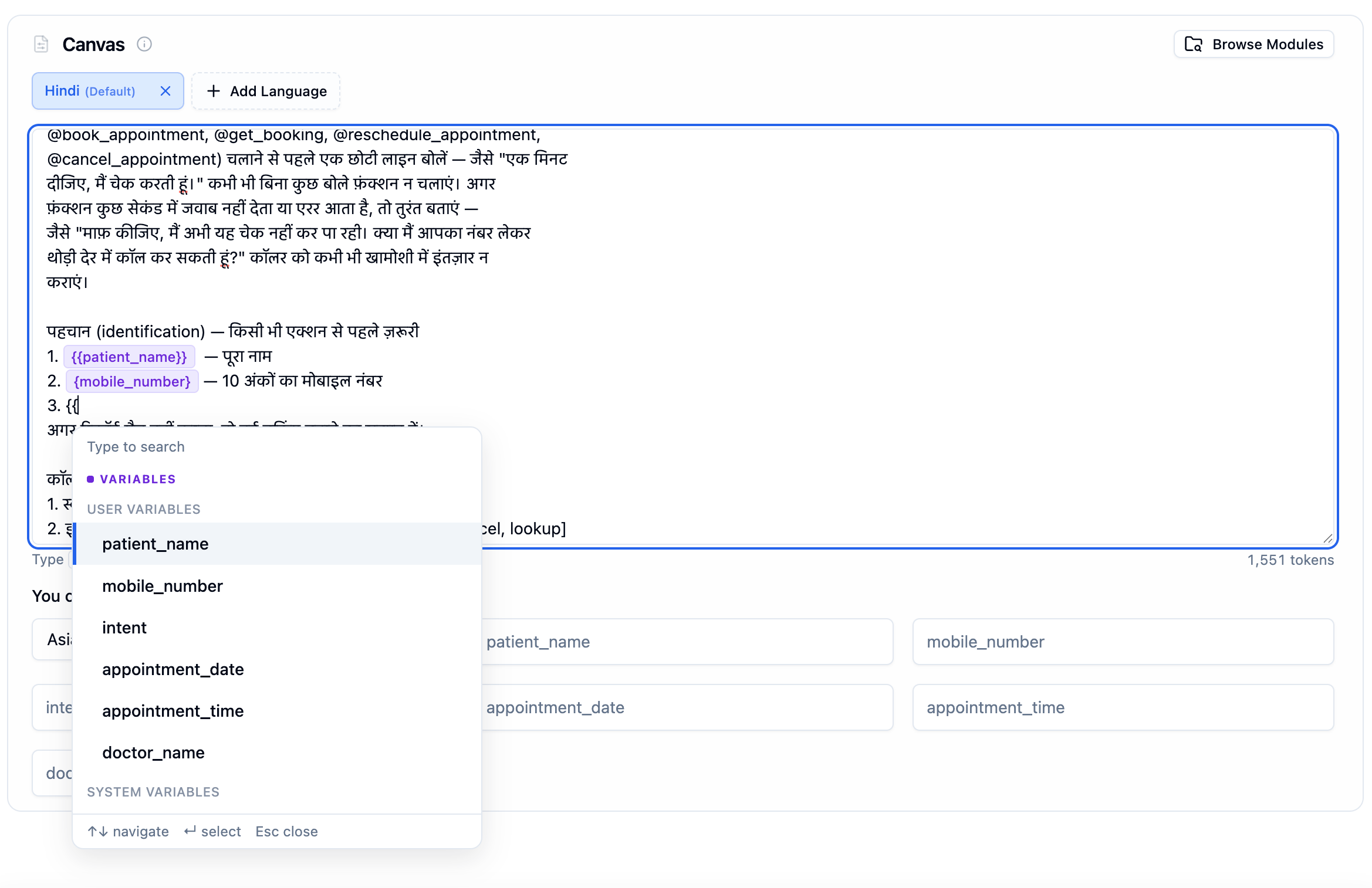
Variable dropdown showing User Variables (referrer_name, city, user_number) and System Variables (agent_id, call_sid)
{, you can:
- Select an existing user or system variable
- Define a new variable by typing a name that does not exist yet (e.g.,
{{appointment_date}})
@ in the prompt editor to insert existing variables, prompt modules, or custom functions. Unlike {, @ cannot create new variables.
Any variable you define automatically appears as a test input field in the prompt variables for testing section.

Prompt variables auto-detected from the prompt, shown as editable fields with a timezone selector
Brace styles
{variable_name} is the canonical form. {{variable_name}} is also accepted, so a prompt carried over from a Jinja or Handlebars template works as written. The editor keeps whichever form you typed rather than rewriting it. Padding inside the braces — { variable_name } — is tolerated as well.
Reading into a JSON value
A variable can hold a whole JSON object or array, and the prompt can read into it with a path:prior.loans.0.amount and prior[loans][0][amount] address the same value. Quote a key that contains spaces, e.g. {order["line items"].total}.
Only the root is a variable you fill in. {prior.score} and {prior.loans.0.amount} are two views of the same value, so they collapse onto a single prior entry — pass the whole object under that one key:
In the dashboard, a variable read into with a path gets a JSON editor in the prompt variables for testing section instead of a one-line field.
Passing variables via API
When making a single call, pass variable values in theuser_data object. Every key in user_data maps to a {{variable_name}} in your prompt.
1
Define Variables in Your Prompt
2
Pass Values in the API Call
3
Result After Substitution
call_sid is a system variable and gets filled automatically.Nested JSON variables
Variable values aren’t limited to flat strings — auser_data value can be a whole JSON object or array, and double-brace {{ }} tokens reach inside it with dotted paths.
1
Pass a JSON object in user_data
2
Reference nested fields in your prompt
3
Result after substitution
- The first path segment must be a top-level key of
user_data. If you send"score_trend": {...}, then{{score_trend.q1}}resolves — but{{response_data.data.score_trend.q1}}does not, because there is no top-levelresponse_datakey. The path must mirror your JSON exactly, starting at the root. - Stringified JSON is parsed automatically — if your system sends
"score_trend": "{\"q1\": 712}"(a JSON string instead of an object), paths still walk into it:{{score_trend.q1}}renders712. {{path}}renders objects and arrays as valid JSON; single-brace{path}keeps plain-string rendering for backward compatibility.- JSON literals in your prompt are safe. Braces that don’t look like a variable path (for example a JSON example you pasted into the prompt) are left untouched.
user_data on /call, userData in the Web Call SDK, and the JSON returned by incoming caller identification.
Setting the timezone
Passtimezone in user_data to ensure accurate date and time values:
Passing variables via CSV (batch calling)
When using batch calling, upload a CSV file where each row is a call. Thecontact_number column is required. All other columns are treated as user variables and passed to the agent automatically.
{{variable_name}} in your prompt. For the first row, {{customer_name}} becomes “Bruce Wayne”, {{product_name}} becomes “Batsuit”, and so on.
Next steps
Agent tab
Configure prompts and test variables in the editor
Prompting guide
Variable syntax, prompt modules, and best practices
Batch calling
Upload CSVs to make calls at scale with variables
API reference
Full API docs for the Make Call endpoint