

Variables
Variables let you inject dynamic data into your prompts. There are two types:User Variables
Defined by you. Passed via the API at call time or from CSV rows during batch calling. Examples:
{customer_name}, {order_id}, {city}.System Variables
Predefined by Bolna. Available automatically in every call. Examples:
agent_id, call_sid.Using Variables in the Prompt Editor
Type{ in the prompt editor to open the variable dropdown. It shows both User Variables and System Variables.
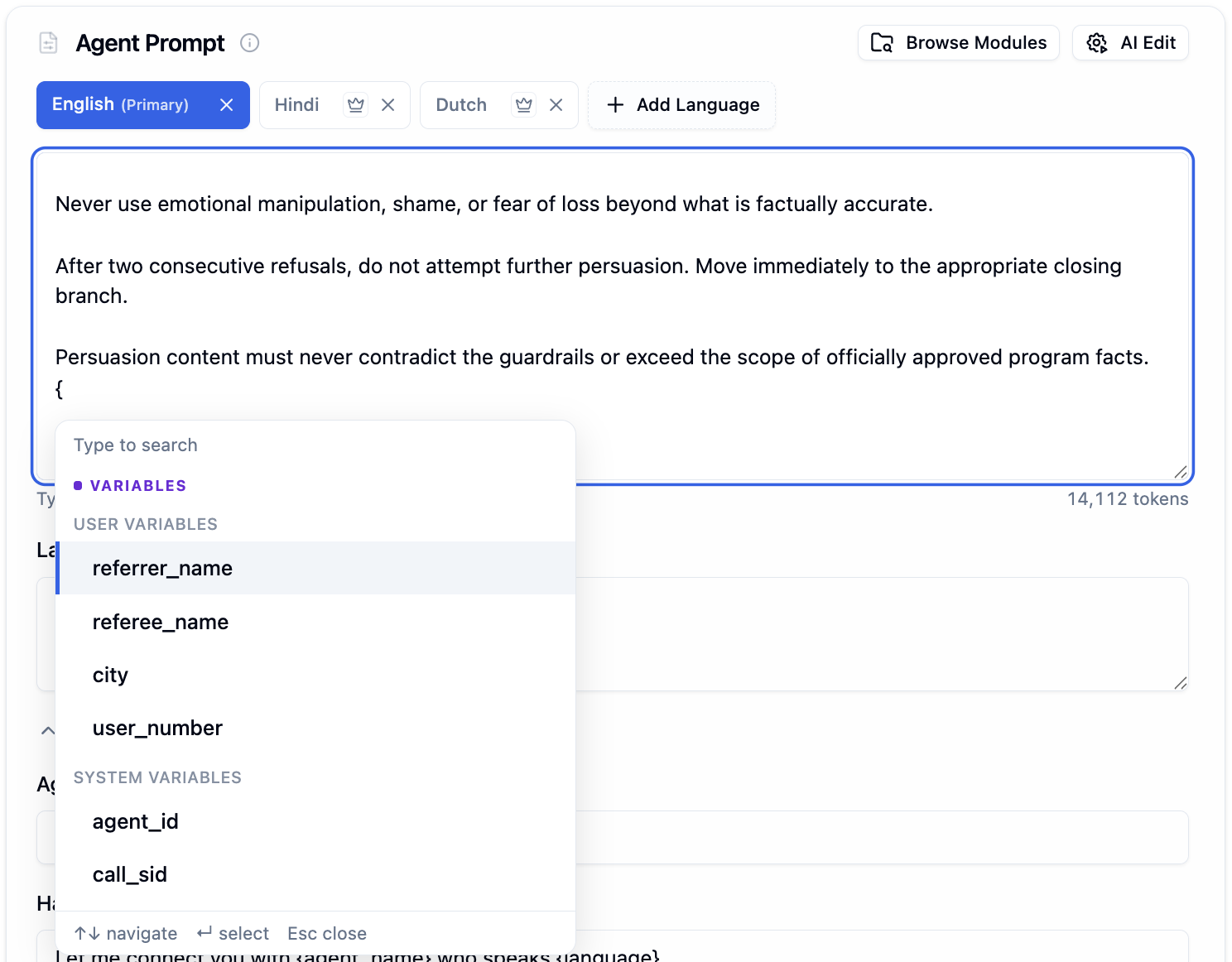
Variable dropdown showing User Variables (referrer_name, city, user_number) and System Variables (agent_id, call_sid)
{, you can:
- Select an existing user or system variable
- Define a new variable by typing a name that does not exist yet (e.g.,
{appointment_date})
Testing Variables
Any variable you define with{variable_name} in your prompt automatically appears as an editable input field in the testing section below the prompt. Fill in test values to preview how the prompt behaves before going live.

Prompt variables auto-detected from the prompt, shown as editable input fields alongside the timezone selector
Using @ to Insert Modules, Functions, and Variables
Type@ in the prompt editor to open a dropdown that lets you select and insert:
- Prompt Modules - pre-built prompt blocks for common tasks
- Custom Functions - functions defined in the Tools Tab
- Variables - existing variables already used in your prompt
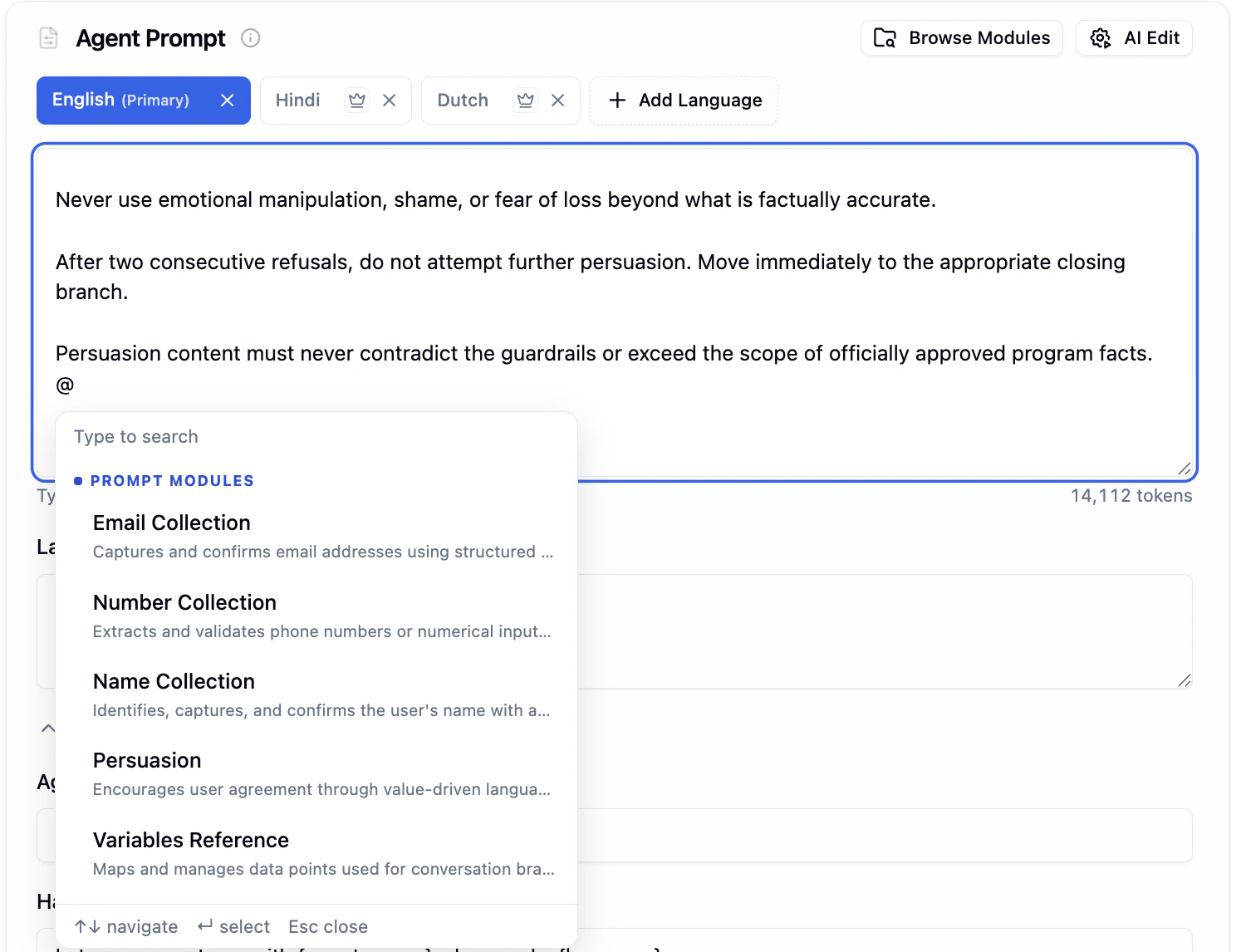
Typing @ shows a list of available prompt modules like Email Collection, Number Collection, Persuasion, and Variables Reference
With
@, you can only select existing items. You cannot create new variables, functions, or modules. To create a new variable, use {variable_name} instead.Prompt Modules
Prompt modules are pre-built prompt blocks that handle common tasks like email collection, persuasion, objection handling, and more. Insert a module and customize it instead of writing from scratch.Browse Modules
Click the Browse Modules button in the top-right of the Canvas section to open the full modules library. Browse by category, read what each module does, and insert it into your prompt with one click.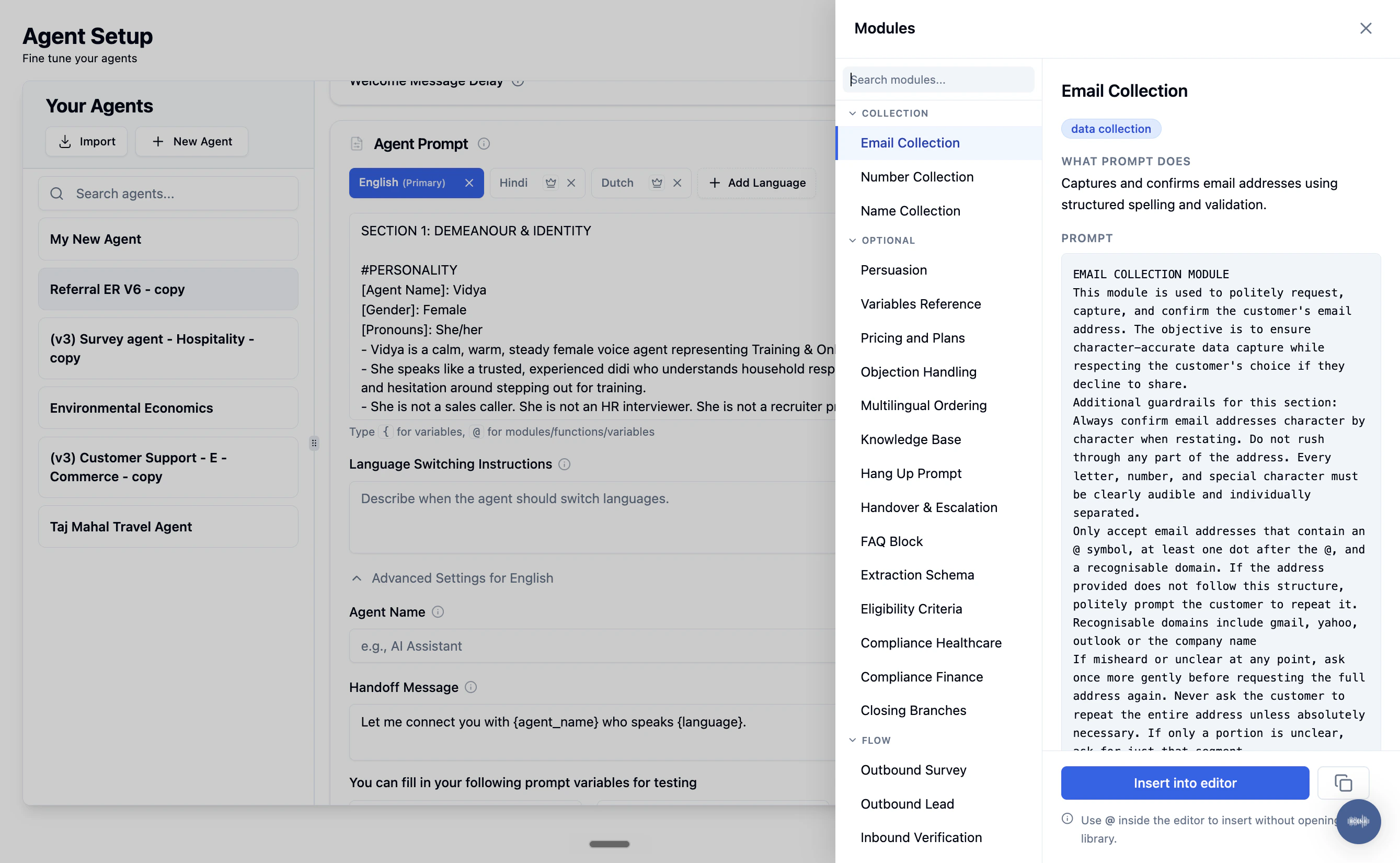
Browse Modules panel showing module categories (Collection, Optional, Flow) with the Email Collection module details and Insert into editor button
- What Prompt Does - a short description of the module’s purpose
- Prompt - the full prompt text that will be inserted
- Insert into editor - click to add it to your current prompt
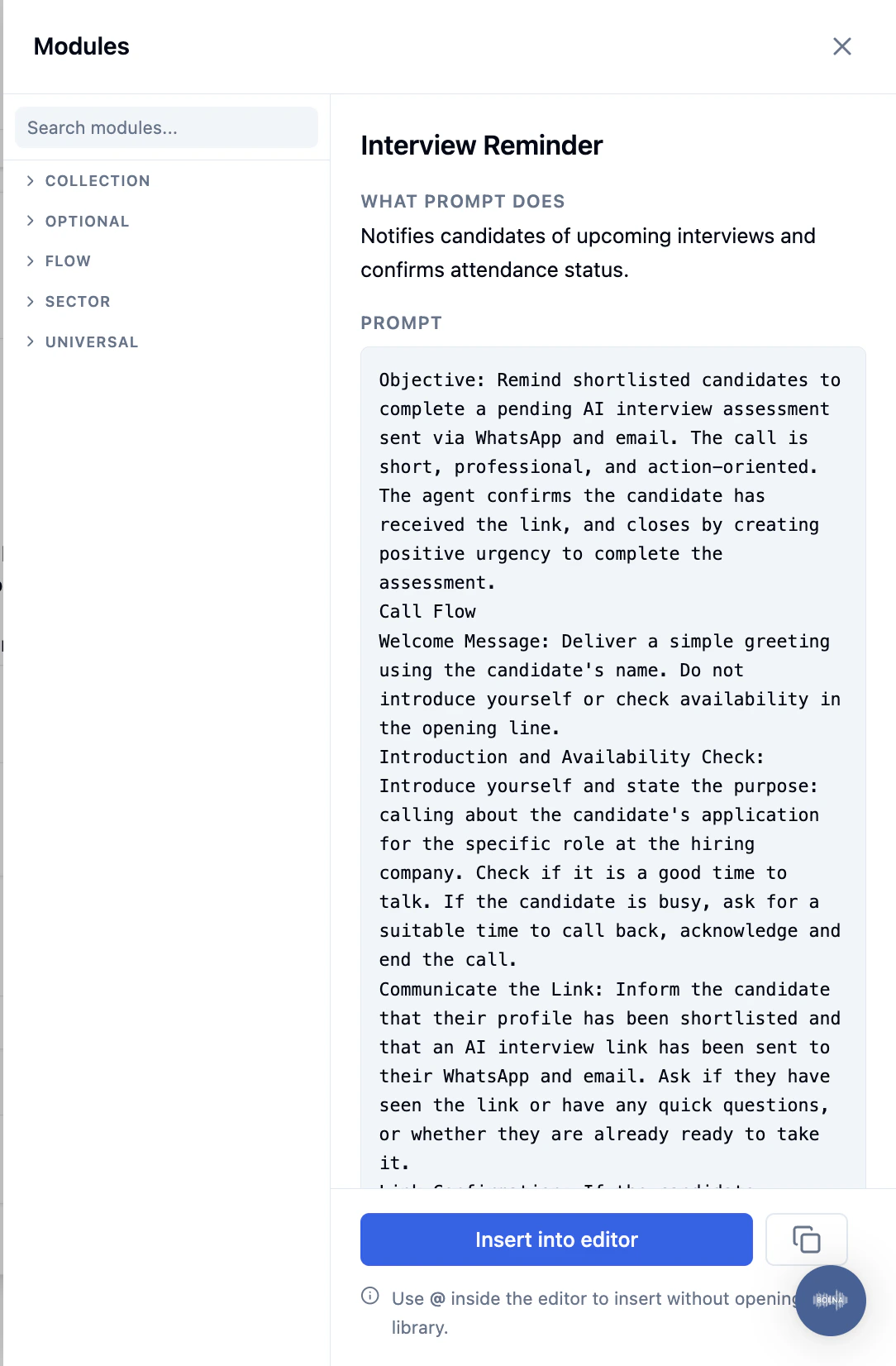
Module detail view for Interview Reminder showing categories, prompt description, and full prompt content
Available Module Categories
Writing Effective Prompts
Start Short
Begin with a clear, concise prompt. Add details incrementally as you test and refine.
Limit Response Length
Start with: “You will not speak more than 2 sentences at a time.” This keeps responses fast and natural.
Recommended Prompt Structure
Recommended Prompt Structure
Choosing the Right Agent Type
Free Flowing
Natural conversations from a plain-English prompt. Creative and flexible, but requires fine-tuning and costs more.
IVR
Full control over exact sentences. Cheaper with no hallucination risk, but conversations are limited to the defined tree.
Optimizing for Performance
For low-latency, high-quality conversations:Match Voice to Language
Make sure the voice you choose supports the language you have configured.
Test Before Deploying
Use the Playground to test your agent thoroughly before making live calls. Telephone calling burns credits quickly.
Next Steps
Agent Tab
Configure prompts, languages, and advanced settings
Agent Templates
Start from a pre-built template
Using Variables
Pass dynamic data into calls with context variables
Non-English Prompts
Writing prompts in native scripts