

How to Create an Exotel App for Inbound Calls
To enable inbound calling functionality with Bolna’s Voice AI agents through Exotel, you’ll need to create and configure a dedicated app in your Exotel dashboard. This app serves as the communication bridge between Bolna’s AI voice agents and Exotel’s telephony infrastructure for making incoming calls.Understanding Exotel Apps for Voice AI Integration
An Exotel app is a customizable workflow that defines how your inbound calls are handled, routed, and connected. For Bolna integration, you’ll configure a specialized app that connects the Voicebot functionality with Bolna’s API endpoints, enabling seamless AI-powered inbound calling capabilities.Prerequisites for Creating Your Exotel Inbound App
Before you begin, ensure you have:- An active Exotel account with API access
- Access to your Exotel dashboard at my.exotel.com
Step 1: Access the Exotel App Bazaar
Navigate to your Exotel dashboard and locate the App Bazaar section under the Manage menu. The App Bazaar is where you’ll create and configure custom apps for your telephony workflows.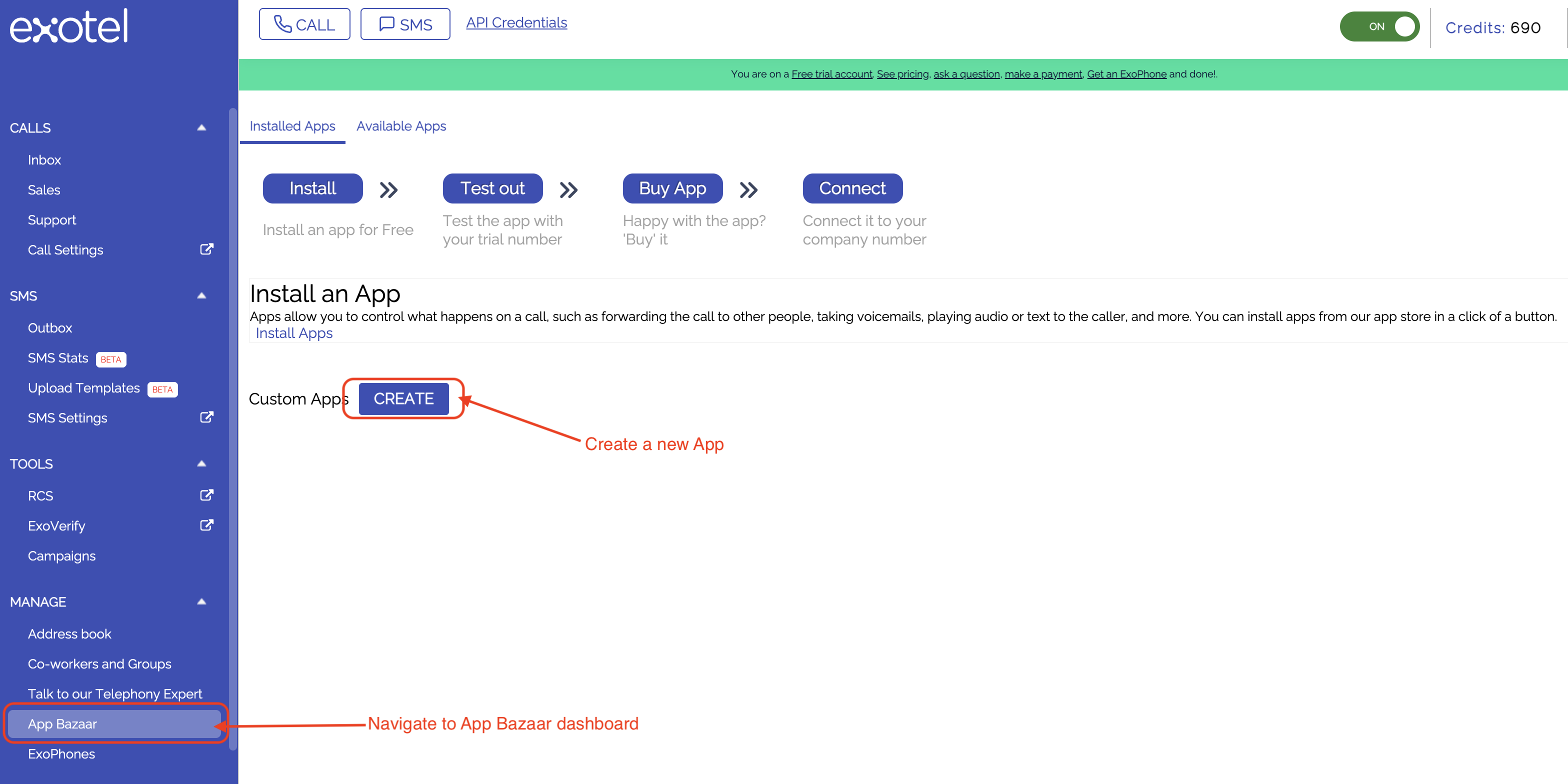
Exotel App Bazaar location in dashboard
Step 2: Create a New App for Bolna Integration
Click the Create button to start building your new app. Give it a descriptive name such as “Bolna Inbound” (you can customize this name based on your preference for easy reference in your dashboard).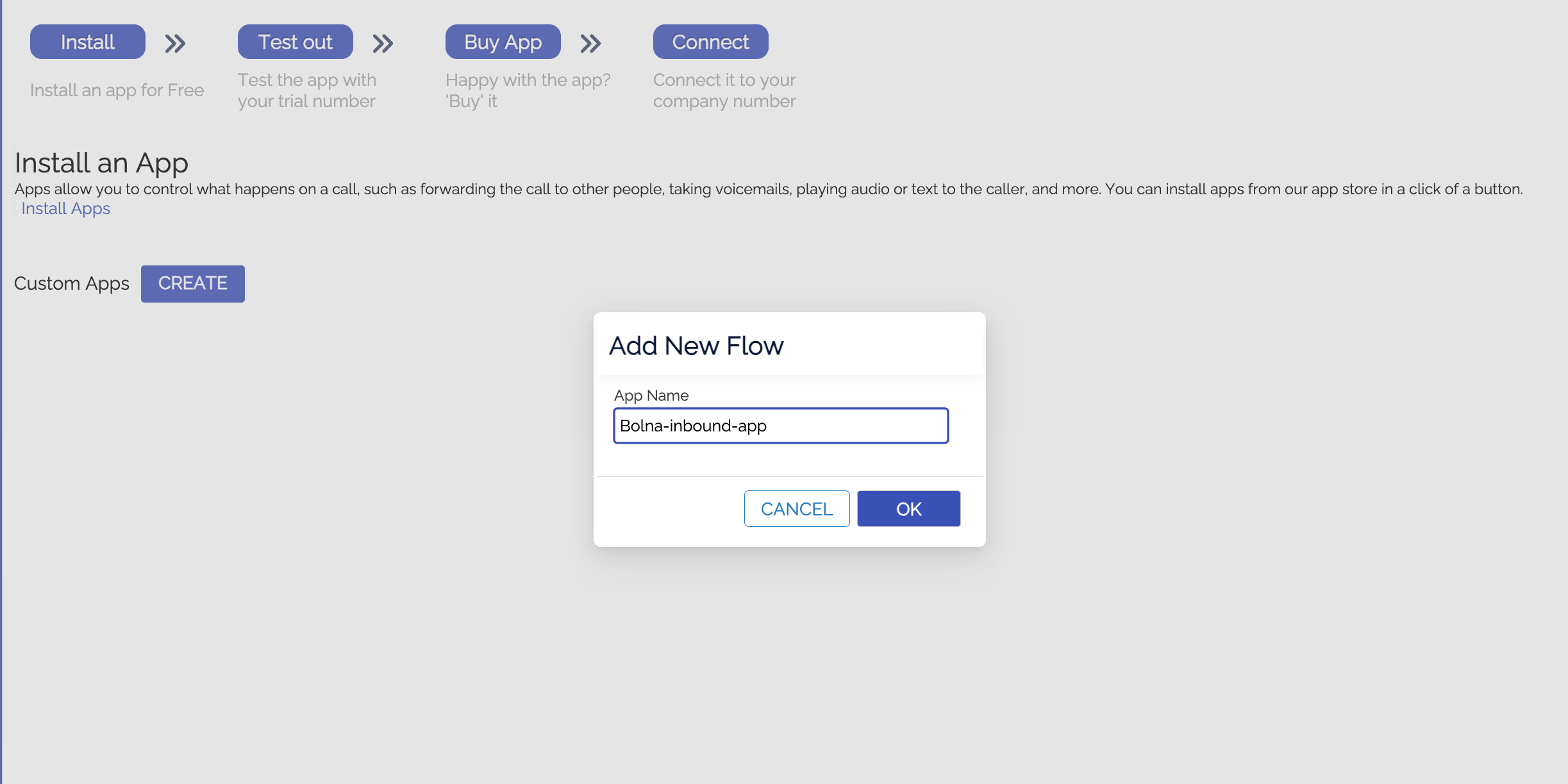
Creating a new Exotel app for Bolna integration
Step 3: Add the Voicebot App Component
Drag the Voicebot app from the available components and drop it into the “Drop app here” box. This is the primary component that will handle the AI voice interaction.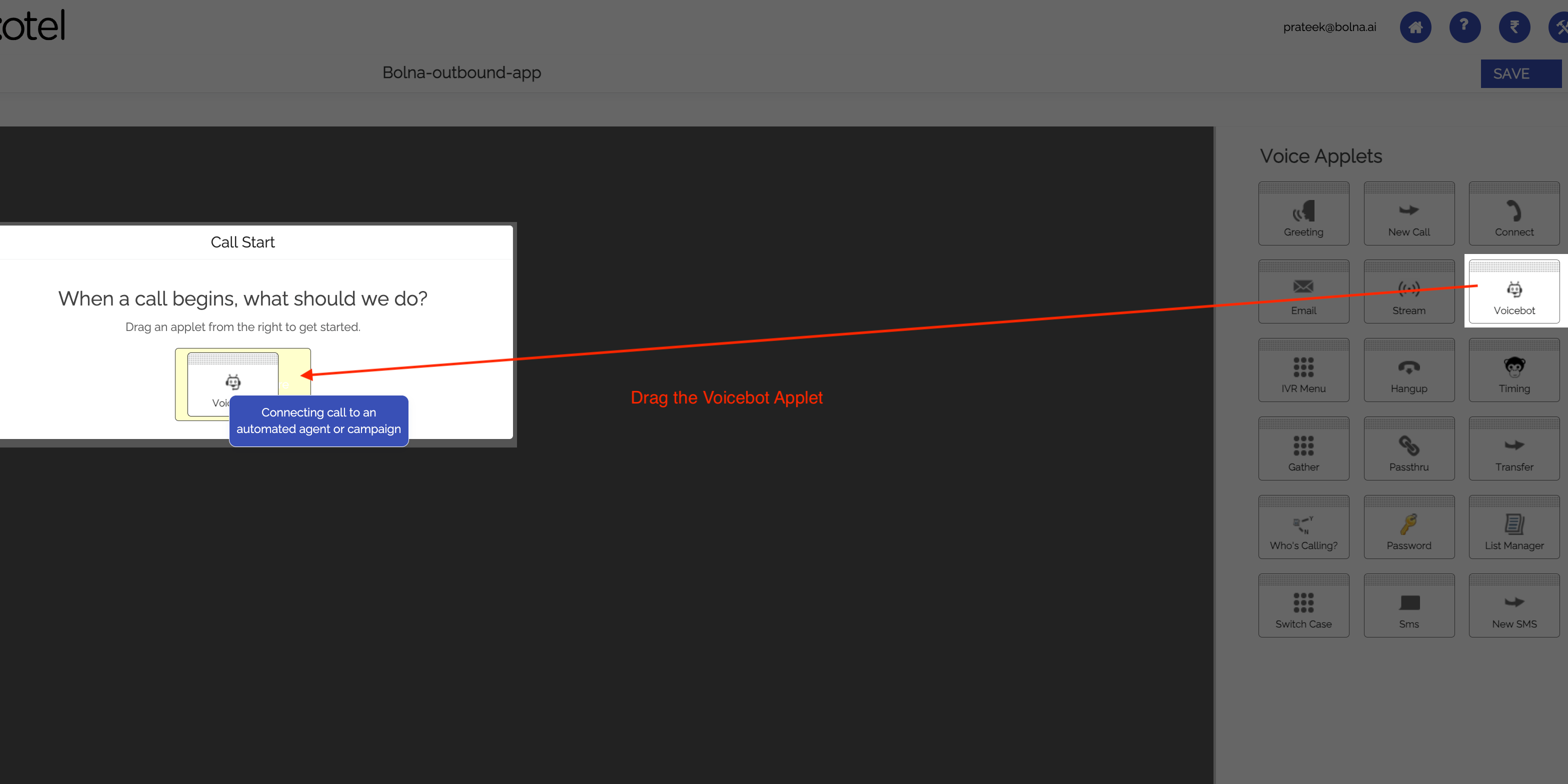
Adding Voicebot component to Exotel workflows
Step 4: Configure the Voicebot Component
Once dropped, a configuration popup will appear for the Voicebot settings:- In the URL field, copy and paste the following Bolna API endpoint:
- Enable the “Record this” checkbox to record your inbound calls for quality assurance and compliance purposes
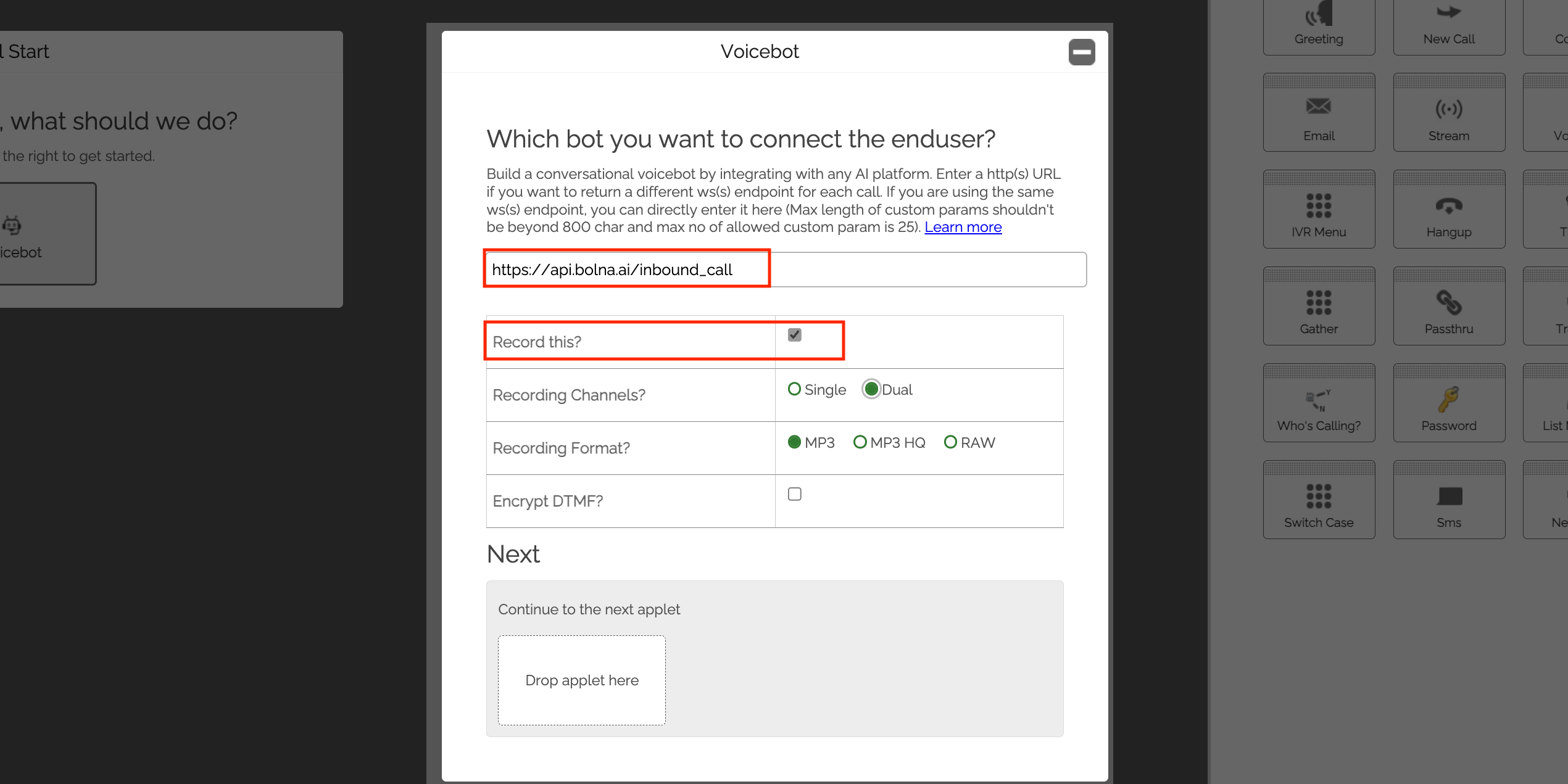
Voicebot configuration panel - Setting up Bolna API endpoint and call recording options for AI voice interactions
Step 5: Configure App for Transfer calling
Within the Voicebot popup, you’ll notice another “Drop app here” section at the bottom. This is where you’ll configure the call connection logic. Drag and drop the Connect voice app into this designated area. This component manages the actual phone call connection and routing. When the Connect app popup opens, you’ll need to specify how connection parameters are controlled:- Look for the section titled “How do you want to control your Connect params?”
- Select the option: “Configure parameters dynamically by providing a URL”
- In the Primary URL field, copy and paste the following Bolna API endpoint:
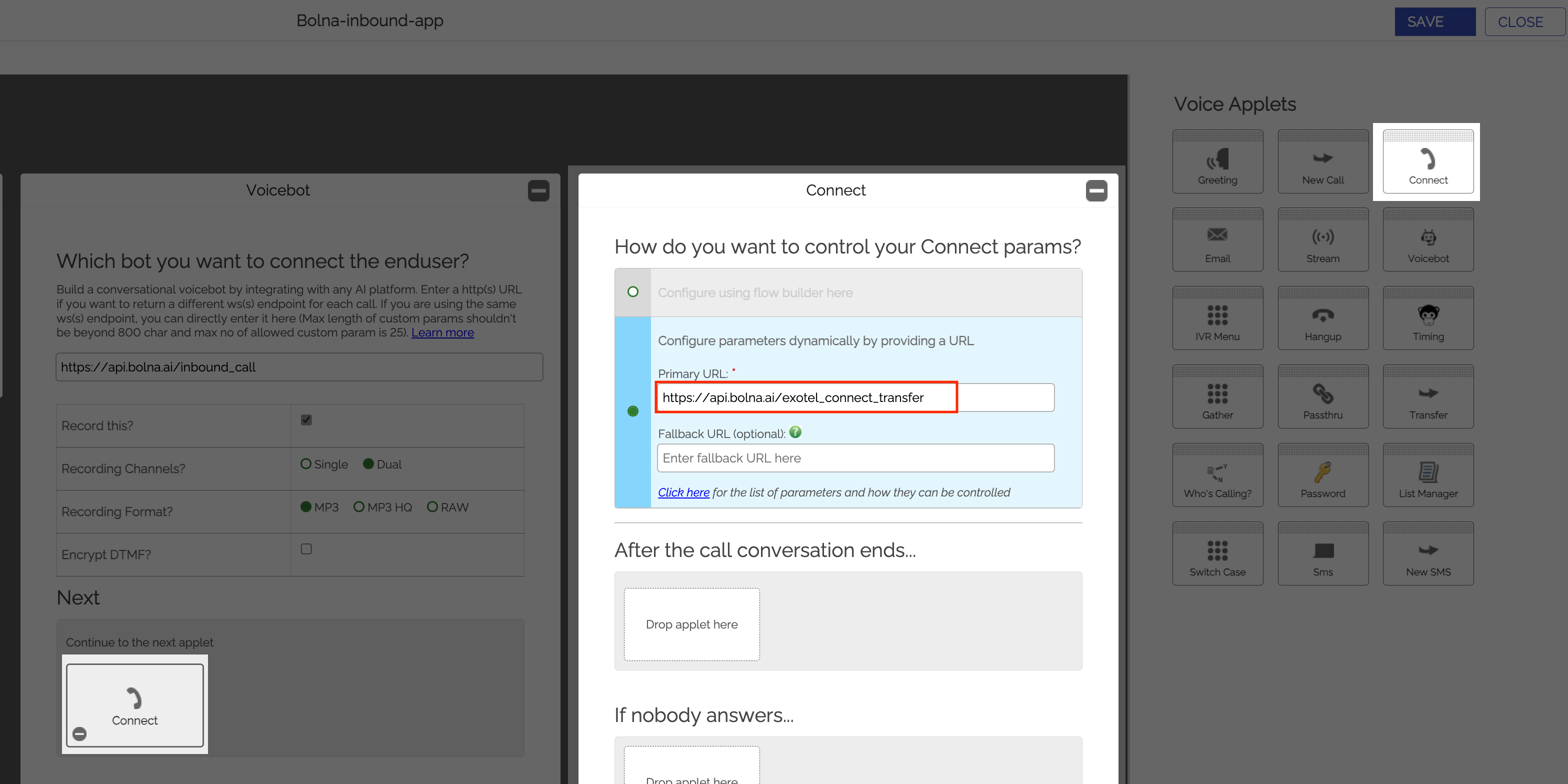
Connect component configuration for call transfers
Step 6: Save Your Exotel App Configuration
Click the Save button to finalize your app configuration. Your Exotel inbound app is now ready to work with Bolna’s Voice AI platform.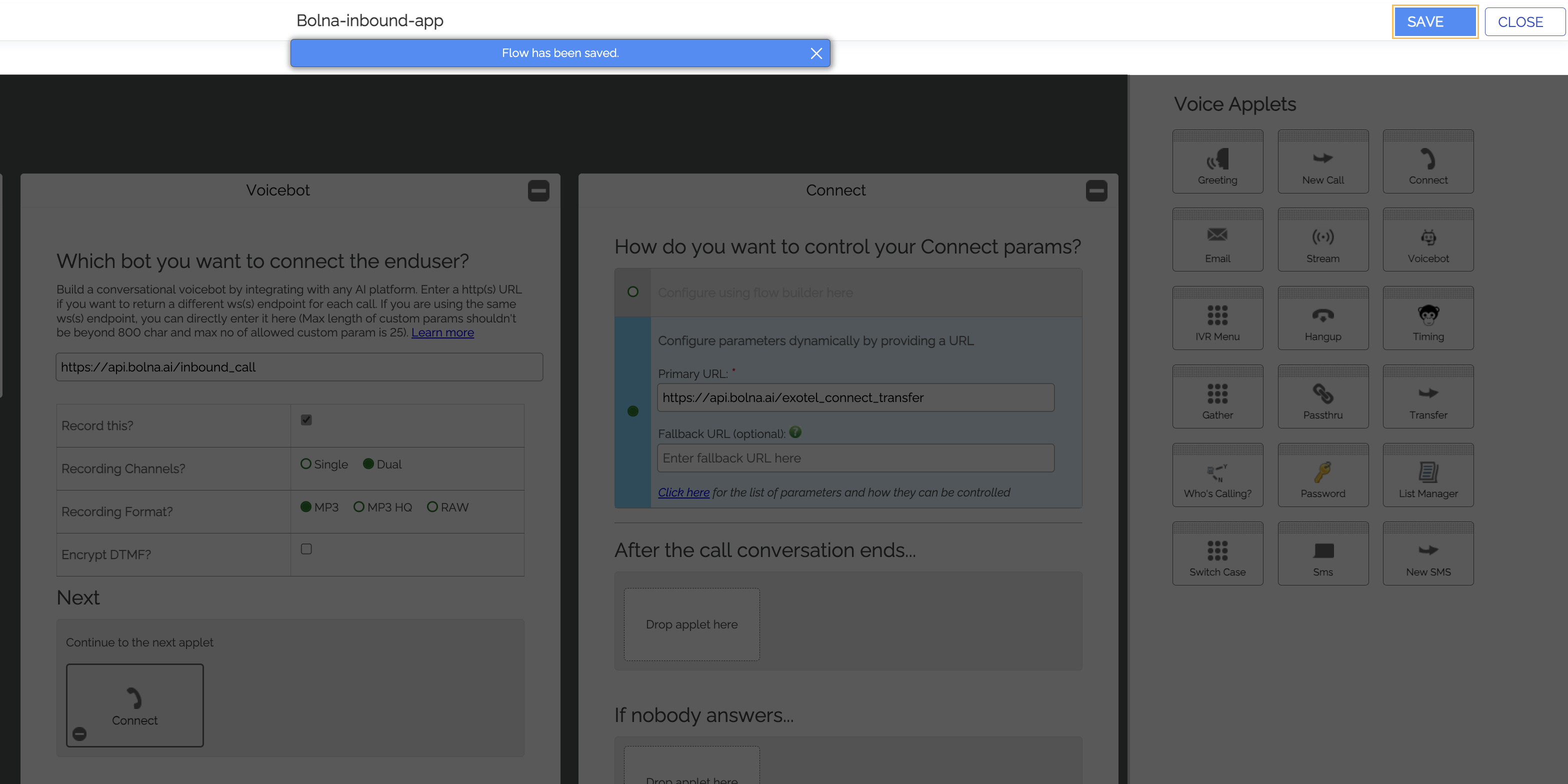
Saving and completing the Bolna Voice AI inbound calling integration setup
Click the Save button to finalize your app configuration. Your Exotel inbound app is now ready to work with Bolna’s Voice AI platform.
Saving and completing the Bolna Voice AI inbound calling integration setup
Step 7: Connect the Exophone with the created Exotel App
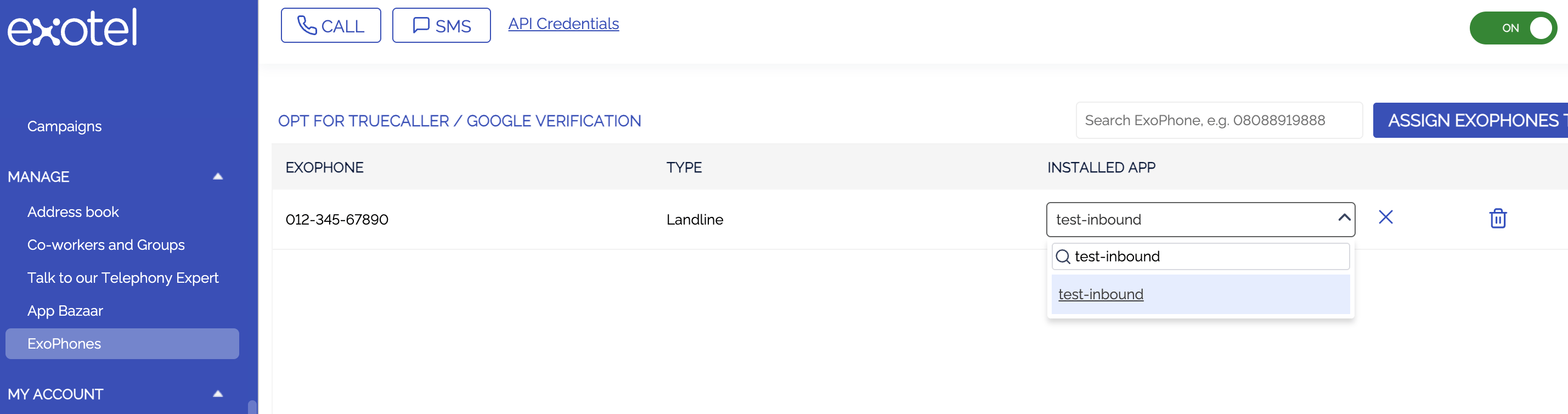
Connecting the Exophone with the Exotel Inbound App
Obtaining Your Exotel App ID
After saving your app, Exotel will generate a unique App ID for your configuration. This ID is what you’ll use when configuring inbound calling campaigns in Bolna. You can find this ID in your Exotel App Bazaar dashboard next to your newly created app.Important: Make sure to test your app configuration with a test call before launching production campaigns to ensure all components are working correctly together.