> ## Documentation Index
> Fetch the complete documentation index at: https://www.bolna.ai/docs/llms.txt
> Use this file to discover all available pages before exploring further.
# Manage and connect knowledge bases
> Track the processing status of your Bolna knowledge bases and connect one or more of them to an agent from the Intelligence tab.
## Manage your knowledge bases
Your uploaded knowledge bases are displayed in a table with full management capabilities.
| Column | Description |
| - | - |
| **RAG ID** | Unique identifier for the knowledge base |
| **Source** | Original file name or URL |
| **Type** | Content type (Pdf, Url) |
| **Created** | When the knowledge base was added |
| **Status** | Processing status (`processed`, `processing`, `error`) |
| **Delete** | Remove the knowledge base |
Wait for the status to show **"processed"** before connecting to your agent. If status shows **"error"**, try re-uploading the file.
***
## Connect a knowledge base to your agent
**Don't forget this step!** Knowledge bases must be connected to your agent in the Intelligence Tab to take effect.
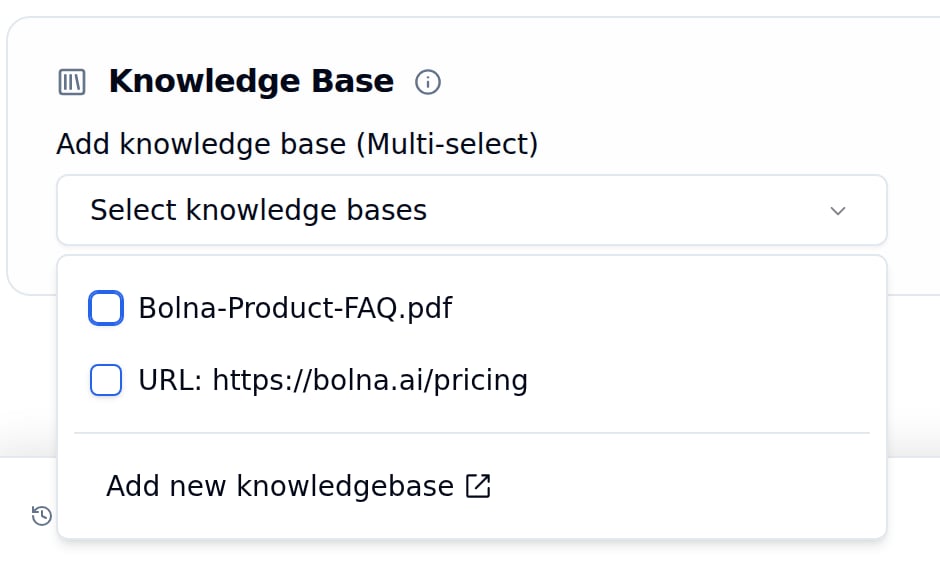 Go to your agent's **[Intelligence Tab](/docs/agent-setup/llm-tab)**.
Locate **Add knowledge base (Multi-select)**.
Check one or more knowledge bases from the dropdown.
Click **Save agent** to apply changes.
You can connect multiple knowledge bases to a single agent for comprehensive responses across different topics.
***
## Next steps
The rest of the agent's LLM settings
Configure prompts to use knowledge
Manage knowledge bases programmatically
How knowledge bases work
This documentation is built and hosted on [Mintlify](https://mintlify.com), a developer documentation platform.
Go to your agent's **[Intelligence Tab](/docs/agent-setup/llm-tab)**.
Locate **Add knowledge base (Multi-select)**.
Check one or more knowledge bases from the dropdown.
Click **Save agent** to apply changes.
You can connect multiple knowledge bases to a single agent for comprehensive responses across different topics.
***
## Next steps
The rest of the agent's LLM settings
Configure prompts to use knowledge
Manage knowledge bases programmatically
How knowledge bases work
This documentation is built and hosted on [Mintlify](https://mintlify.com), a developer documentation platform.