> ## Documentation Index
> Fetch the complete documentation index at: https://www.bolna.ai/docs/llms.txt
> Use this file to discover all available pages before exploring further.

# Using Twilio for inbound calls

> Make Bolna agents answer your inbound calls using Twilio

## Make inbound calls from dashboard

1. Navigate to the agent and copy the inbound URL displayed
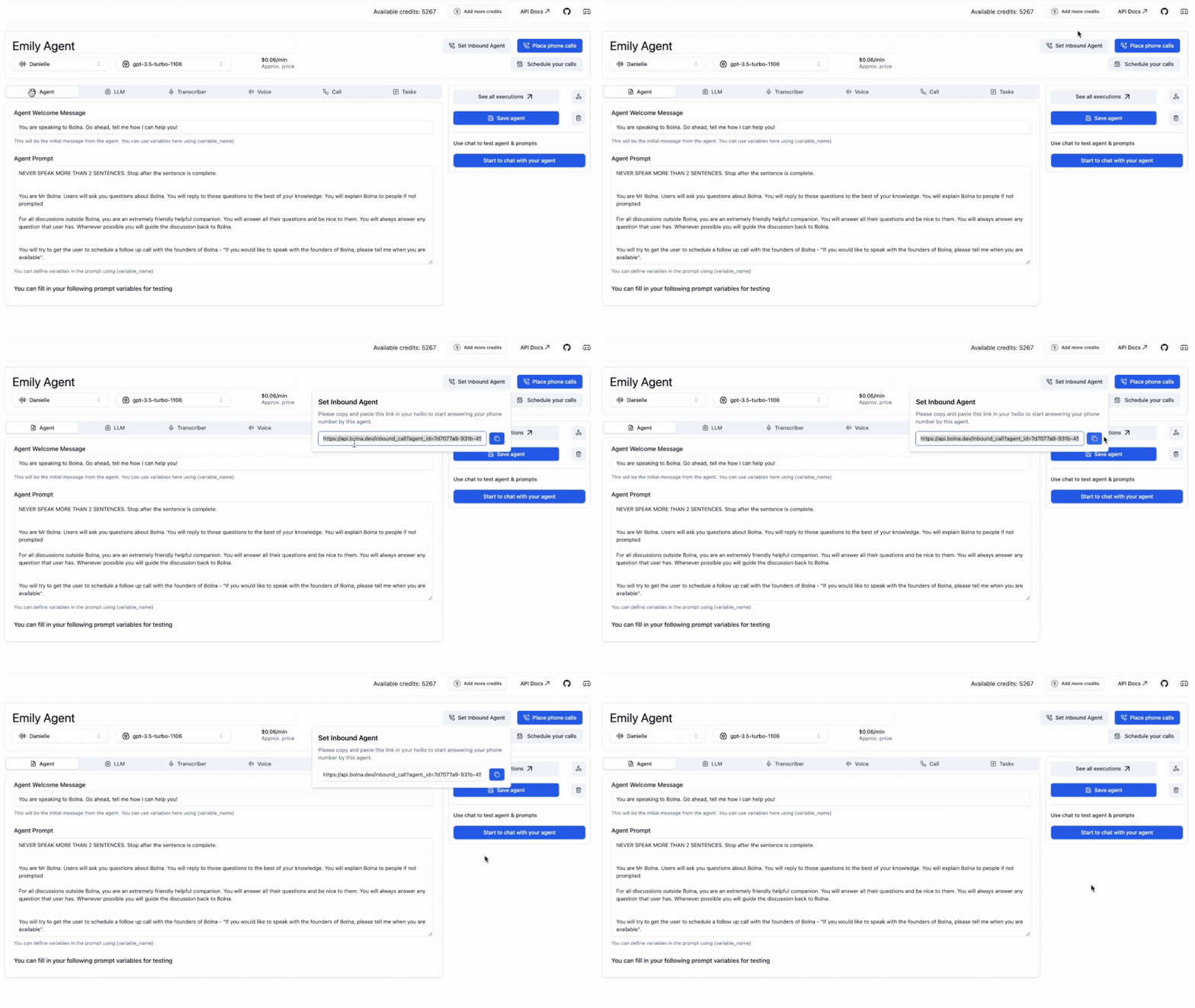
<Frame caption="Copy Inbound API URL">
  <img src="https://mintcdn.com/bolna-54a2d4fe/DqJpudnR0YtgOS49/images/inbound_twilio_step_1.gif?s=79b5e075d9c462f2416ce8055934f365" alt="Inbound API URL copying process in Bolna agent configuration for setting up Twilio webhook integration with Voice AI agents" width="1152" height="648" data-path="images/inbound_twilio_step_1.gif" />
</Frame>

<br />

2. Next, you'll need to go to your `Active Numbers` in Twilio Console ([https://console.twilio.com/us1/develop/phone-numbers/manage/incoming](https://console.twilio.com/us1/develop/phone-numbers/manage/incoming))
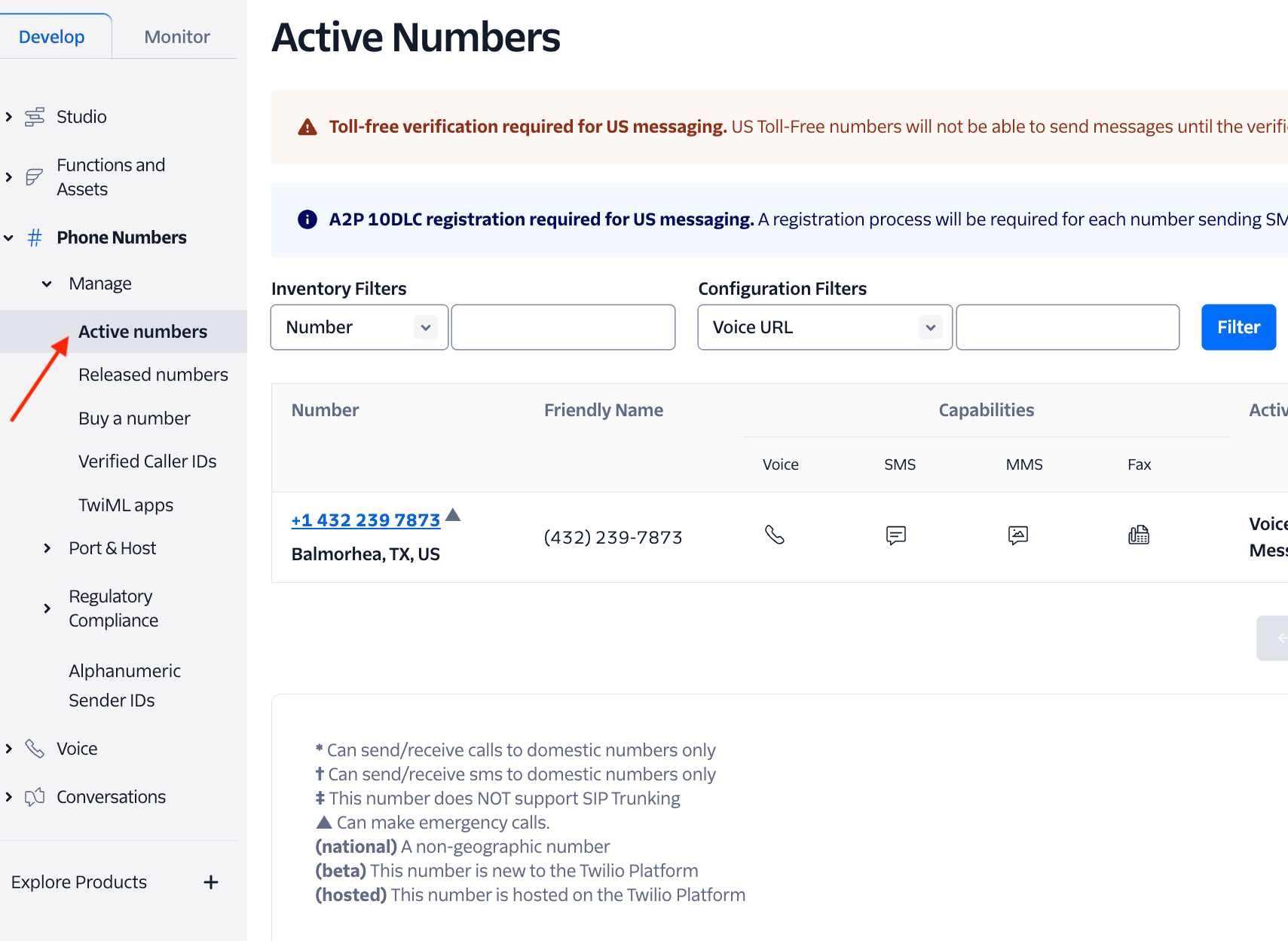
<Frame caption="Twilio incoming numbers list">
  <img src="https://mintcdn.com/bolna-54a2d4fe/DqJpudnR0YtgOS49/images/inbound_twilio_step_2.png?fit=max&auto=format&n=DqJpudnR0YtgOS49&q=85&s=733029bd813b7bf5aa2471edea6221f7" alt="Twilio Console active numbers list showing incoming phone number management interface for Voice AI agent integration" width="1709" height="1248" data-path="images/inbound_twilio_step_2.png" />
</Frame>

<br />

3. Select and click the phone number for which you want to assign the Bolna AI.
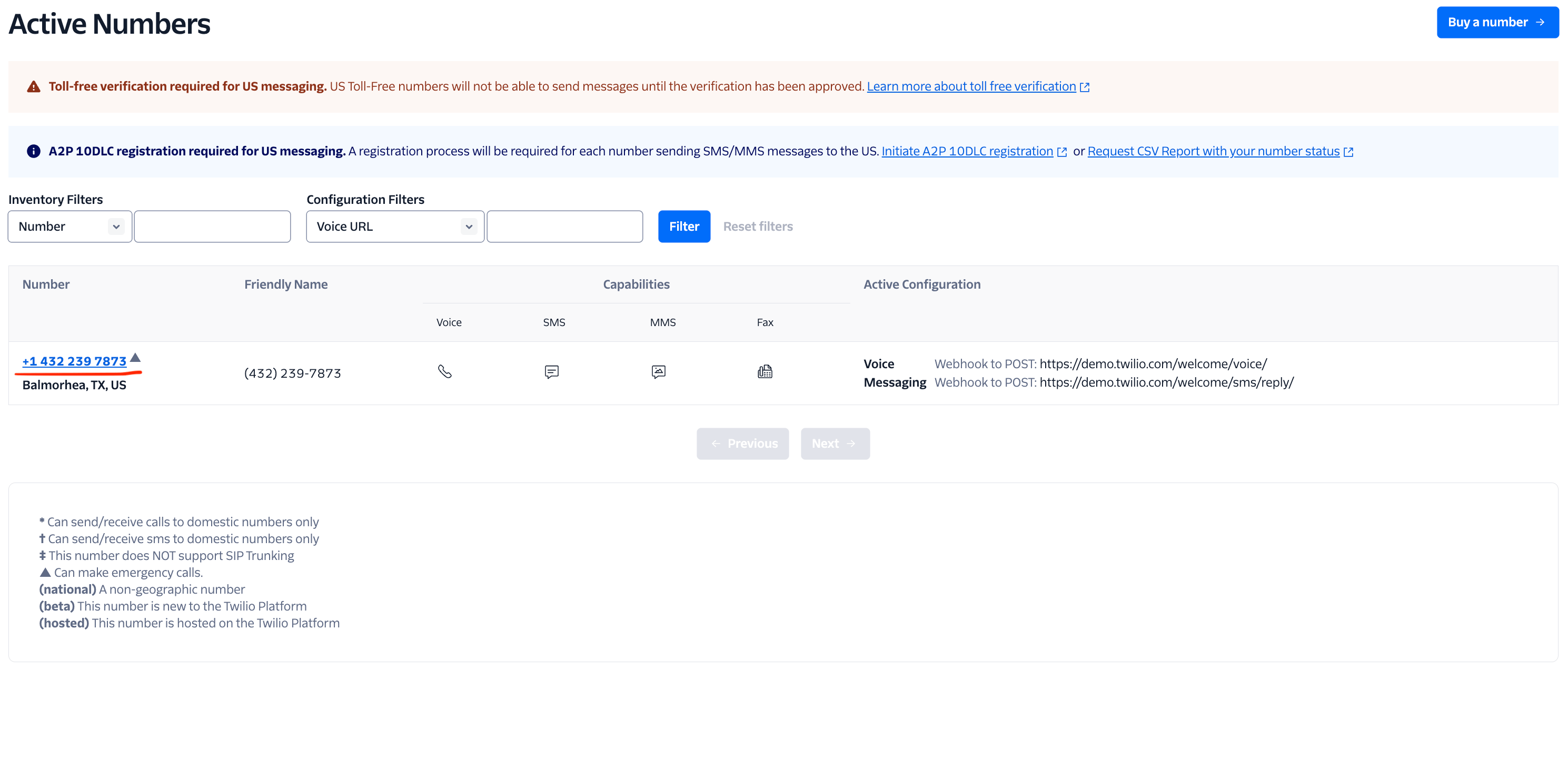
<Frame caption="Twilio select incoming number">
  <img src="https://mintcdn.com/bolna-54a2d4fe/DqJpudnR0YtgOS49/images/inbound_twilio_step_3.png?fit=max&auto=format&n=DqJpudnR0YtgOS49&q=85&s=8881e6caf510b5967f1f69c19bfc345e" alt="Twilio phone number selection interface showing individual number configuration for Bolna Voice AI agent assignment" width="2978" height="1456" data-path="images/inbound_twilio_step_3.png" />
</Frame>

<br />

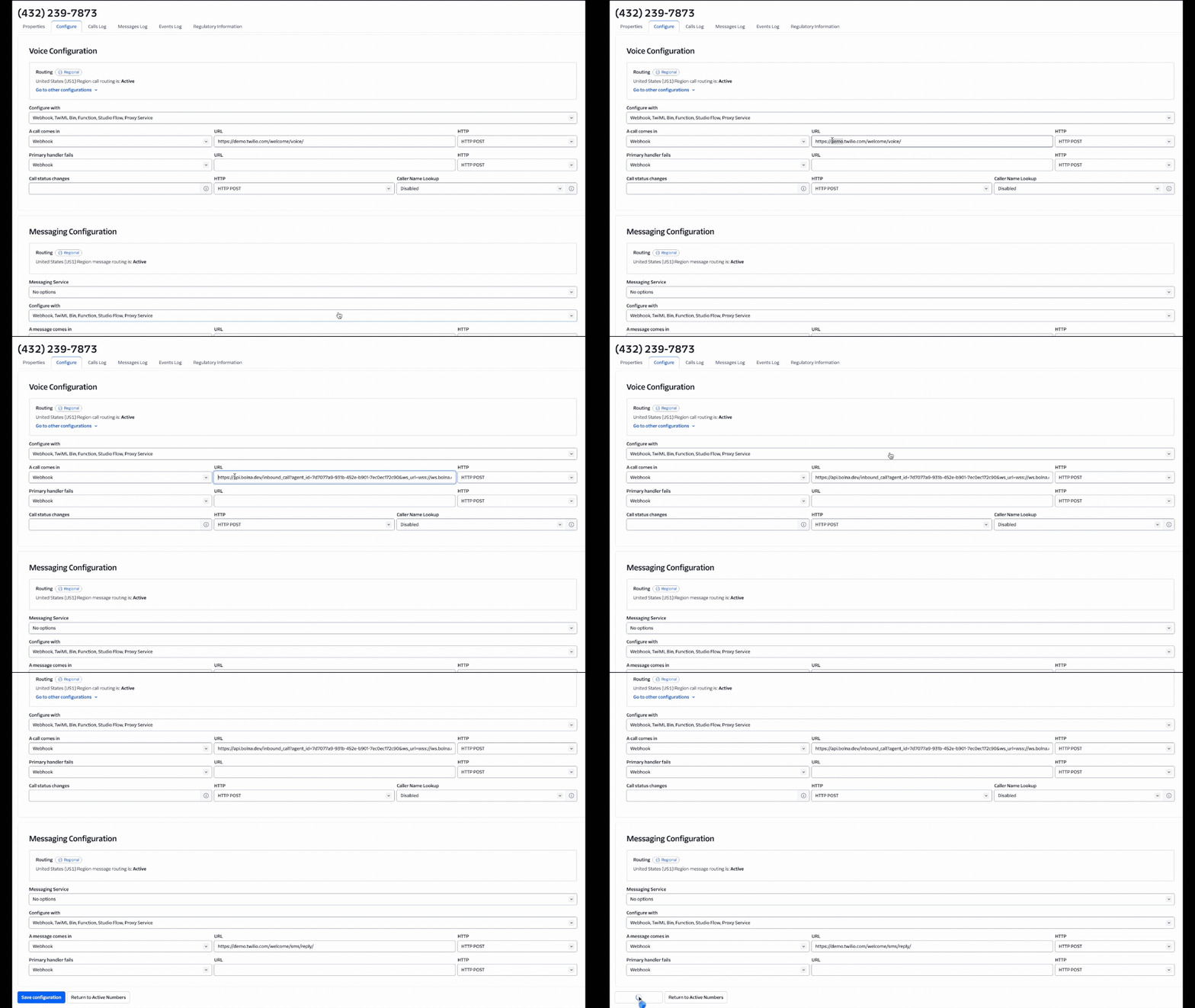
4. Paste the copied link in Step#1 above in the Webhook URL. <b>Make sure the HTTP Method is POST</b>

<Frame caption="Twilio Bolna inbound setup">
  <img src="https://mintcdn.com/bolna-54a2d4fe/DqJpudnR0YtgOS49/images/inbound_twilio_step_4.gif?s=79b290307dce064d01f873476ec61716" alt="Twilio webhook URL configuration process showing Bolna inbound API setup with POST method for Voice AI call routing" width="1152" height="648" data-path="images/inbound_twilio_step_4.gif" />
</Frame>

<br />

5. Your settings should look like the following:
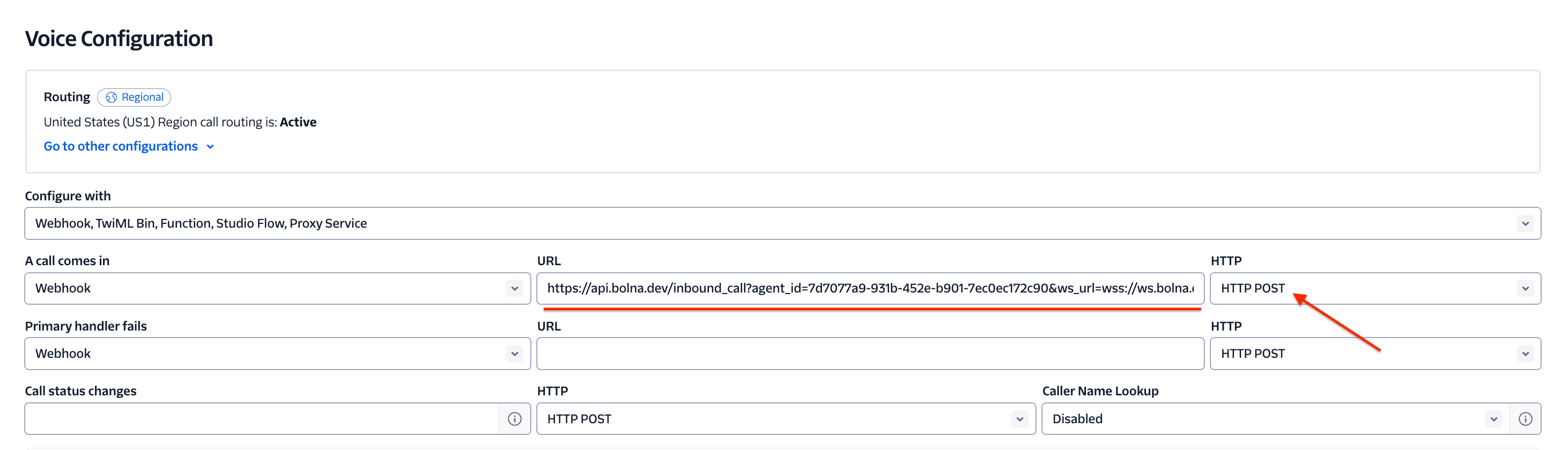
<Frame caption="Twilio inbound settings">
  <img src="https://mintcdn.com/bolna-54a2d4fe/DqJpudnR0YtgOS49/images/inbound_twilio_step_5.png?fit=max&auto=format&n=DqJpudnR0YtgOS49&q=85&s=362fa2a055798fc99daa0b2b62463414" alt="Completed Twilio inbound call configuration showing webhook URL and POST method settings for Bolna Voice AI integration" width="2924" height="840" data-path="images/inbound_twilio_step_5.png" />
</Frame>

<br />

6. Voila! All set. Now try placing a call to the selected Twilio phone number and have your conversation with Bolna AI

## Making inbound calls Using APIs

<Note>
  Inbound Agent functionality using APIs currently requires connecting your **Twilio account**.<br />

  You can connect your Twilio account from [Twilio connect](/docs/twilio-connect-provider).
</Note>

1. Use [Inbound agent API](/docs/api-reference/inbound/agent) to connect a Twilio phone number with Bolna agent

2. Upon a successful connection, all incoming calls to that phone number will be answered via Bolna