> ## Documentation Index
> Fetch the complete documentation index at: https://www.bolna.ai/docs/llms.txt
> Use this file to discover all available pages before exploring further.
# Version History
> View every saved version of your graph agent and restore any previous version with one click.
Every time you save a graph agent, the platform creates a version snapshot. The Version history sheet shows all past versions and lets you restore any of them.
***
## Opening version history
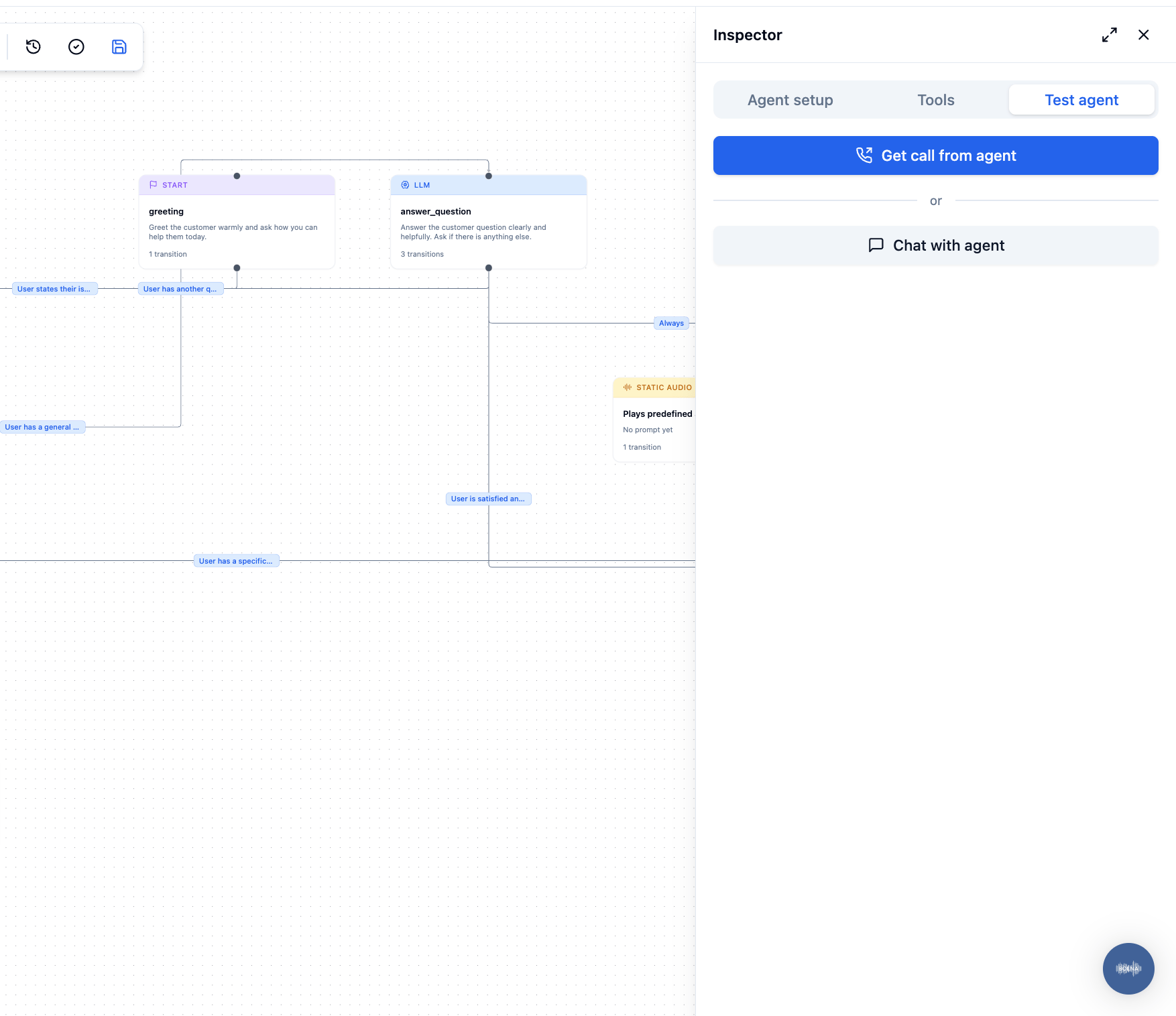
Click **Version history** in the toolbar. A sheet slides in from the right side of the canvas, listing all saved versions in reverse chronological order.
 ***
## Version list
Each version row shows:
* **Version name** — auto-generated name or a custom label if one was set.
* **Saved at** — the date and time the version was created.
* **Status** — `current` for the active version.
* **Tags** — any tags applied to the version (optional).
***
## Restoring a version
1. Find the version you want to restore in the list.
2. Click **Restore** on that row.
3. The editor reloads with the restored version's graph.
Restoring a version replaces the current graph with the restored version's graph. Your current unsaved changes are discarded. Save first if you want to preserve them.
Restoring a version creates a new save rather than overwriting history. The restored version appears as the new most-recent entry. The full version history is preserved.
***
## Versioning vs export
| | Version history | Export |
| -------------------- | ---------------------------------- | ------------------- |
| **Automatic** | Yes — every save creates a version | No — manual |
| **Stored on server** | Yes | No (local file) |
| **Shareable** | No | Yes |
| **Rollback** | Click Restore | Import the file |
| **History depth** | All saves | One file per export |
Use version history for routine rollbacks. Use export when you need a portable copy to share or archive.
***
## Version list
Each version row shows:
* **Version name** — auto-generated name or a custom label if one was set.
* **Saved at** — the date and time the version was created.
* **Status** — `current` for the active version.
* **Tags** — any tags applied to the version (optional).
***
## Restoring a version
1. Find the version you want to restore in the list.
2. Click **Restore** on that row.
3. The editor reloads with the restored version's graph.
Restoring a version replaces the current graph with the restored version's graph. Your current unsaved changes are discarded. Save first if you want to preserve them.
Restoring a version creates a new save rather than overwriting history. The restored version appears as the new most-recent entry. The full version history is preserved.
***
## Versioning vs export
| | Version history | Export |
| -------------------- | ---------------------------------- | ------------------- |
| **Automatic** | Yes — every save creates a version | No — manual |
| **Stored on server** | Yes | No (local file) |
| **Shareable** | No | Yes |
| **Rollback** | Click Restore | Import the file |
| **History depth** | All saves | One file per export |
Use version history for routine rollbacks. Use export when you need a portable copy to share or archive.